Scriptwriting Text Editors: Align Scene Headings with Linked Scrolling
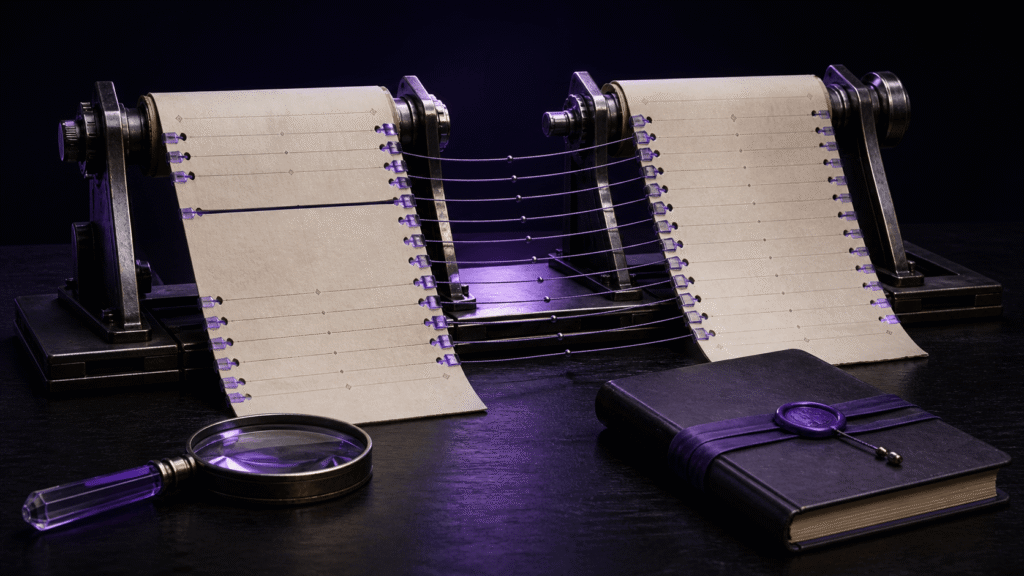
In a scriptwriting text editor, linked scrolling can connect a script on one side with direction notes on the other. The files do not have comparable line counts, but they can share scene boundaries. Using those headings as anchors helps a director or writer stay within the same dramatic unit while reviewing notes from rehearsal.
Turn rehearsal notes into scene cards
A long meeting transcript in the right pane still requires searching. Reshape the useful notes by scene:
Scene 1 — Station Platform
- The lead does not look at the clock.
- Pause after the departure sound.

Scene 2 — Train Interior
- Use the window reflection.
- Deliver the final line quietly.
The script on the left contains the corresponding scene headings. Its dialogue may fill two pages while the note card takes four lines. The shared sequence, not equal length, gives the files a relationship.
Identify structural mismatches first
Linked anchors become ambiguous if only one file contains “Scene 1A,” if a heading is repeated, or if the notes combine scenes that remain separate in the script. Leave that interval independent and resume at the next shared boundary.
You can add temporary anchors to copies used for comparison. Do not distort official scene numbering merely to satisfy a tool. The script’s production convention remains authoritative.
Rune Studio’s anchor model
Rune Studio linked scrolling uses two panes and ordered anchors. Between adjacent anchors, the design maps a relative position within the interval. The presence of the panes, target tabs, linkage settings, and anchor settings has been confirmed.
We did not visually observe a real script and direction-note pair reaching matching scene headings. That final alignment remains a user check. Documentation about the mapping model should not be turned into a guaranteed visual outcome.
Conduct a five-minute rehearsal
Create copies with only two scenes. Make the first script scene long and its corresponding note short. Enable linkage and inspect the middle of scene one, the approach to scene two, and the end of scene two.
Ask whether both panes remain in the same dramatic scene, whether the target changes at the boundary, and whether a manual adjustment behaves as expected. Do not require identical line positions. If the relationship looks wrong, inspect missing, duplicated, or out-of-order anchors.
Keep production notes out of the distributed script
Pasting every direction into the script would create one scrollable file, but it also risks leaving internal notes in a cast or client copy. Separate files preserve different audiences. Linked scrolling can support their parallel reading without merging their contents.
It is not a line-by-line diff, a rehearsal task tracker, or an automatic decision about changed dialogue. Use dedicated tools when those are the actual jobs. The scriptwriting value here is narrower: staying oriented to the same scene while the textual density of the two documents differs.
Start with two disposable scenes and rely on the arrangement only after a visual check on your system. The Rune Studio product page lists current features and download information.
About the author
Naoya is an independent developer who evaluates writing tools against specific production scenes and states when visual confirmation is still outstanding.