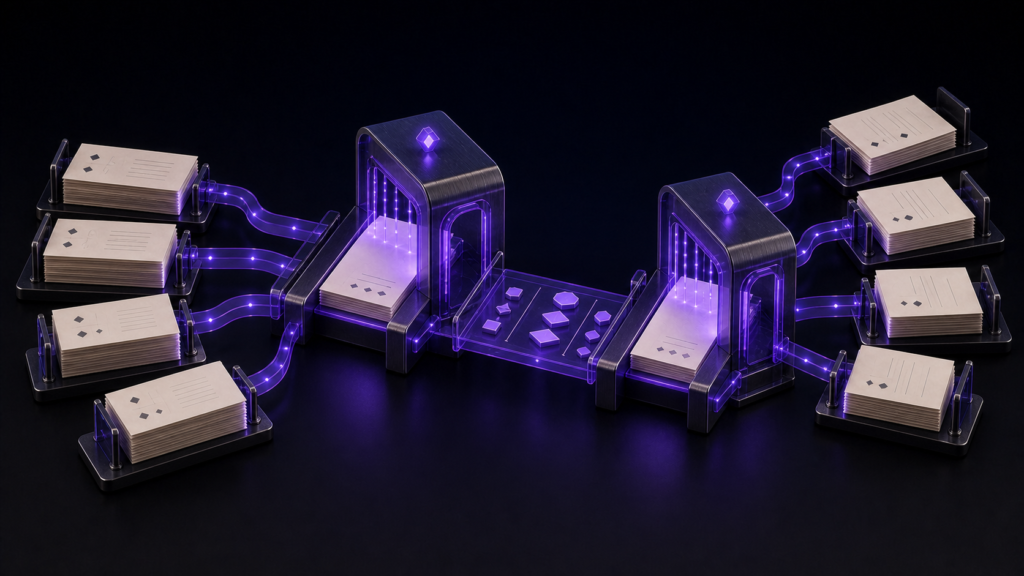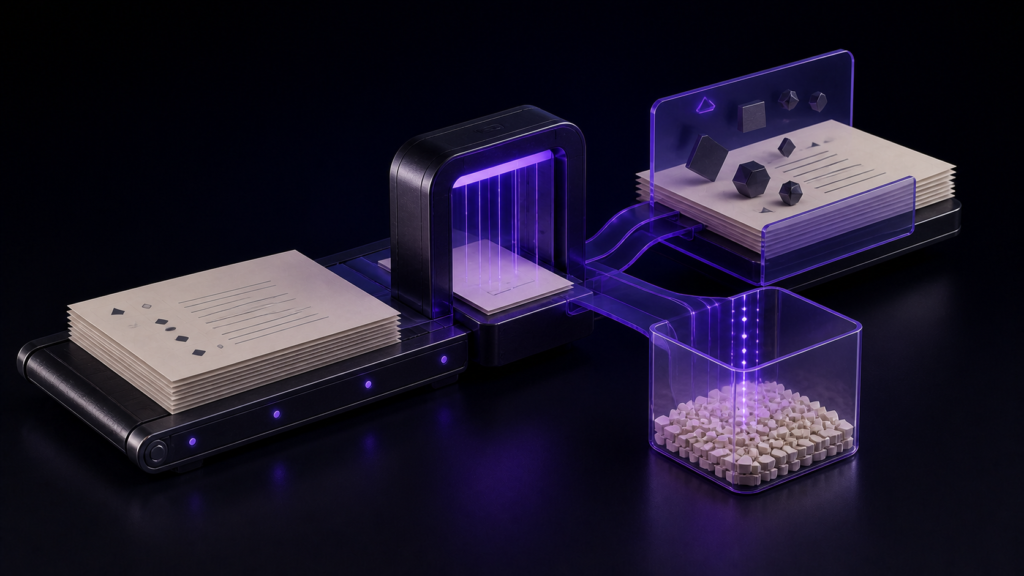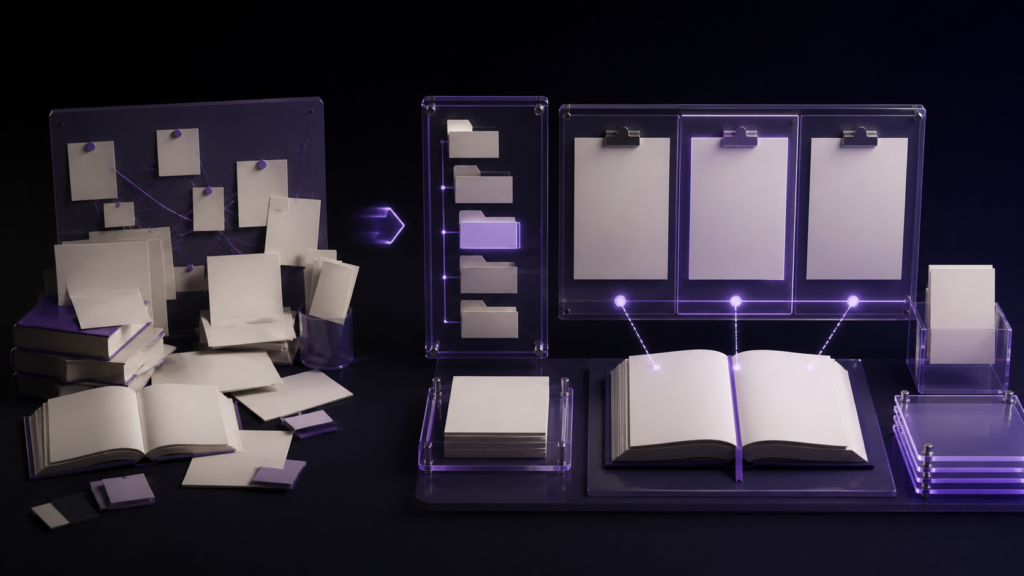
Once the number of files grows, judge an editor on two connected questions: can you keep the manuscript and reference material side by side, and can you find the next file without breaking that arrangement? Split views help only when manuscript management keeps the required files within reach.
This article treats split view as a selection criterion and manuscript management as the test behind it. The detailed split-view setup and layout examples are covered separately.
What accumulates alongside the chapters
Writing one long work leaves you holding:
- Chapter files — twenty chapters, twenty files
- Reference material — characters, places, chronology, terminology
- Interview notes and sources
- Illustration and diagram files
- Fragments — scenes you may or may not use
The problem is that all of it collects in the same place. A folder that began as chapters acquires reference material, then images, then fragments. Six months on, names alone no longer tell you which is which.
The usual approaches
Most people build a file-naming convention encoding the type into the name.
The other approach is folders: one for body text, one for reference, one for images.
Both work. And with both, the moment you need to find something you switch to Finder.
Judge a split view by what happens after the panes are open
The number of panes alone tells you little about long-form work. The useful test begins after the manuscript and one reference file are already side by side:
- Can you locate the next reference within the same project?
- Can you open it beside the manuscript?
- Can you replace the reference without losing your place in the manuscript?
For a large project, “how do I bring the next file into the split” matters more than “how many ways can I divide the window.” This article uses that workflow as the criterion; the mechanics of arranging panes belong to the separate split-view guide.
The time spent moving between editor and Finder
What happens when you want to check a note mid-sentence?
Switch to Finder, open the folder, find the file, double-click. It opens in a separate window, so you move windows to see it beside your text. Read it, close it, switch back.
That round trip happens dozens of times a day. Thirty seconds each, thirty times, is fifteen minutes — and each one pulls your attention off the sentence you were writing.
The other problem is that file names are your only handle. When you cannot remember which file holds a piece of setting, the name does not help, and searching contents needs yet another tool.
rune Studio keeps the searching inside the application
rune Studio opens a working folder as a single unit and handles the manuscripts, reference material, and images inside it in one place.
The folder is visible inside the app
A file listing appears in the sidebar, hidden files excluded and folders first. Expansion state is remembered, and Finder tags are visible. Text files open in place; other types open in their default application.
Reference material opens without switching to Finder.
There is also a Finder-like window
A separate window handles the workspace with four presentations — icons, list, columns, gallery — sortable by name, kind, modification date, creation date, and size. Recursive search by name is available, returning up to five hundred results.
For large numbers of files, that view gives a clearer overview.
You can search by content
When names fail, search contents. I verified this by driving the development build from the command line. A workspace-wide search returned four files examined and two matches, each with the file name, line number, and the text of that line.
Regular expressions work too; a chapter-heading pattern returned three matches.
"Where did I write that setting" becomes answerable from the content, so you do not have to remember the name.
Manuscripts eligible for EPUB can be listed
There is also a function listing the manuscripts in the workspace that can go into an EPUB. Running it returned the manuscripts with their byte sizes — body text alone, unmixed with reference material and images.
Tags provide classification
Finder tags can be added and removed, and they remain visible in the file tree. "Finished" and "needs revision" can be shown without renaming the files.
Who this suits, and who is fine without it
It suits works exceeding about twenty files where you write with a reference open beside the manuscript — long novels, series, and reference-heavy technical books. Compare editors by the time needed to find and replace that reference, not just by the number of panes.
A handful of files is fine in Finder. Moving between five files carries little switching overhead.
Scope note: what was verified is workspace-wide search and listing EPUB-eligible manuscripts. The sidebar file listing, the Finder-like window, and tag operations come from documentation and were not executed in this verification.
Summary
- As manuscripts multiply, searching time becomes the problem, not editing speed
- Judge split view by whether the next reference can be found and opened without losing the manuscript's position
- Naming conventions and folders still send you to Finder when you need to find something
- rune Studio keeps the file listing, a Finder-like window, and content search inside the application
- Content search means a forgotten file name is no longer a dead end
For a first step, keep the manuscript open and time one real task: find a reference file, open it beside the manuscript, then replace it with another. If finding the files takes longer than arranging the panes, manuscript management is the criterion to compare.
See the current product scope on the Rune Studio product page.