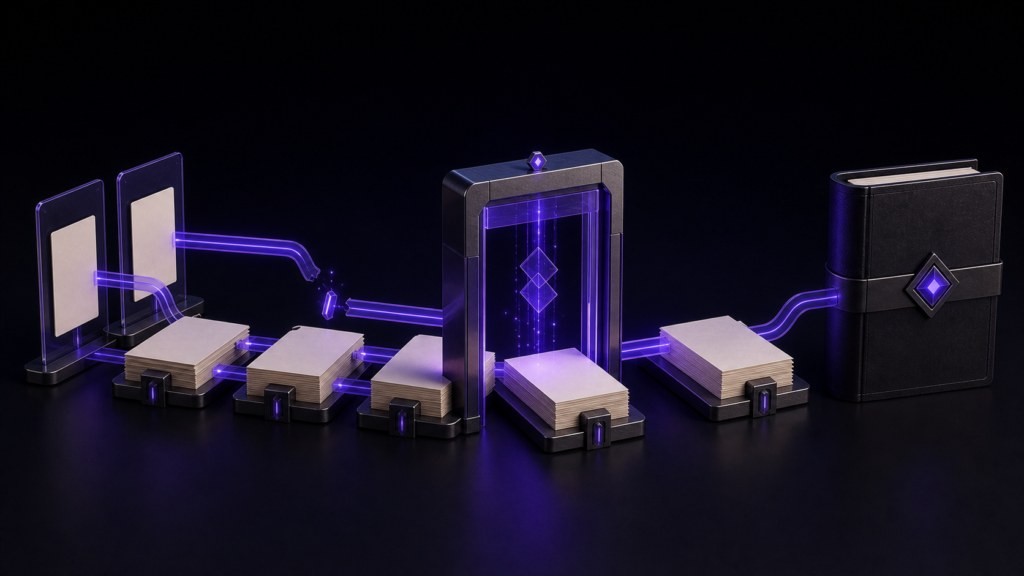
Adding a body image or illustration for KDP has four stages: place the image file, insert it into the manuscript, confirm it is packaged in the EPUB, and confirm its rendering in Kindle Previewer. Typing a filename into the manuscript or dropping an image into a folder completes only part of that path.
This article follows one illustration from insertion in rune Studio to KDP-oriented preview. Folder architecture belongs to STUDIO-450, notation syntax to STUDIO-457, and repair of an already broken reference to STUDIO-454.
Prepare three decisions
Before insertion, decide:
- Which image file to use
- Where it belongs in the body
- What alternative text describes it
Alternative text should briefly state the information the image contributes, not merely repeat its filename. Decorative and informational images may need different treatment, so follow the book's accessibility policy.
KDP requirements for image format, resolution, and colour can change. Check the image section of the current KDP eBook manuscript formatting guide when preparing the file.
Step 1: place the image in the workspace
Put the image somewhere inside the workspace where the manuscript can reference it. At this point, nothing has yet been inserted into the prose. Decide which manuscript will use it.
If the same image is reused, knowing its use locations makes later replacement safer. rune Studio can report how many files and locations refer to an image or link target.
This article does not prescribe one universal folder layout. The important point is to insert the image after placing it and then manage that reference within the application.
Step 2: insert at the body position
Place image notation before or after the intended paragraph, including both alternative text and the path to the image.
A manuscript can record that relationship in a line such as:

Check three things:
- It was inserted at the intended cursor position
- The alternative text matches the image's role
- The reference points to the selected image
Whether you type it or use an editor aid is secondary. The relationship between manuscript and image must be visible in one checkable line.
Step 3: confirm where the image is used
After insertion, inspect the image's use locations. For a one-off illustration, expect the intended manuscript and position. If it is shared across chapters, account for every use before replacing it.
Before moving or renaming an image, count its use locations. In the command-driven operation test, moving the file alone left the manuscript path unchanged; the affected references were previewed and then rewritten separately. Do not assume that a moved file has also repaired every source reference.
For this workflow, inspect the use locations after placement and again after any move. Repair of a manuscript whose image is already missing remains the subject of STUDIO-454.
Step 4: export and confirm EPUB packaging
An image visible in the source has not yet been proven to exist inside the EPUB. After export, inspect:
- The body HTML contains an image reference
- The referenced image is packaged in the EPUB
- No missing-image finding is reported
- Raw source image notation is not left in the body
In the operation test, moving a referenced image and exporting with the old path caused epub-image-missing, naming both the referring body document and the missing image. That verifies detection of one missing-reference case.
An absent image can have other causes, including format, packaging, conversion, and KDP rendering. Do not reduce every symptom to a moved path or assume that one internal inspection settles every layer.
Step 5: inspect the body in Kindle Previewer
Finally, open the book in Kindle Previewer and inspect the image with its surrounding paragraphs:
- It appears at the intended body position
- No unintended gap or page break surrounds it
- Its relationship to the prose remains clear as text size changes
- It behaves as intended in the book's writing direction
- It remains present after navigating to the chapter from the contents
KDP recommends validating an EPUB in Kindle Previewer before upload. Even when rune Studio confirms that the image is packaged, rendering after Kindle conversion remains a separate check.
Run the same stages for a replacement
When replacing an illustration:
- Confirm the manuscript reference and use locations
- Re-export the EPUB
- Confirm the new image is packaged
- Inspect it in Kindle Previewer
An image with the same filename but new contents still creates a new output. Use the timestamped EPUB name to select the post-replacement build.
Summary
- Add a body image through placement, insertion, EPUB packaging, and Kindle rendering checks
- In the image notation, confirm body position, alternative text, and selected image path
- After a move or rename, recheck both the source path and every use location
- A missing path is one cause; retain Kindle Previewer after internal inspection
Start with one image in one chapter. Confirm the same image in the manuscript usage list, the EPUB package, and Kindle Previewer before expanding the workflow to the remaining illustrations.
See the current product scope on the Rune Studio product page.