
One split-view arrangement can mix drafting, revision, continuity checking, and pre-export inspection. Name the layout by purpose and record its editable source, reference files, pane ratio, linkage, and finish condition. The same work can then be reconstructed after closing the MacBook workspace.
This is not a guide to choosing a basic two-pane shape. It tests four purpose contracts in sequence and looks for source, reference, and process contamination.
Name four purposes
Use Draft, Revise, Continuity, and Pre-export rather than “two columns.” Draft contains the manuscript and a short session note. Revise contains the current manuscript and an issue list or old version. Continuity places the manuscript beside one relevant story reference. Pre-export freezes manuscript editing and displays a chapter, notation, or metadata checklist.
For each purpose, name one file that may be edited. Mark every other pane as reference-only. If the old and current drafts share a confusing name, repair naming before creating layouts.
Write a four-field condition card
Record target files, pane structure and ratio, linkage state, and finish condition. A Draft card might specify manuscript 70 percent, note 30 percent, no linkage, and an 800-word saved addition. The numbers are examples; choose values on the actual MacBook width.
For Revision, protect the old draft. For Continuity, connect a manuscript marker to a specific reference heading. For Pre-export, record findings outside the manuscript so the inspected input does not change mid-pass.
Do not assume that the application stores named presets. A written card can reconstruct tabs and ratios manually. When a preset feature is verified, store values that match the card.
Switch through all four purposes
In a harmless fixture, switch Draft, Revise, Continuity, and Pre-export in order. Perform one observable action in each.
Add a marked sentence in Draft. Change it in Revision and search for the old wording. Compare one character or timeline fact in Continuity. In Pre-export, do not edit the manuscript; record chapter-order and notation results in the checklist.
At every switch, identify the editable master, references, and finish condition. If a prior old draft or issue list remains and creates uncertainty, add a close-tab rule or clearer reference marker.
Classify contamination
Source contamination means editing a copy or old draft. Reference contamination means consulting a file from another volume or purpose. Process contamination means changing the manuscript during a pre-export pass, so the inspection input no longer matches its results.
Repair the condition card before adding more panes. Limit editing to one file, close unrelated tabs at entry, or treat the manuscript as read-only during Pre-export.
Record the worst recovery time even if undo fixes the edit. A recurring source mistake outweighs visual convenience.
Verify close/open recovery
Construct the most complex Continuity condition and record target files, tab count, split direction, ratios, linkage, and selected heading. Close and reopen the workspace, then compare every item with the card.
An item that does not restore automatically is not an immediate failure. Measure manual reconstruction. A candidate may remain usable if the correct master and reference can be explained within two minutes. Put it on hold if it opens another purpose, obscures the master, or loses changes.
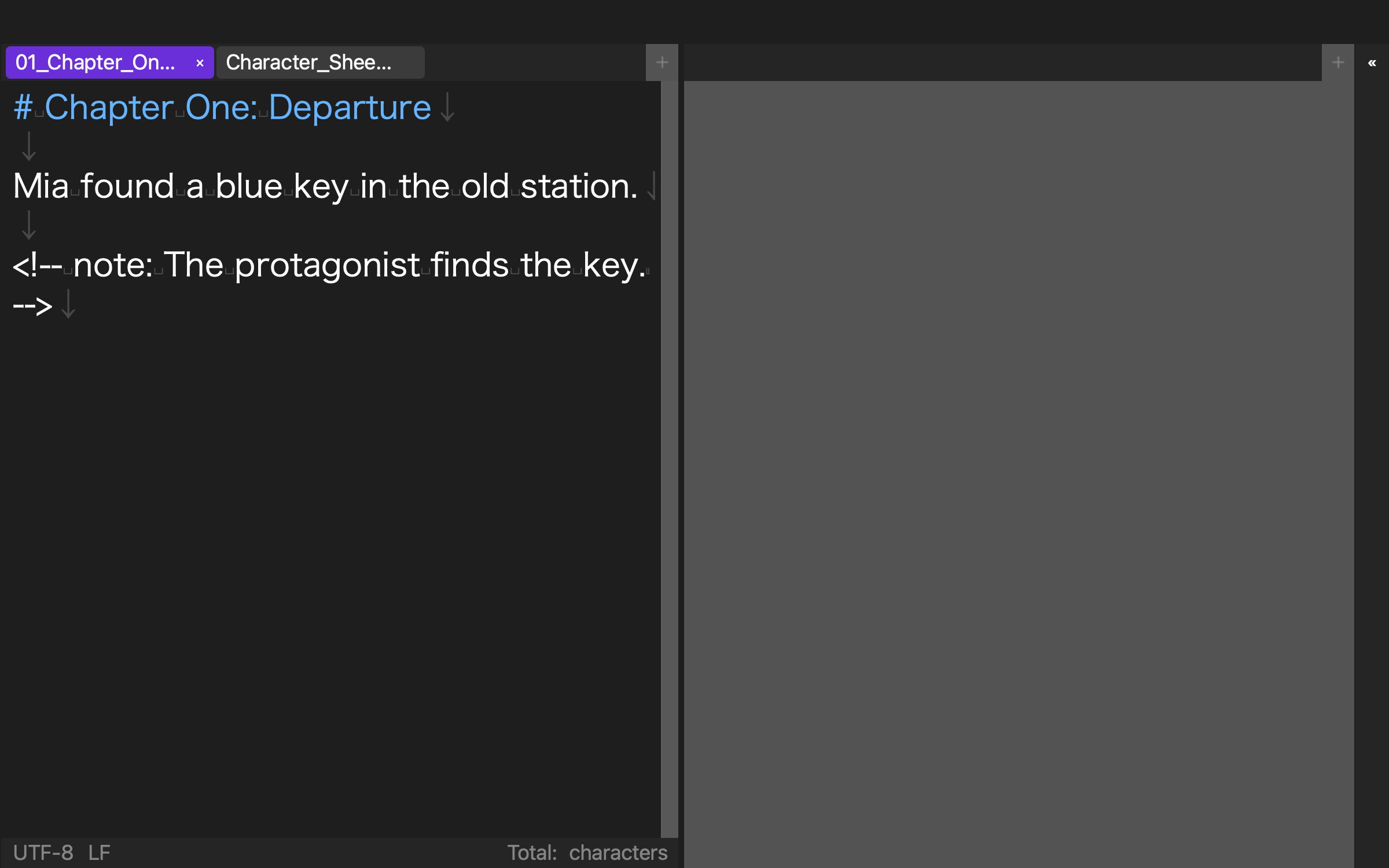
In an existing rune Studio CLI verification, three tabs, an h3 layout, ratios 0.52/0.48/0.50, heading linkage, and linked states true/true/false were stored. Raw values matched after close/open, and relevant commands exited with code 0. An existing interface capture also shows Chapter One and Character Sheet tabs, the manuscript in the left editor region, and an empty reference region on the right. That supports one saved configuration and one visible two-column layout, not four named presets, GUI tab movement, actual scroll restoration, or linkage accuracy.
Keep the condition card as the source
After changing a layout, update the numeric values and rules on the condition card rather than preserving only a screenshot. Purpose, source, reference, and finish condition can survive a different display width.
After an OS or application update, repeat close/open on the most complex purpose. Preserve the old condition and add the new dated result if values change.
Save the work contract, not only the shape
For purpose-specific MacBook text editor layouts, separate Draft, Revise, Continuity, and Pre-export. Record files, ratios, linkage, and finish conditions, then switch through all four and detect contamination.
Finish by measuring close/open recovery and manual reconstruction. Saving what may be edited, what is referenced, and when the stage ends protects the current draft more effectively than saving a pane shape alone.
Run the switch test twice with a fresh copy. On the second run, reverse the order and begin with Pre-export before returning to Draft. This exposes layouts that work only because files from the previous stage were already open. Record extra setup actions and any moment when two editable copies appear. The accepted layout set must identify one master even when the purpose order changes.
If a layout depends on an external display, keep a MacBook-only fallback card. The fallback may use fewer panes, but it must preserve the same editable source and finish rule. A portable recovery path matters more than matching every pixel of the desk arrangement.