
When choosing a Mac text editor for Japanese, a feature label cannot tell you whether text selection will match your corrections. In a string such as 東京Station前, one writer may want Station, another 東京Station, and another the entire name. Test twelve short mixed-script fixtures and record what the first selection captures.
This is not a general Japanese-input or encoding test. It isolates the boundary after IME conversion has been committed. It is also separate from a production correction workflow. The outcome here is a purchase decision based on observable first-selection ranges.
Define your correction unit
Japanese does not expose every word boundary with a space. Sometimes a kanji stem should be separated from okurigana; sometimes the whole inflected expression should be replaced. The goal is not to discover a universally correct linguistic segmentation. It is to compare editor behavior with the units you frequently revise.
Choose three real tasks: replacing a character name, correcting a Latin product name, or changing only a particle or ending. On an answer sheet, mark the exact expected range for each task before opening any candidate.
Decide whether punctuation may be included. Moving a whole sentence and replacing one term have different boundaries. Do not change the answer after seeing which range a favored candidate produces.
Build twelve fixtures across six boundaries
Create two safe examples for each boundary type:
- Kanji and hiragana, such as 青空を and 書き直す
- Hiragana and katakana, such as これはホテル
- Japanese and Latin letters, such as 東京Station前
- Japanese and digits, such as 第12章
- Terms and punctuation, including a period and Japanese quotation marks
- Markup or editorial symbols next to text
If you never use Markdown or ruby notation, replace the sixth category with brackets, dashes, or ellipses common in your manuscript. Keep the same twelve fixtures for every candidate.
Define one expected range for each fixture. If a boundary is flexible, mark a required core and an acceptable extension. For 東京Station前, for example, Station may be required while 東京 and 前 must remain outside.
Select from the left, middle, and right
Place the caret near the left edge, middle, and right edge of the target and perform your ordinary selection command once. Use the same click count or keyboard shortcut in every candidate.
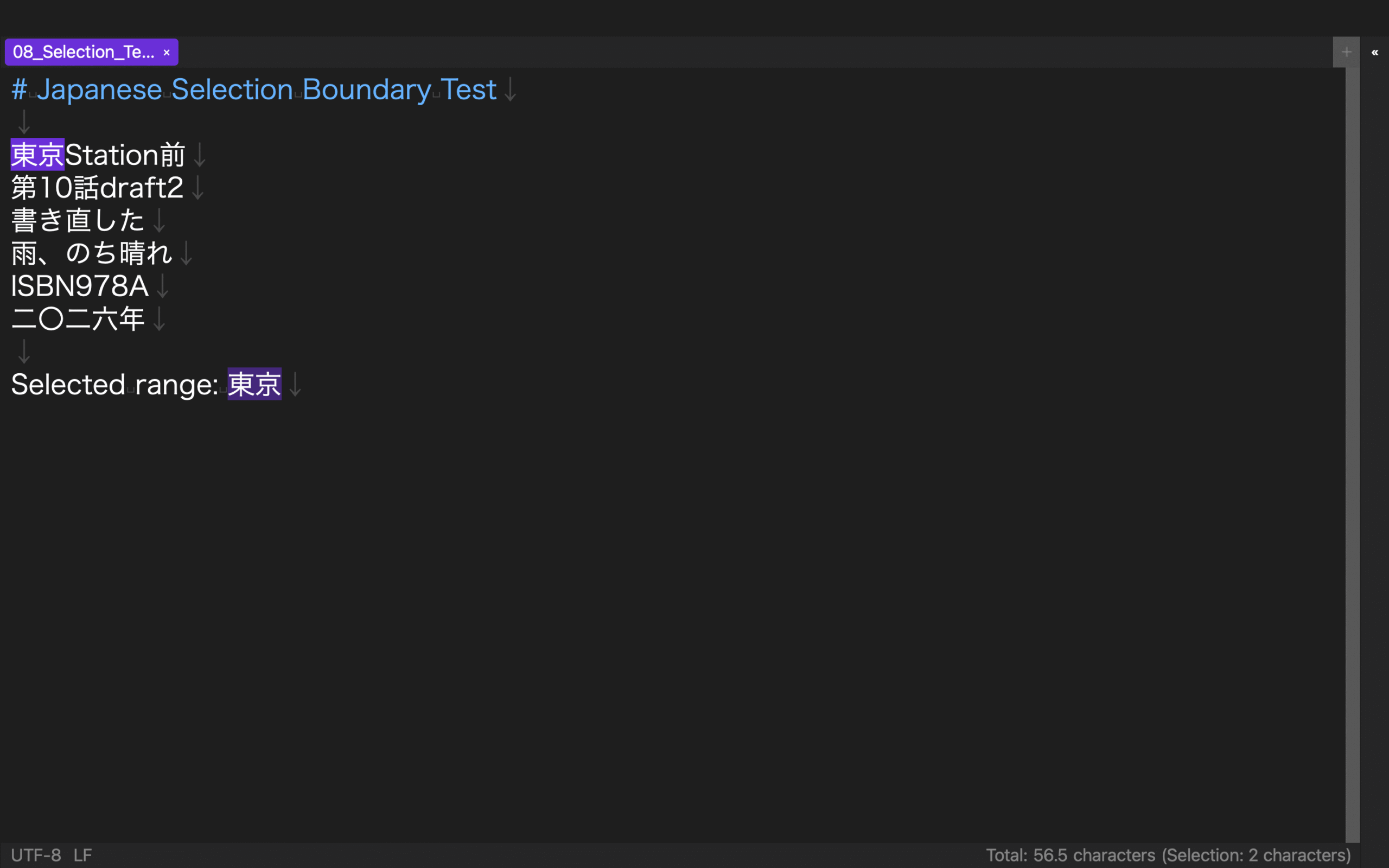
Copy the selected characters into the results table. Do not grade only by visual impression. A range may change depending on the starting position, so preserve all three results.
Do not repair the range by dragging during the first stage. The first action measures the candidate’s boundary. In a second stage, count how many additional actions are needed to reach the expected range. You might define zero as a match, one as acceptable, and two or more as a burden for frequent corrections.
Also test direction when relevant. Extending a range from left to right may not feel identical to shrinking it from the opposite side. Record the operation actually used rather than assuming symmetry.
Classify the mismatch
Over-selection includes unwanted neighboring characters. If the editor captures all of 東京Station前 when only Station must change, the boundary requires a repair. Under-selection captures only part of the expected unit, such as kanji without an ending that must be replaced with it.
Instability means that the result changes with the starting position and you cannot explain a consistent rule. A range that differs from your preference but behaves predictably may be learnable. Unpredictable variation receives a heavier penalty because it can lead to accidental deletion.
For every fixture, record match, over-selection, under-selection, instability, and repair actions. Weight boundaries by frequency in your own work. A markup boundary used once a month should not outweigh Japanese/Latin names corrected throughout every chapter.
Retest only the top candidates in a manuscript copy
Take the top two candidates into a safe manuscript copy. Select five character names, five mixed Japanese/Latin expressions, and five kanji/hiragana boundaries. Do not replace them yet; capture only the expected range and number of repairs.
Vary the strings and locations so memory cannot produce the answer. Reverse candidate order on the following day. A candidate that succeeds on isolated fixtures but fails beside quotation marks or markup in real prose can be placed on hold.
The current rune Studio feature list includes Japanese character-class selection and states that the Mac version requires macOS 13 or later. This is level-2 evidence of feature existence and the current requirement. This article has not verified the actual GUI range, feel, IME-composition behavior, or speed. Run the twelve-fixture test on your own Mac before relying on it.
Make the first range an acceptance condition
To choose a Mac text editor for Japanese character-class selection, prepare twelve fixtures across six boundaries and select each from the left, middle, and right. Record matches, over-selection, under-selection, instability, and repair actions, then weight the boundaries that occur most often.
A specification saying “Japanese selection” is not enough. Turning the first selected range into an acceptance condition reveals the small correction cost before it is repeated across an entire novel.