
If you need a Mac text editor for a 300,000-character novel, do not judge it only by the number of formatting features it offers. Check what the editor stops and what it keeps when a manuscript becomes large. The seven essentials are large-file detection, basic editing, find and replace, saving, encoding checks, selective display reduction, and a clear indication that reduced processing is active.
The goal is not to keep every visual aid running at all times. Syntax coloring, line numbers, visible whitespace, and continuous highlighting can all require repeated display work. A sensible large-file design preserves the actions needed to write, find text, and save the manuscript while temporarily reducing aids that can be restored later.
This article is not a product ranking. It gives you a seven-point checklist for evaluating a Mac text editor before committing a long novel to it. It then reports what happened when Rune Studio was tested with a 919,514-character development fixture.
Seven features to check for a 300,000-character manuscript
The phrase “supports long documents” is too vague on its own. Ask how the editor behaves after a large manuscript is actually open.
- It has a defined way to detect a large file.
- Basic editing remains available.
- Find and replace remain available.
- Manual saving and autosave remain available under safe conditions.
- The editor can identify characters that the selected encoding cannot represent.
- It can suspend costly display aids without disabling the manuscript itself.
- It tells you when reduced processing is active.
The important distinction is between the manuscript operations you need to continue working and the visual aids you can restore when the document is smaller or divided.
A long manuscript involves more than drawing its characters
A plain-text file is simpler than an image-editing project, but a text editor may still perform substantial work after every change. It may recolor notation, draw space and tab markers, find all occurrences of the selected word, apply custom highlight lists, recalculate line numbers, and update the character count.
These aids can be valuable during revision. They are not, however, the manuscript itself. If the editor treats all of them as equally essential, it has fewer options when a file grows. A better question than “Does this editor have many features?” is “Can it preserve editing while reducing optional display work?”
You also do not have to manage every novel in the same way. Some writers want one file so that they can search the entire book at once. Others keep each chapter in a separate file. Either approach can work, provided the editor’s behavior remains predictable as the project grows.
How to evaluate each requirement
1. A stated large-file condition
First, determine what “large” means. One editor may use character count, another may use bytes, and another may not publish a condition at all. Those measurements are not interchangeable.
A defined threshold lets you compare the software with your own project. If a draft is currently 180,000 characters and may reach 350,000, you can test the changed behavior before the final revision rather than discovering it at the deadline.
2. Basic editing remains available
Reduced display processing should not prevent you from entering text, deleting it, copying and pasting, undoing a change, or moving the insertion point. Opening a large file is not enough if the editor cannot then perform ordinary manuscript work.
When you test an editor, add a sentence, remove it, and undo the change. This is more useful than relying on a feature-table claim that the application can merely open a large document.
3. Find and replace remain available
The longer a novel becomes, the more important search is. Character names, terminology, an outdated spelling, or a clue used across several chapters may be impractical to verify by scrolling.
Check whether the editor can move through matches and whether replacement offers enough control to review the target. Before a broad replacement, keep a duplicate or another recoverable version of the manuscript.
4. Saving remains available
Reducing visual aids must not casually disable saving. If the editor includes autosave, also check the conditions under which autosave pauses.
One legitimate reason to pause it is an encoding conflict. For example, Shift_JIS cannot represent every Unicode character. Continuing to save without warning could lose or alter a character. In that situation, it is safer for the application to identify the problem and pause autosave until the writer decides how to resolve it.
5. Encoding problems can be located
Writers who use only UTF-8 may rarely think about encoding. A publisher, existing archive, or production step may still require another encoding. A single unsupported symbol in a very long manuscript is difficult to locate by eye.
An editor that marks unrepresentable ranges lets the writer choose whether to replace a symbol or change the output encoding. It should not silently rewrite the whole manuscript into approximate characters.
6. Only costly display aids are suspended
Typical candidates include syntax or notation coloring, visible editing marks, same-word highlights, registered-word highlights, line numbers, and continuous character-count updates. These features assist revision, but they do not contain the prose.
Editing, searching, saving, and encoding checks form the working foundation. A large-file mode is most useful when its boundary between foundation and optional display work is explicit.
7. The reduced state is visible
If line numbers and coloring disappear without an explanation, a writer may assume that the application is broken or that settings were lost. A notice and disabled menu items can show that the change is deliberate.
This does not make the computer faster by itself. It does reduce uncertainty and helps the writer avoid closing the document or resetting preferences while trying to diagnose an intentional state.
Product-independent ways to reduce risk
You can improve a long-document workflow even if your current editor has no automatic large-file mode.
- Duplicate the manuscript before a broad replacement.
- Split it by chapter if chapter-level editing is your main task.
- Establish a separate method for searching all chapters.
- Turn off continuous coloring or highlighting while drafting.
- Keep images and research files organized outside the prose instead of embedding excessive data in one document.
- Choose the intended text encoding early.
- Maintain a backup in another location.
Splitting a manuscript is not automatically better. It narrows the file being displayed, but it can add work when you need a book-wide search. Keeping one file makes global search straightforward, while increasing the range processed by display aids. Choose according to the task you perform most often.
How Rune Studio handles files of 300,000 characters or more
The following section describes the current Mac version of Rune Studio rather than text editors in general.
Rune Studio classifies a file as large when its content reaches 300,000 characters. In that state, it stops Markdown and EPUB notation coloring, visible editing marks, same-word highlighting, registered-word highlighting, line numbers, and continuous character-count calculation.
Its current implementation retains text editing, in-file find and replace, half-width-character search, saving and autosave, cursor movement, and encoding-error checks. Autosave is a conditional exception: when the selected encoding cannot represent a character, Rune Studio pauses autosave to avoid an unsafe conversion.
The application also has an implementation for displaying a large-file notice and disabling affected menu items. These facts are based on the current code and product documentation. They do not prove that every Mac will feel equally responsive; hardware, manuscript content, and other open files can affect the experience.
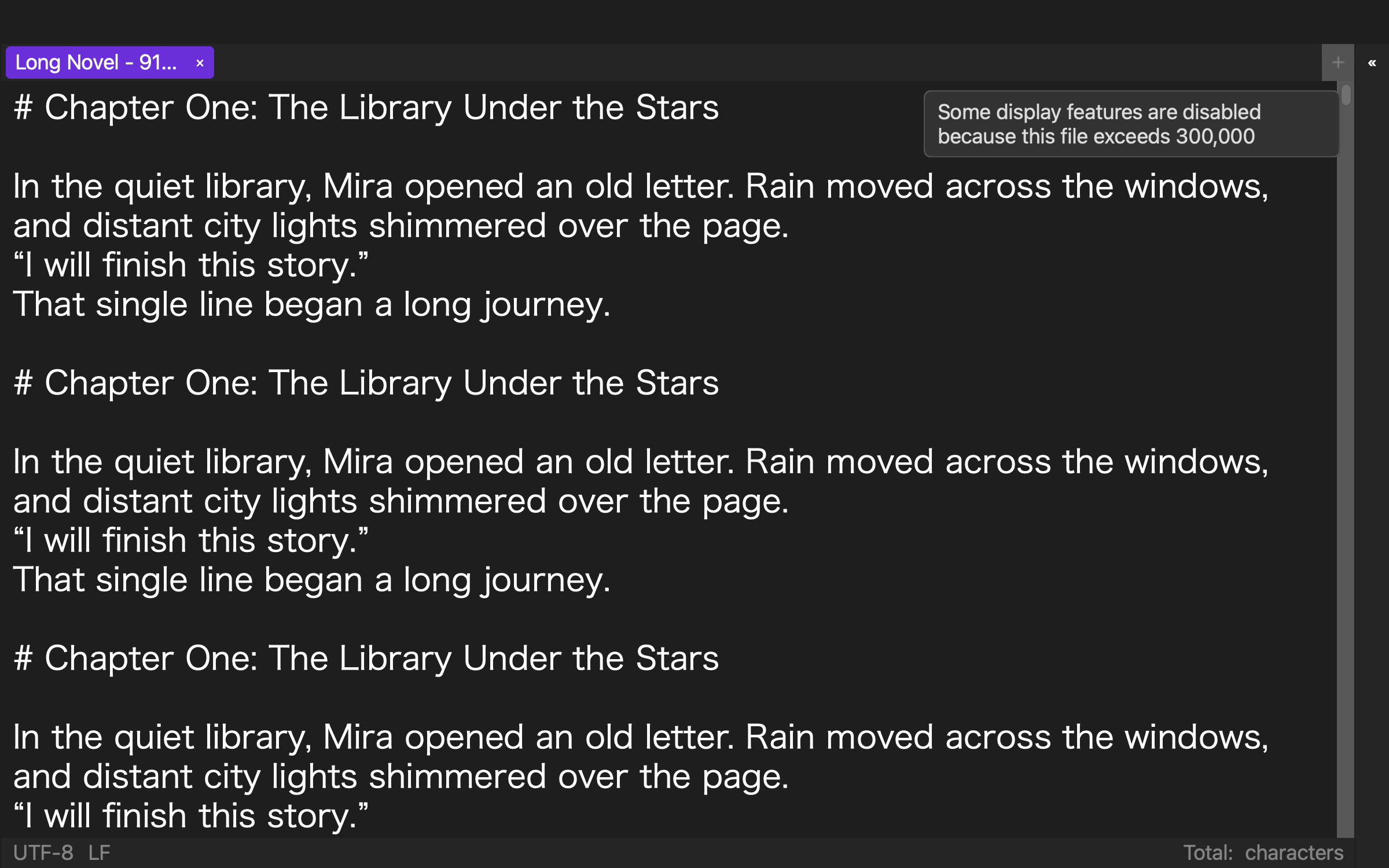
Test result with 919,514 characters
On August 10, 2026, the development CLI for Rune Studio 1.4.0 build 23 was tested in a dedicated temporary workspace. No production manuscript or user workspace was used. The input was a development fixture containing 919,514 characters and 24,272 lines in UTF-8 with LF line endings.
The text inspection returned a character count of 919,514 and isLargeFile: true. A subsequent in-file search completed with exit code 0 and returned 19 matches for the specified Japanese full stop. The encoding-check command also completed; this particular fixture contained no ranges that were unrepresentable in Shift_JIS.
This verifies a limited set of facts: the fixture crossed Rune Studio’s large-file threshold, and search and encoding inspection could run on it. The test does not establish typing speed for a real novel, every interactive behavior, or identical performance on all Macs.
Who may prefer Rune Studio
Rune Studio may fit writers who keep a large Japanese manuscript on a Mac and want editing, search, saving, and encoding checks to take priority over visual decoration after the file reaches 300,000 characters. It may also suit writers who prefer an automatic character-count condition to manually disabling several display options.
Another workflow may be better if you already maintain short chapter files with a dependable project-wide search, or if you need line numbers, notation coloring, and registered-word highlighting to remain active beyond the threshold. A feature can be correctly implemented and still not match a particular writing method.
This article concerns the current Mac version. It does not include the iPad implementation that remains under development.
Choose by what remains available
For a 300,000-character novel, evaluate a Mac text editor by its priorities after the manuscript becomes large. The seven essentials are a defined large-file condition, basic editing, find and replace, safe saving, encoding checks, selective display reduction, and a visible reduced-processing state.
Temporarily losing coloring or line numbers is different from losing the ability to write, search, or save. Test the seven items with a copy of your own manuscript before the final revision begins.
If you want to evaluate an option that automatically identifies files of 300,000 characters or more and reduces selected display processing, see the current features and system requirements on the Rune Studio product page.