Searching for a “Japanese-made text editor” does not by itself tell you how well an editor handles Japanese prose. A developer’s location is not evidence that mixed hiragana, katakana, kanji, Latin letters, numbers, and punctuation will be selected the way your manuscript requires. A better comparison uses one controlled line of Japanese text and separates two questions: what a double-click selects, and whether typing protection preserves the characters you entered.
Treat origin as a filter, not a quality result
A product page may describe where software was developed, but that statement does not verify word selection, encoding behavior, vertical composition, or ruby notation. Conversely, an editor can be evaluated even when origin is not part of the decision. This test therefore makes no claim about the nationality of a developer or the quality implied by a country label.
Build a comparison sheet with five columns: character-class selection, prolonged sound mark behavior, repeated-symbol selection, automatic input conversion, and saved encoding. Mark documented behavior separately from behavior you personally reproduced. That distinction keeps marketing information, feature documentation, and operating results from being merged into one unsupported conclusion.
Create one line with visible boundaries
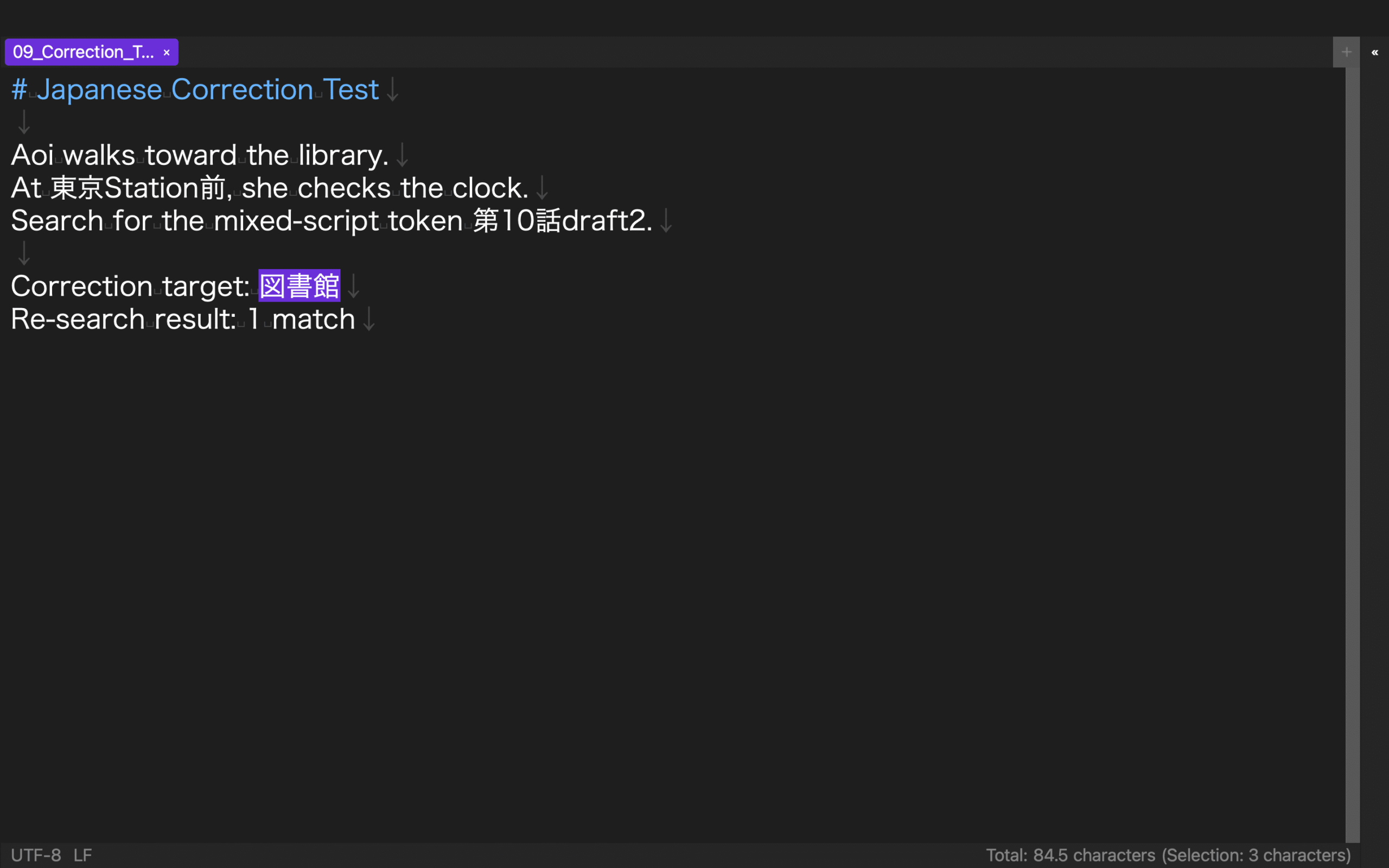
Prepare a disposable line that contains hiragana, katakana, kanji followed by the iteration mark, half-width and full-width digits, half-width and full-width Latin letters, repeated punctuation, and a mixed word such as a Japanese place name followed by a year. The line is a specimen, not polished prose. Its purpose is to make every boundary visible.
Double-click once inside each segment and write down the first and last selected character. Do not record only “good” or “bad.” Use categories such as whole word, whole character class, one character, or character plus neighboring punctuation. The useful result depends on the editing job. Whole-word selection may be ideal for replacement, while a one-character correction can be easier when the editor does not expand the range.
Include both width variants of digits and Latin letters. Japanese manuscripts often contain chapter numbers, dates, product names, and citations copied from different sources. If the specimen contains only ASCII text, it cannot reveal whether full-width characters form the same kind of selectable group.
Test the prolonged sound mark with its neighbor
Put a katakana word containing the prolonged sound mark in the specimen and double-click in the middle of the word. Check whether the mark stays with the neighboring kana group. Add a colloquial hiragana expression with the same mark as a second case. Testing the mark by itself answers a punctuation question, but it does not answer the practical word-selection question.
Record the expected range before testing. Otherwise, it is easy to accept whatever the editor selected. A useful entry contains the typed string, the clicked character, the expected first and last character, the actual first and last character, and the editing action for which that range would be used.
Run input protection as a separate test
Selection behavior and input transformation are different systems. For the second test, type a fresh line containing straight quotation marks, an apostrophe, two hyphens, and an English word that a spelling system might flag. Use actual keystrokes rather than pasted text. Save, close, and reopen the file, then compare the character sequence with the original specimen.
If an editor offers an input-protection mode, check whether smart quotes, dash substitution, and spell checking are disabled as documented. This is not a Japanese grammar checker or an improvement to input-method conversion. Its purpose is narrower: preventing operating-system text substitutions from changing manuscript characters without the writer intending it.
Keep the result distinct from encoding. A line can avoid smart punctuation and still be saved in an unsuitable encoding. Conversely, a UTF-8 file can contain a curly quote that was inserted before saving. Selection, input substitution, and encoding should therefore have separate rows in the comparison sheet.
The documented Rune Studio scope
Current documentation for the Mac version of Rune Studio describes character-class selection on double-click. The listed groups include hiragana, katakana, kanji with the Japanese iteration mark, half-width and full-width digits, half-width and full-width Latin letters, and runs of identical symbols. It also describes joining the prolonged sound mark to a neighboring kana group.
The same documentation lists input protection that disables smart quotation marks, automatic dash conversion, and spell checking. These are documented capabilities. They do not prove that a particular specimen has passed on every macOS version, and they do not establish where the software was developed. Reproduce the test with the operating system, input method, and manuscript conventions you actually use.
Choose from evidence that matches the manuscript
Count how frequently each boundary occurs in a representative chapter. If katakana product names and repeated punctuation are common, their selection behavior may matter more than a rarely used full-width Latin sequence. If straight quotes and two hyphens must survive unchanged for a conversion pipeline, input protection may carry more weight than double-click selection.
The practical comparison is therefore not a national label. It is a repeatable specimen, an expected selection range, an observed range, and a documented input-preservation check. This method produces evidence that another editor or another operating-system version can be tested against.
To review the currently documented character selection and input-protection scope, see the Rune Studio product page and run the same specimen in your own environment.