When a script contains thirty scenes, placing the script on the left and production notes on the right is only the beginning. The panes will drift as dialogue is added or removed. A stable scene identifier, such as SC01 through SC30, is what keeps the two files connected without repeatedly searching by memory.
Let each side answer a different question
The left pane contains what will be performed: scene ID, location, characters, dialogue, and stage directions. The right pane contains constraints and continuity facts: entrances, props, time of day, set limitations, and conditions that must carry into later scenes.
Suppose SC08 says a character enters through the door on stage right. The matching SC08 section in the notes should identify that door and any prop placed near it. If a rewrite changes the entrance to stage left, decide whether the set note changes globally or whether this scene is an exception. The two-pane view makes that decision visible, but it does not make the decision for you.
This is not the same workflow as displaying a novel beside a character sheet. A script’s reference file is tied to actionable scene constraints, and a change may affect blocking, props, and the next scene.
Align panes by scene ID, not height
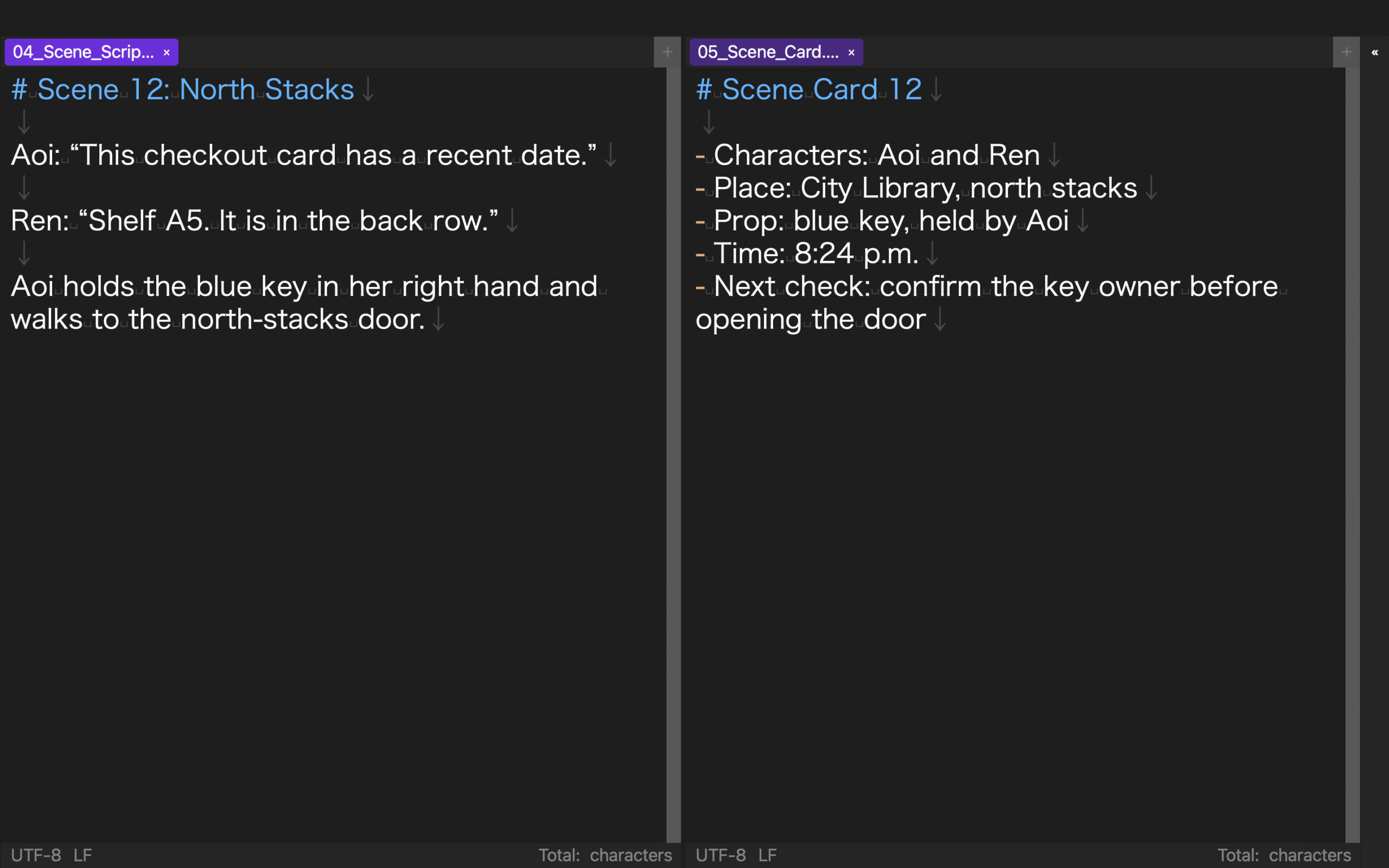
When editing SC12, move the notes pane to its SC12 heading. Do not align the panes by scrollbar position. Adding a page of dialogue makes the script longer without moving the corresponding note, so matching screen heights quickly stop representing matching scenes.
If the editor supports marker-based linked scrolling, establish matching markers before relying on it. A screen that places SC11 beside SC12 may look synchronized while presenting the wrong evidence. Read both IDs before changing a continuity fact.
Use IDs as headings or otherwise make them distinguishable from casual references in prose. If a search for SC12 returns several results, choose the section heading rather than a sentence that merely mentions the scene.
Recover from a mismatched pair
When the panes drift, stop scrolling both sides by hand. Read the scene ID in the left pane, search for that ID on the right, and place the matching headings together. If the ID is missing from the notes, treat it as an unresolved coverage question.
For example, inserting SC17B into the script requires a matching notes section or an explicit statement that no production-note change is needed. An empty area cannot distinguish “checked and unaffected” from “not reviewed.”
If you accidentally edited a copy of the notes, identify the canonical file before continuing. Transfer the change deliberately or declare the copy canonical. The fact that two files are open in one workspace does not merge them.
Separate dialogue polish from continuity changes
A wording change may affect only the script. A new entrance, time, costume, or prop affects the production notes and possibly later scenes. Before editing, label the change mentally as dialogue-only or continuity-affecting.
After a continuity change, search beyond the current pair. Moving the door in SC08 may alter the exit in SC09; removing a glass from one scene may affect a line that refers to it later. The side-by-side view resolves one scene pair, while search reveals the change’s wider impact.
Avoid copying every stage direction into the notes. Duplicated prose creates two competing sources. Keep the performed instruction in the script and the persistent constraint in the notes, with the scene ID providing the connection.
Insert scenes without breaking every reference
Do not immediately renumber every scene after inserting one between SC17 and SC18. During drafting, use a branch ID such as SC17B, then create the matching notes entry or record that the insertion has no continuity effect. When the structure is stable, update the script, notes, restart records, and any production checklist from one old-to-new ID table. Keeping the old ID temporarily makes omissions searchable.
Decide which side is canonical when facts conflict
If the panes disagree, do not silently choose the file that looks newer. A deliberate staging decision belongs in the production notes and may require a search through later scenes. An accidental break from an established constraint belongs back in the script. Dialogue-only edits can remain local; changes to entrances, props, time, or costume require a wider continuity search.
For every checked scene, record both source versions, such as performance-script_v3 and stage-notes_v5. A matching scene ID is not enough when one file is stale. This version pair turns a later one-sided update into a visible reason to repeat the check.
Leave a restart point that survives layout changes
At the end of a session, record a restart note such as “SC14 stage direction checked through the prop entry,” together with both source versions. A cursor position alone may be lost or may reopen in a different tab. Next time, search both files for SC14, verify the version pair, and reconstruct the panes.
If a saved layout reopens incorrectly, the scene ID remains the recovery path. Restore the script to the left, notes to the right, verify the filenames, and search the restart ID. This is faster and safer than trusting that every pane preserved its state perfectly.
Where Rune Studio fits
Current public documentation for the Mac version of Rune Studio describes pane splitting, moving tabs between panes, search, marker-based linked scrolling, and saved layouts. Those are the relevant capabilities for placing a script and its notes side by side and returning both panes to the same scene ID.
This is a statement based on published feature information, not a claim that the SC01–SC30 test was completed successfully. It does not establish compliance with an industry script format, collaborative writing behavior, or a video-production workflow. Confirm the pane arrangement, search, and marker linking in the app version you use.
Test one scene before all thirty
Duplicate a script and its set notes, then add SC01 to both. Change one entrance in the script, decide whether the note must change, update the appropriate canonical file, and return to the matching script line. Once that round trip is clear, extend the ID system to the remaining scenes. The real benefit is not seeing two files at once; it is knowing exactly which reference belongs to the decision in front of you.