
To organize novel chapters, reference notes, and images on a Mac, gather the production package under one root and separate it into four roles: manuscript, reference, assets, and output. Use filenames to carry only order, status, and a stable ID. These rules reduce decisions about where each new item belongs.
“Manage everything together” does not mean displaying every file on one screen. It means that when the book moves to another Mac, you can explain what must be copied.
This article does not focus only on chapter reordering, repairing image links, or arranging reference documents beside the editor. It establishes the first folder taxonomy and the daily placement rules for the complete book.
Define one root for each book or volume
Start with one root folder for a work or volume, rather than an unbounded folder for every series. When several volumes are active, put individual volume folders below a series root.
Production assets left on the Desktop or in Downloads can disappear during a move. External research may remain outside when it is only consulted, but images used in the release and permission notes for quoted material should be copied into the production package with their source recorded.
Confirm the root in Finder instead of relying only on an application’s recent-file list. This folder becomes the unit for backup and handoff.
Separate four roles
1. Manuscript
Keep only reader-facing chapters in the manuscript area. With one file per chapter, spaced sequence numbers such as 010, 020, and 030 leave room for later insertions.
Discarded scenes mixed with current chapters pollute search results. Move alternatives into a reference or archive subfolder so the authoritative body remains clear.
2. Reference
Store characters, terminology, chronology, locations, foreshadowing, and research links here. Avoid building a deep taxonomy on the first day; start with one reference area and split only when retrieval becomes difficult.
A short stable ID can connect a character or place across files even when the displayed name changes. Before release, search for internal IDs and unresolved markers so they do not remain in reader-facing text.
3. Assets
Store cover candidates, body images, maps, and logos. Names such as img_location_001 combine a role and sequence. Separate files referenced by the manuscript from inspiration-only images.
When source notation points to an image, prefer a location relative to the manuscript or project rather than an absolute path tied to one Mac. After moving an asset, verify both the reference and generated output.
4. Output
Put generated EPUB, PDF, and review files here. Treat output as reproducible, not as the authoritative source. Include a volume, edition, or generation date in the name.
Do not copy old output back into the manuscript area. Otherwise a project-wide search may surface stale text and invite edits in the wrong version.
Limit filenames to three signals
Use three kinds of information:
- Order: sequence numbers such as 010 and 020
- Status: a small vocabulary such as draft, review, and fixed
- Stable ID: a short identifier for a person, place, or asset
Stuffing creation dates, owners, and long descriptions into every name makes the tree harder to scan. Dates are useful for output and snapshots but poor for a daily manuscript name that should remain stable.
Define status words instead of inventing names such as final, final-2, and really-final. Keep one current source and move earlier versions to an explicit history location.
Standardize add, move, and delete operations
When receiving a new item, classify it, place it in one of the four roles, rename it, and note whether the manuscript references it. A temporary inbox is acceptable when it has a deadline to become empty.
After a move or rename, verify image and link references. An editor may update references for its own file operations without covering changes made directly in Finder or another application. Run a project search and a test export after structural changes.
Before deletion, search for active references and confirm a recovery path through backup or Trash. A warning helps prevent mistakes but is not a substitute for restoration.
Features in rune Studio that support the structure
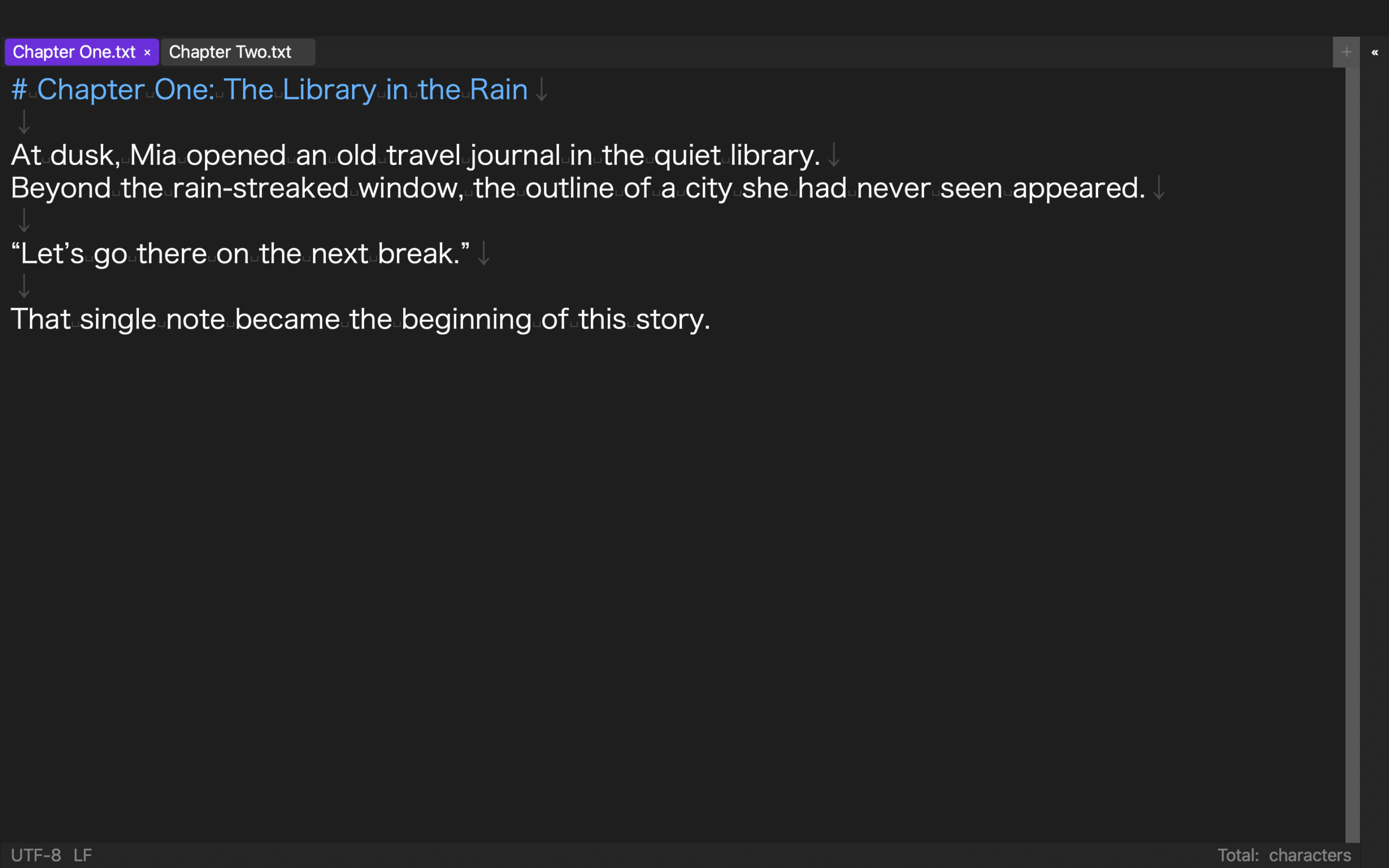
The current Mac version of rune Studio can treat an existing folder as a workspace. Direct verification covered listing manuscript files, project-wide search, and workspace information, open, and close operations. An existing interface capture also shows Chapter One and Chapter Two open as tabs in the same workspace.
The documented file browser includes creating folders, duplicating and moving items, filename search, and showing items in Finder. Image and link paths are resolved from the manuscript location. The documented behavior also updates references for moves and renames performed inside the application and warns before deleting a file used by a manuscript.
This does not guarantee cloud synchronization, simultaneous collaboration, or automatic off-device backup. Combine the four-role structure with a backup method verified for the storage location you actually use.
Gather once, then separate by role
A workspace that keeps chapters, notes, and images from scattering begins with one root per work and four roles: manuscript, reference, assets, and output. Use consistent order, status, and stable-ID names.
Check references and the source of truth after each add, move, or delete operation. The organization succeeds when you can show the complete production package in Finder and explain exactly what should be copied to another location.