
When using an EPUB metadata editor, do more than fill fields from top to bottom. Compare the settings with one authoritative bibliographic sheet, then inspect the generated EPUB. Group the values into work identity, responsibility, language and writing direction, volume and edition, and publication information. This makes stale values easier to spot.
Metadata mistakes can survive a normal read-through. A previous volume’s title may remain, an author name may change punctuation, or a vertical-writing template may be reused for a horizontal book. Checking once before export and once after generation reduces that risk.
This article does not explain table-of-contents design, cover production, store listing data, or direct repair of an existing EPUB. It focuses on metadata for a new EPUB generated from source manuscripts.
Create one authoritative metadata sheet
Before typing into an editor, put the confirmed values for the current volume on one sheet. Even when you duplicate a previous project, rewrite every value, including the ones that should remain unchanged.
Add the reviewer and review date. In a team, distinguish the public author name from a contractual legal name and mark the value intended for the EPUB.
Also separate the reader-facing title from a short output filename. They do not need to match, but the sheet should make it clear which one changed.
Verify five metadata groups
1. Work identity
Confirm the work title, series name, and volume presentation. Decide whether the displayed title already contains the volume number or whether the generation process adds it. Avoid duplicating the number.
Use a consistent rule for the output filename, such as including a volume, edition, or date. This is an operational identifier, not necessarily the title readers see.
2. Responsibility
Verify the author and, when required, publisher. Compare spaces, punctuation, and capitalization with the authoritative sheet. A pen name that looks visually similar can still differ as data.
Cover, colophon, and store listing conventions may not be identical. Decide which form belongs inside the EPUB instead of copying whichever version is nearest.
3. Language and writing direction
Confirm the primary manuscript language and horizontal or vertical writing. A Japanese book is not automatically vertical; many practical books and digitally oriented works are horizontal.
Writing direction may affect page progression and generated CSS as well as metadata. After confirming the setting, keep reader-display testing as a separate release check.
4. Volume and edition
Treat volume and edition as different concepts. Volume locates a book within a series. Edition records a revision of the same volume. A corrected file should not accidentally become a new volume.
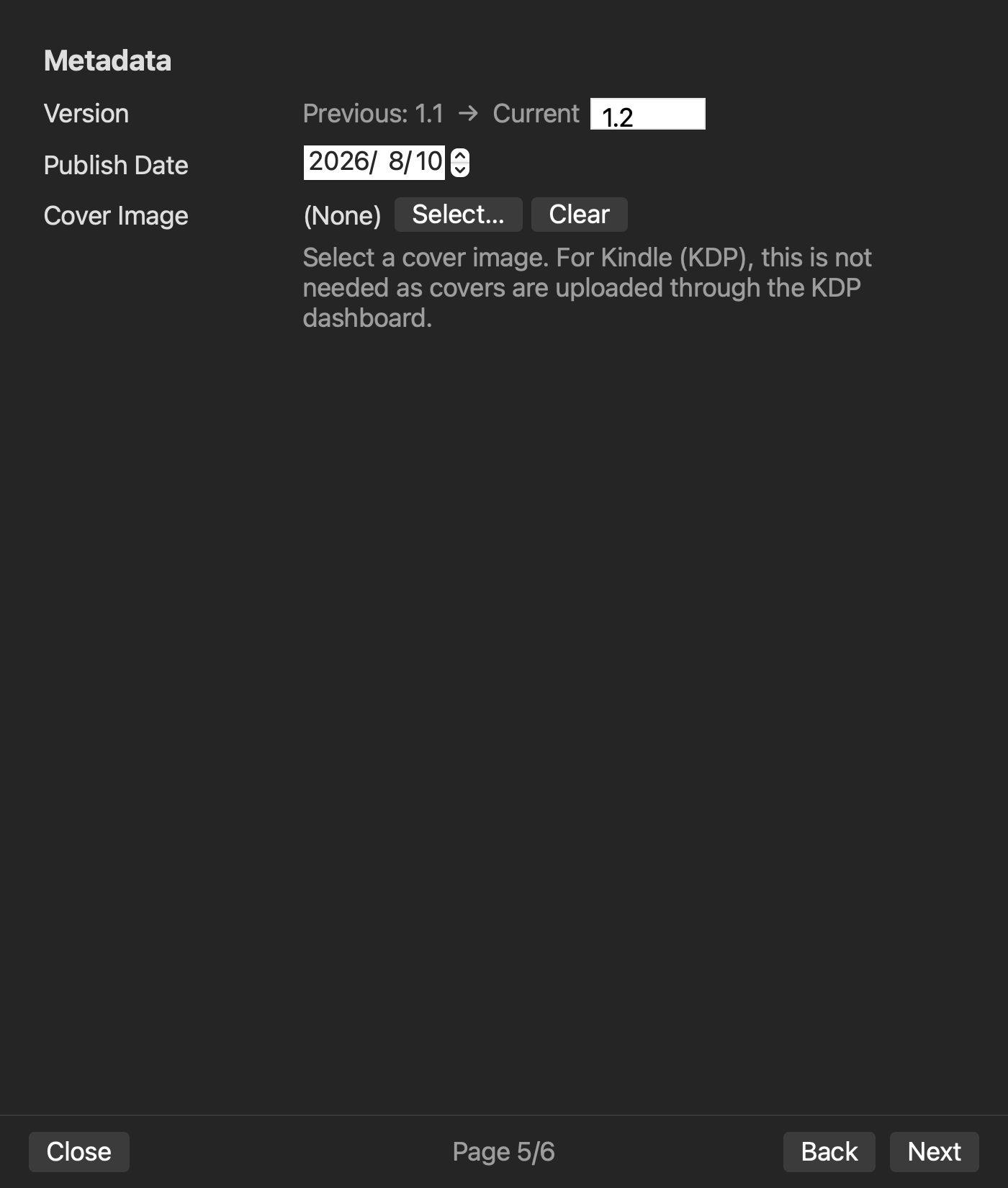
Define what values such as 1.0 and 1.1 mean in your production rules. Software can store a version, but it cannot decide the editorial significance of the change for you.
5. Publication information
Verify the publication date and publisher when used. If the planned date and actual release date differ, decide which date the EPUB should carry.
Price, sales region, product description, and tax data belong to the store-registration process. Do not force store-specific data into the EPUB metadata checklist when the production tool does not own it.
Separate pre-export and post-export checks
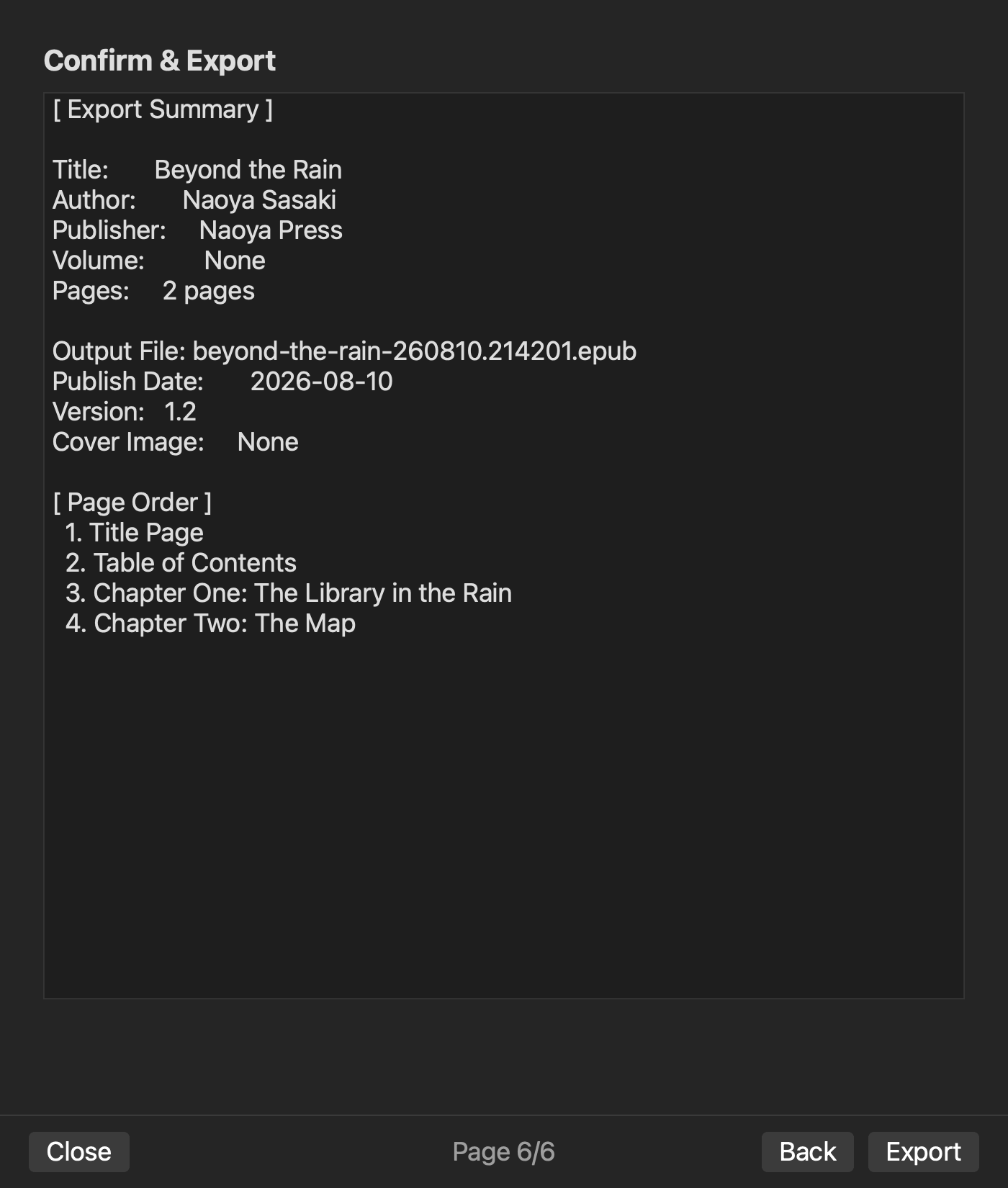
Before export, review the project plan: work settings, volume settings, manuscript count, and chapter order. This stage removes “I thought I entered it” errors. Return to the settings when a required value is missing or malformed.
After generation, inspect values such as title, creator, language, identifier, and writing direction inside the EPUB. Not every application field maps to an OPF element with the same name. In particular, do not assume a stored publication date and a generated dc:date represent the same event without inspecting the output.
Then use an actual reading application to verify reader-facing title-page or colophon text. An internal metadata value and a visible page are two different checks.
Verified behavior in rune Studio
The current Mac version of rune Studio stores work-level settings such as title, author, publisher, writing direction, and output name, plus volume-level settings such as volume number, edition, and publication date. Its command-line interface provides plan and validate operations before export.
In the verification project, “青い鍵” by “検証者” was generated as volume 1, edition 1.0, in vertical writing with two chapters. The OPF contained dc:title, dc:creator, dc:language, a UUID identifier, and vertical-rl writing mode. The dc:date in this tested output represented the generation time.
The test did not verify publisher mapping into the OPF, ISBN handling, or store-specific listing information. rune Studio is also not presented here as a tool for opening and directly rewriting an existing EPUB package.
Verify five groups twice
To prevent missing EPUB metadata, maintain one authoritative sheet for work identity, responsibility, language and direction, volume and edition, and publication information.
Before export, compare the sheet with the project settings and generation plan. After export, inspect the package and reader-facing display. Completion means the authoritative values reached the generated book—not merely that every visible field was filled. Keep contents, cover, and store registration on separate checklists so the metadata check retains a clear purpose.