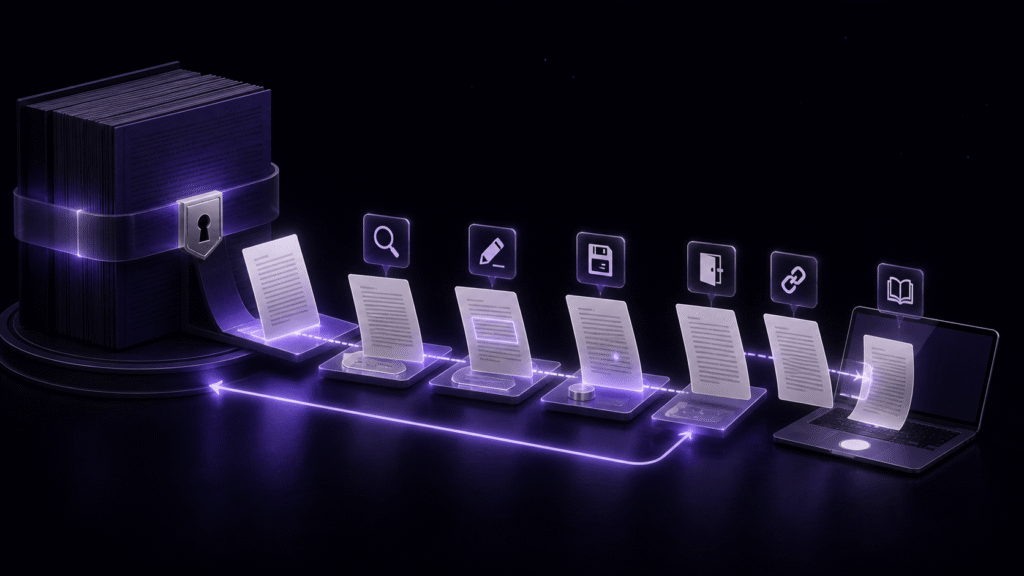
Before moving a novel to a recommended Mac text editor, rehearse the migration with one representative chapter. Duplicate the source, then open, search, edit, save, close, reopen, and—if your workflow requires it—export the test. This reveals migration costs that reviews and feature tables rarely show.
A long novel carries more than body text. Chapter boundaries, reference notes, search markers, filenames, and established writing habits accumulate over time. A new editor can have excellent features and still interrupt the project if those working materials cannot be transferred safely.
This article does not compare five general writing features or design a brand-new novel project. It focuses on switching from an existing environment while preserving a clear route back.
Define the migration requirements first
Divide what exists in the current environment into three levels:
- Required: body text, character encoding, real line breaks, chapter boundaries, and filenames
- Prefer to retain: search markers, reference links, window arrangements, and display settings
- Rebuildable: shortcuts, colors, fonts, and recent-file lists
Stop the test if a required item is damaged. Requiring every rebuildable preference to match can eliminate otherwise useful candidates, so judge each item by whether it is necessary to resume writing.
Proprietary document formats, comments, and revision history may not transfer like ordinary text files. Identify an export format and a recovery route before allowing a new application to touch the production project.
Use a duplicate, not the authoritative manuscript
Opening the current production folder directly can allow automatic saving or new project files to change it. Duplicate a small portion to another location and prefix the folder name with “migration-test.”
Choose a representative chapter containing dialogue, narrative paragraphs, your usual notation, full-width and half-width characters, and at least one long paragraph. If you write while consulting a character sheet or glossary, copy one reference file too.
Record the modification time of the authoritative source and the location of its backup. Do not open that source in the candidate editor until the rehearsal is complete. This untouched copy is your rollback point.
Run seven migration checks
1. Identify the file location
Confirm exactly which file the new editor opened. When multiple files share a name, you should be able to return to the location in Finder and distinguish the test copy from the original.
2. Compare text and line breaks
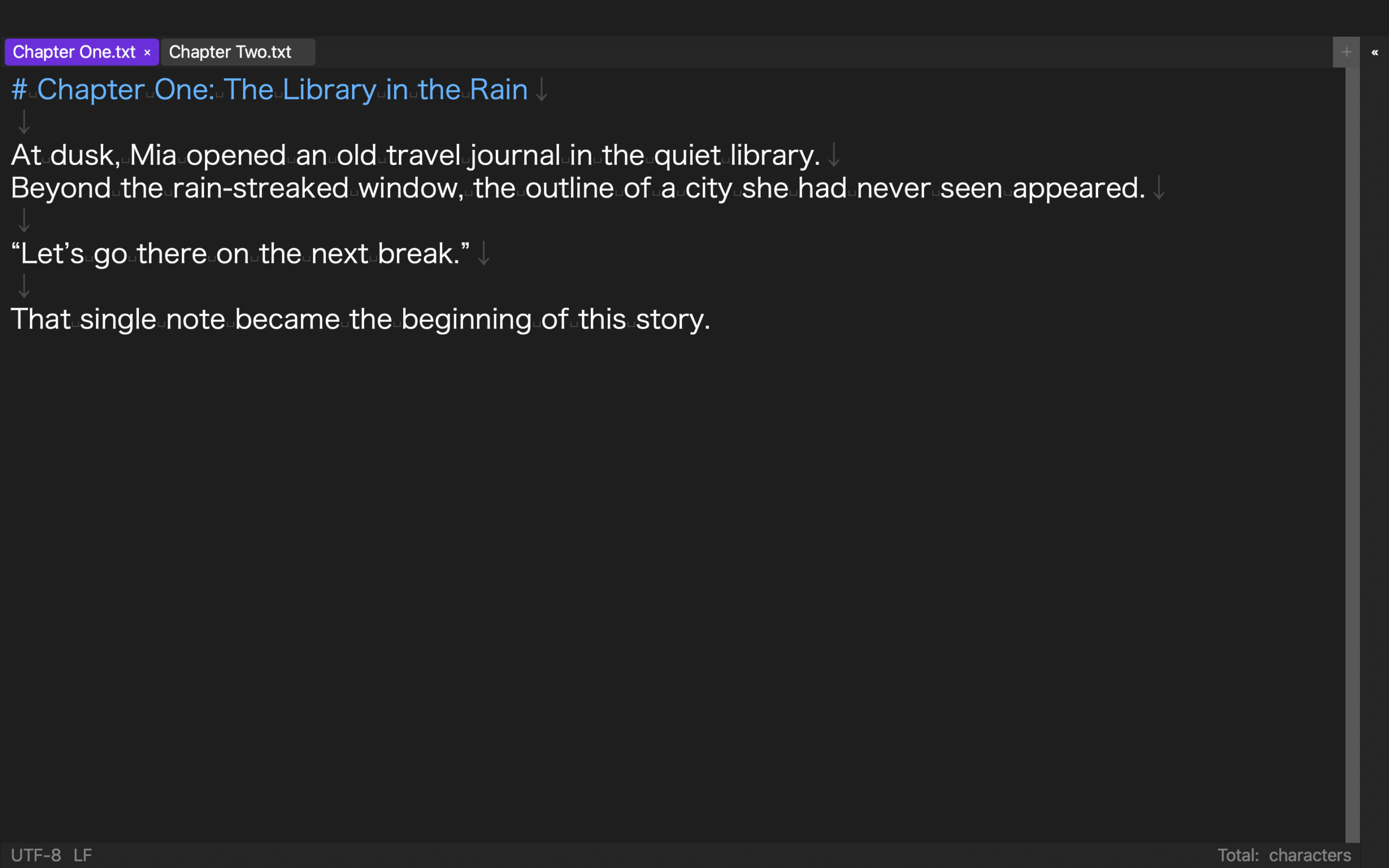
Compare the beginning, middle, and end with the old environment. Look for garbled characters, added or removed line breaks, changed trailing spaces, and missing notation. Visual wrapping changes with window width, so do not confuse wrapping with actual newline characters.
3. Search for a known marker
Search for a term that definitely exists, such as TODO or a character name. Record not only whether it was found but also the number of results within the tested scope. This helps reveal a missing chapter or a search that silently covers a different folder.
4. Change one sentence
Edit one sentence in the duplicate and add a recognizable marker. Do not run a large replacement yet. Test undo, save, and a second search so you can trace where the change was written.
5. Close and reopen
Close the file and workspace, then reopen the duplicate. Returning to the exact cursor position is convenient, but the required result is simpler: you can identify the correct file and confirm the saved change.
6. Move between a chapter and a reference file
Open the character sheet, then return to the manuscript. If the novel uses several chapter files, test chapter switching and verify that you can identify their order. The goal is to avoid writing in the wrong chapter, not to reproduce every old window arrangement.
7. Reach the required exit
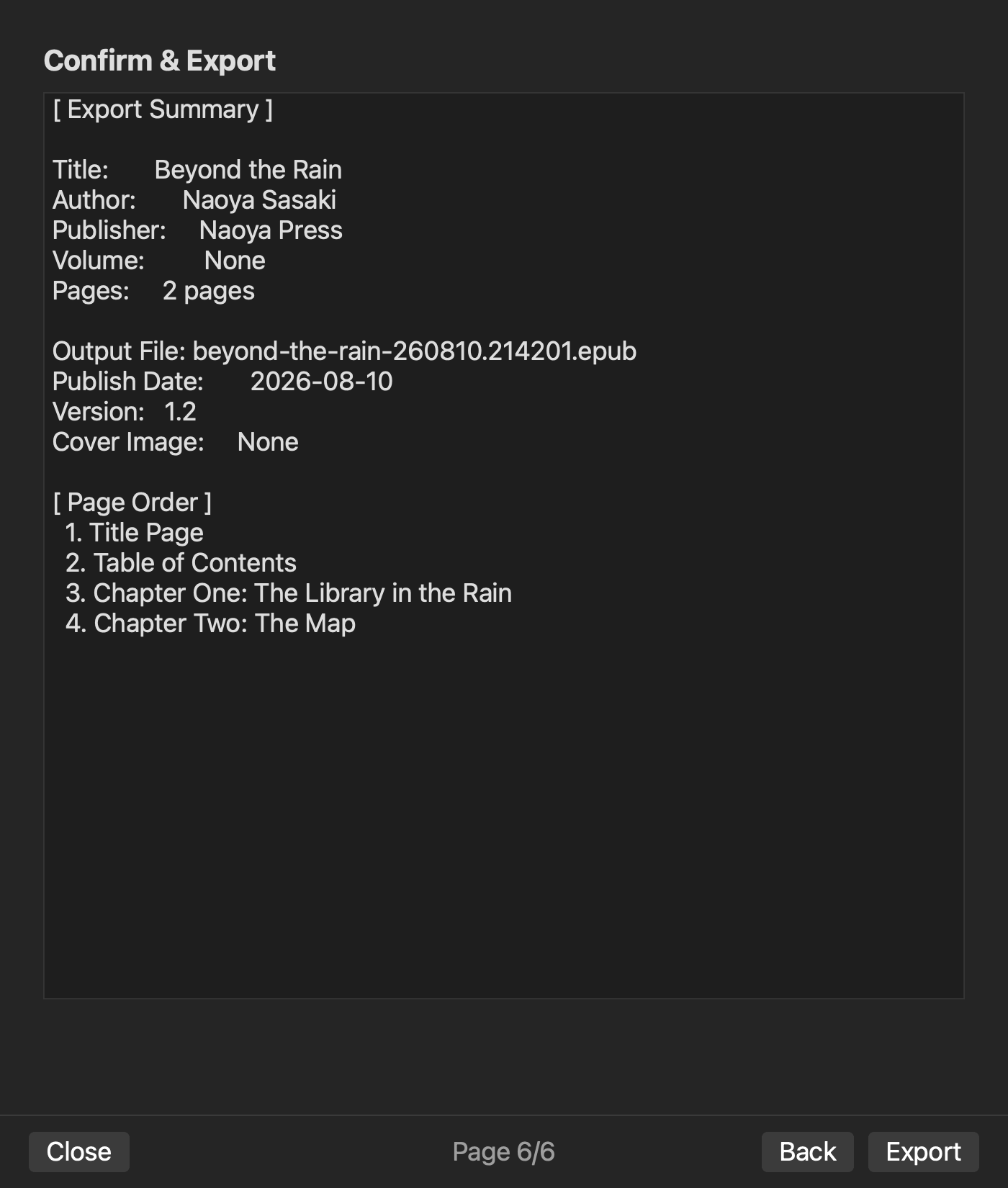
If your publishing workflow ends in EPUB, generate a test EPUB. If another production tool comes next, save a format that tool can read. A comfortable writing experience is not a successful migration when the manuscript cannot rejoin the established publishing process.
Decide continue, hold, or stop
Classify the result with an action, not only a numerical score:
- Continue: all required items survived, and the saved change and production exit were verified.
- Hold: required items survived, but reference handling or export needs an additional documented step.
- Stop: the original and copy cannot be distinguished, or text, line breaks, or saved results cannot be verified.
If the decision is stop, close the test copy and return to the untouched source. Do not migrate the full novel merely because the trial already consumed time. For a hold result, estimate the additional step across an entire volume before deciding.
The verified migration entry and exit in rune Studio
The current Mac version of rune Studio can treat an existing folder as a workspace. In command-line verification, manuscript files were listed, a workspace search was performed, a test change was saved, the new value was found again, and the workspace was closed and reopened. The documented feature list also includes showing a file in Finder and Save As.
After manuscripts and project settings are prepared, the workflow can continue to EPUB generation. This does not imply automatic conversion of proprietary formats, comments, or revision histories from other applications. It also should not be treated as an automatic backup of the authoritative source. Create a duplicate before testing.
Choose by moving one chapter, not the whole book
A recommended Mac text editor is useful only when it can receive the existing novel safely, preserve a traceable saved change, and return the manuscript to the required production route.
Protect the authoritative source, duplicate one representative chapter, and complete all seven checks. With continue, hold, and stop conditions decided in advance, you can evaluate the switch without exposing the entire novel to a migration mistake.