To build a horizontal EPUB for a practical or technical book, choose horizontal composition, freeze title, author, publisher, language, publication date, chapter order, and navigation inclusion, and then export. On the output side, verify page-progression-direction=”ltr” in content.opf plus chapter XHTML, spine, nav, and NCX. The task is not complete merely because a settings screen says “horizontal”; the generated package must preserve a left-to-right reading flow and the intended body.
A Rune Studio hands-on check completed plan→export→check passed for an image-free two-chapter horizontal specimen. The generated package had page-progression-direction=”ltr” plus body XHTML, nav, NCX, and spine. The cover- and figure-enabled route remains separate because the current package checker reported a failure.
Map horizontal inputs to output evidence
For any EPUB tool, connect each input to one output check:
- composition: horizontal;
- expected progression: ltr;
- metadata: title, author, publisher, language, and publication date;
- body: authoritative C01–C05 sources;
- reading order: title, toc, C01, C02, C03, C04, C05, colophon;
- navigation inclusion: C01–C05;
- package check targets: content.opf, chapter XHTML, nav.xhtml, and toc.ncx.
This sheet separates a retained vertical setting from a chapter-order error, and it prevents “not listed in navigation” from being mistaken for “removed from the body.”
Freeze metadata and horizontal composition before export
Write title, author, publisher, language, and publication date on one book-information card. Select horizontal composition and record the paragraph policy on the same input sheet. Compare the card with the generation settings instead of retyping metadata from memory for every build.
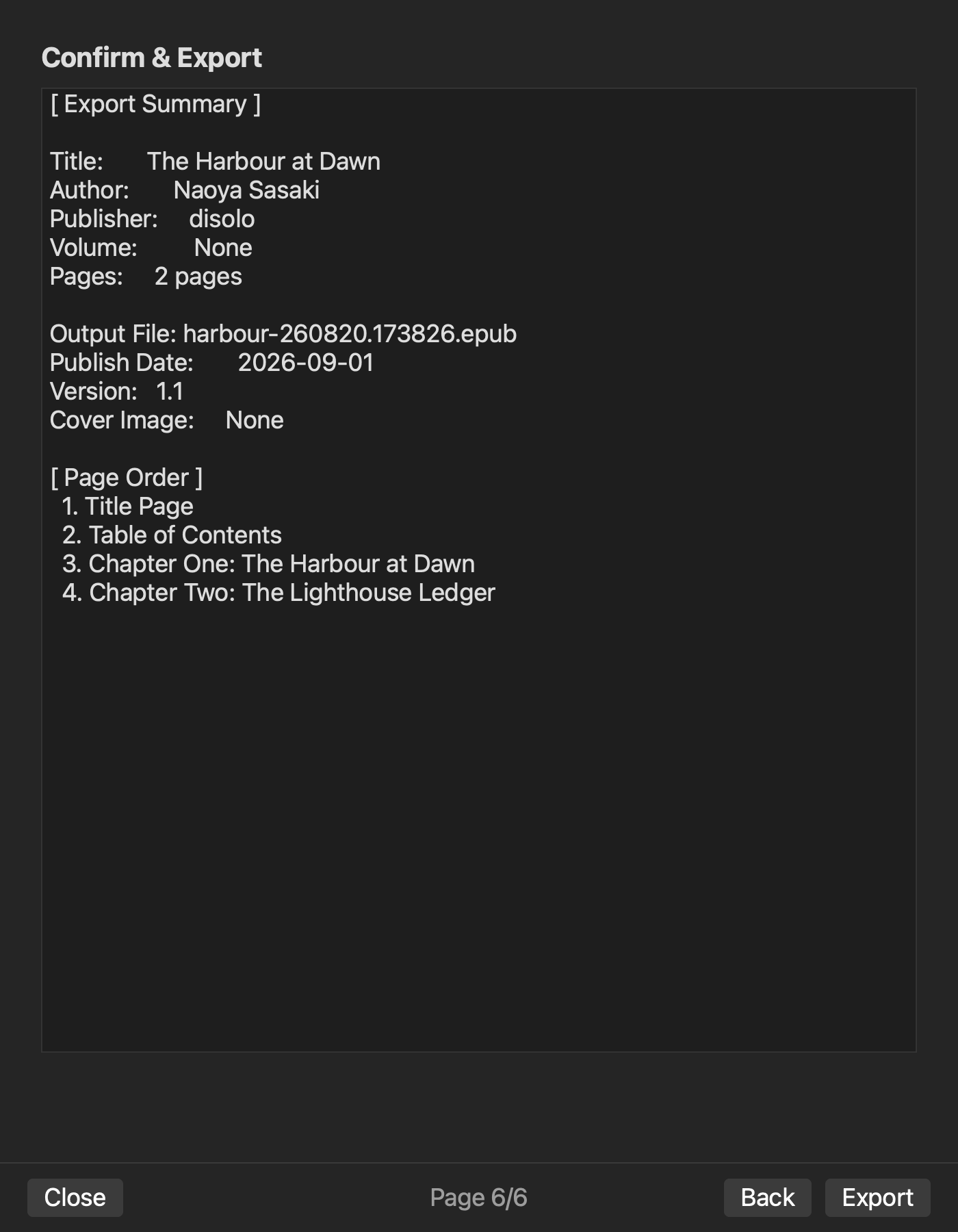
Rune Studio documentation places title, author, publisher, vertical or horizontal composition, filename, language, and paragraph style in the EPUB wizard’s series information. Hands-on checks confirmed that configured book information appeared in generated OPF metadata. Acceptance therefore checks the package values, not only the input screen.
Set reading order and navigation inclusion separately
Fix C01 through C05 as the body reading order and verify body inclusion in the spine. Navigation inclusion is a separate setting that controls nav and NCX.
In the verified hands-on two-chapter specimen, excluding chapter 2 from navigation removed it from nav while leaving it in the spine. Navigation exclusion therefore must not be treated as body deletion.
A normal five-chapter instructional book can list C01 through C05. If an appendix or colophon is excluded from navigation, decide its spine inclusion separately on the input sheet.
Check five inputs in plan
Before export, check the plan for:
- horizontal composition;
- metadata matching the book-information card;
- authoritative source paths;
- reading order and navigation scope;
- output destination and a nonconflicting filename.
Stop if vertical composition, old chapter order, or stale metadata remains. Correct the inputs and regenerate rather than editing content.opf into a second source of truth.
Check the generated package and chapter XHTML
After export, record the package-check result, nav, NCX, missing images, and spine. The image-free hands-on testing horizontal specimen passed its package check with nav and NCX present and no missing images.
Open each chapter XHTML and verify the expected C01–C05 heading and text in reading order. Correct ltr output does not excuse stale body content, so metadata, direction, and chapter text remain separate acceptance fields.
Verify ltr in content.opf
The horizontal-specific package check is page-progression-direction=”ltr” in content.opf. Hands-on checks confirmed this value in the generated horizontal specimen. Tie the horizontal input and ltr output together in the run record so they cannot be confused with a vertical rtl package.
The ltr value does not prove correct chapter content or identical rendering in every reader. Continue to check body XHTML, spine, nav, and NCX.
Apply the settings to a five-chapter instructional book
The article-specific input example assigns C01 to preparation, C02 to environment setup, C03 to the central operation, C04 to result package check, and C05 to operational handoff. Navigation presents the same five entries in the same order.
This five-chapter specimen has not completed hands-on testing. The verified run used two chapters. For a five-chapter build, record authoritative path, spine position, navigation inclusion, and XHTML heading on one row per chapter rather than converting the two-chapter evidence into an untested success claim.
Preserve the cover- and figure-package checker limitation
Hands-on checks configured one cover and one body image, exported the EPUB, and confirmed the archived image resources and references. The current package checker nevertheless reported missingImages and failed.
For a practical book with a cover or figures, keep “generated” and “resources present in ZIP” separate from “package check passed.” Do not reuse the image-free passed result for the image-enabled path. Use a separate fidelity review to verify each figure, table, and code sample.
Finish with a horizontal-specific acceptance record
Record horizontal composition, metadata, source paths, reading order, navigation inclusion, output name, check result, ltr, chapter XHTML, nav/NCX, and spine. This documents a horizontal book rather than a generic successful export.
Start by freezing horizontal composition and metadata, then separate reading order from navigation before reviewing the settings and generating the book. Compare the generated package with the EPUB 3 scope on the Rune Studio product page, and verify ltr plus horizontal chapter content. Preserve the unresolved cover- and figure-package result in its own field. If ltr is absent, chapter order differs, or a navigation-excluded chapter disappeared from the body, reject the package, return to the input card, correct the setting, and recheck every chapter.