To evaluate linked scrolling in a screenplay text editor, do more than view two adjacent scenes. Design a test with four observation rows and three transitions, then record whether each linked destination shows scene-specific content. Start at SC03, continue to SC27 and SC11, and return to SC03, using the respective cues “blue envelope,” “broken clock,” and “fire stairs.”
Reuse that test sheet in the same order after every screenplay revision. When added dialogue shifts line positions, the fixed IDs and cues reduce the work of finding and pairing the same scenes from scratch in the screenplay and its corresponding reference. In this article, “manage screenplay revisions” means preserving scene identity across revisions and narrowing manual re-alignment to mismatched rows. It does not mean restoring a window layout or storing revision files.
This article is not a general method for assigning a manuscript, character sheet, and timeline to three panes. It is also not a draft-versus-revision change audit. It focuses narrowly on designing a test that can judge linked destination content across nonadjacent screenplay scenes.
Adjacent scenes are weak evidence of correct following
Long screenplays repeat headings such as INTERIOR—NIGHT. Character names also recur across many scenes. When dialogue is added, line positions after the edit move.
If you move from SC03 to SC04 and the linked pane moves, it may have followed a nearby vertical position rather than the scene’s identity. A familiar heading alone cannot rule out another occurrence of the same location and time.
Deliberately separate the test scenes. Use an early, late, middle, and return-to-early observation order. This discontinuous order reduces the chance that a small, sequential scroll looks like scene-based following. Judge by scene-specific content, not pixels or line numbers.
Reuse the same test sheet after every revision
During the first revision, fix the three scene IDs, cues, transition order, and expected content in the test sheet. If later dialogue or action changes line positions, do not invent a new scene order. Follow the same SC03 → SC27 → SC11 → SC03 route and enter the observed ID and cue in the same four rows.
When all four rows match, that revision does not require rebuilding the scene pairing from scratch. When one row fails, inspect only whether its scene ID, cue, or scene boundary changed. Update the expected content and record the reason only when the scene itself was renamed or its cue was removed.
This is the revision management promised by the title: keep scene identity stable across revisions and limit manual re-alignment to mismatched rows. It is not revision-file storage, textual-difference classification, or a measured claim about time saved. It is a general operating rule that defines what remains reusable and what must be updated.
Give each scene anchor a unique content cue
Prepare a disposable screenplay copy and one corresponding reference. Add three scene anchors:
SC03-PORTwith the cue “blue envelope”;SC27-TOWERwith the cue “broken clock”; andSC11-STAIRSwith the cue “fire stairs.”
Do not reuse an ID. Choose a cue that does not occur in another scene in the controlled input. The heading, ID, and cue together make it possible to verify the destination by content.
For every observation row, record the observation point, expected destination ID, expected cue, actual destination heading, and actual cue. “The pane moved” or “it looked close” is not enough evidence.
Separate four observations from three transitions
Use the test-sheet sequence SC03 → SC27 → SC11 → SC03. It contains four observation points but only three transitions: SC03 to SC27, SC27 to SC11, and SC11 back to SC03.
Row one records the starting state: whether the linked destination begins at SC03-PORT and includes “blue envelope.” After transition one, observe SC27-TOWER plus “broken clock.” After transition two, observe SC11-STAIRS plus “fire stairs.” After transition three, observe SC03-PORT plus “blue envelope” again.
This is a general test design, not a verified product-specific “select an anchor to jump” procedure. When running it, use a movement method actually available in the editor and record the starting action separately from the three transitions.
Judge the destination by a pair of content facts
A correct row has both the expected ID and the expected cue. If the SC27 observation shows SC27-TOWER and “broken clock,” the row can be recorded as matching.
Keep these failures distinct:
- The ID is SC27 but the cue is “fire stairs”: content from different scenes may be mixed.
- The cue is “broken clock” but the ID is SC26: inspect the scene boundary.
- The pane moved but neither the ID nor cue is visible: following is not demonstrated.
- The return to SC03 fails even though the outward transitions match: the two directions produced different results.
Do not reduce every failure to “slightly misaligned.” A record of observation point, expected content, and observed content tells a later reviewer exactly which transition failed.
Prove one round trip before adding more references
Opening character, location, and prop references at once makes it hard to identify which destination failed. Begin with the screenplay and one corresponding reference.
After the four rows are complete, add another reference while keeping the same observation order and expected values. Changing both the input and procedure at once would make any result difference ambiguous.
This test does not establish which reference is authoritative or who is allowed to edit it. Its single decision is whether the linked destination at each observation point shows the expected scene content.
Keep the documented Rune Studio scope separate from the example result
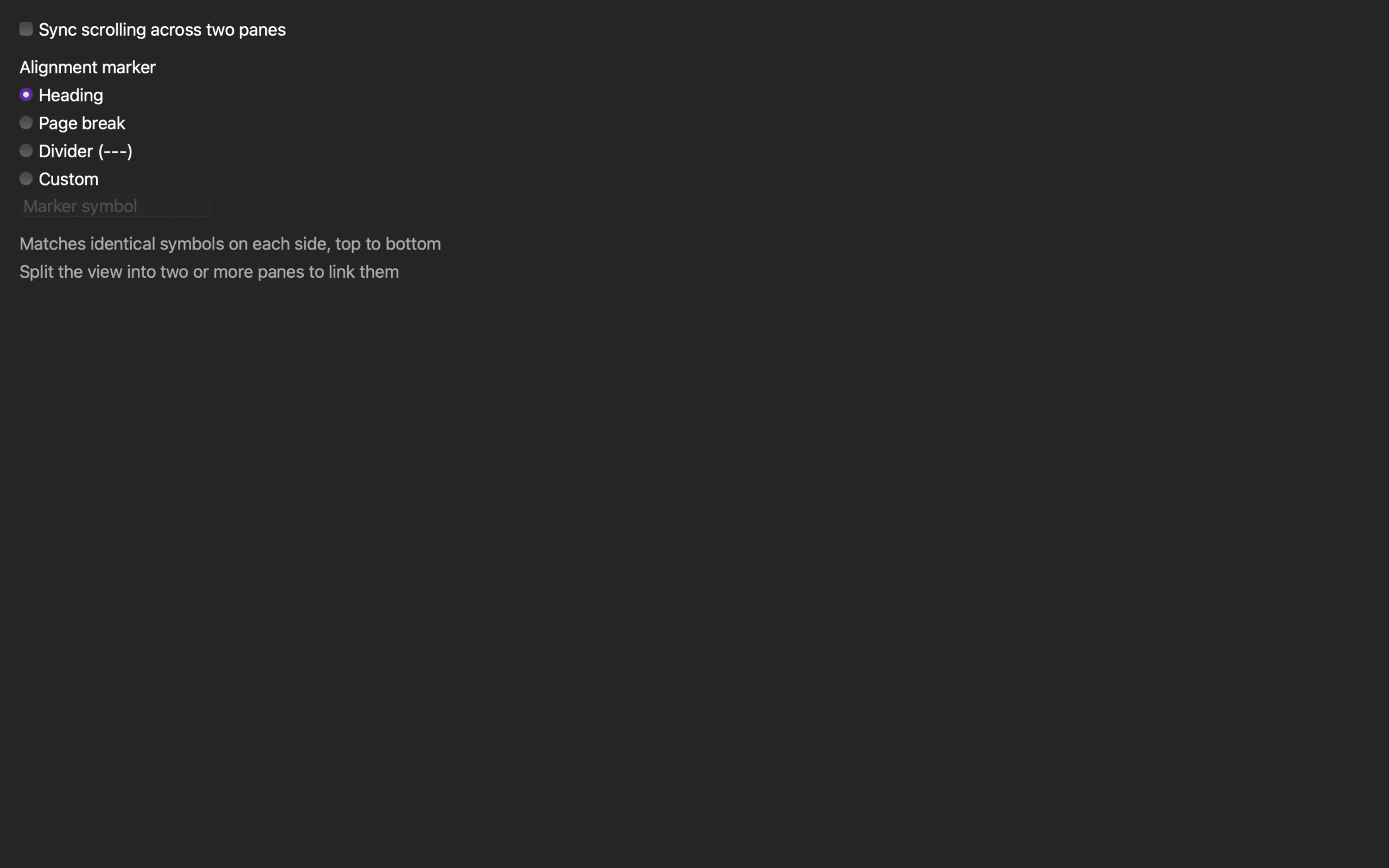
Rune Studio’s feature materials document linked scrolling that pairs markers in the same order, aligns positions proportionally between markers, and uses participating panes. That scope is relevant to reading a screenplay and reference of different lengths along shared scene breaks. This is Stage 1 documentation evidence, not Stage 3 evidence from the running interface.
The materials do not document selecting a scene anchor as a command that jumps to a named scene. The specific SC03 → SC27 → SC11 → SC03 test also has not been recorded as a completed run. It is therefore a test design for the documented relative-marker behavior, not a verified Rune Studio operation or proof that every nonadjacent transition will succeed.
To run it in Rune Studio, first confirm the current marker and participating-pane controls, then use an available scrolling action to reach each observation point. Record the starting state, three transitions, and four results before judging that controlled input. This article does not claim the result in advance.
Linked scrolling is not automatic text-difference detection, version merging, or a judgment about screenplay correctness. It also does not decide whether two scenes are narratively consistent.
Keep general pane comparison and revision auditing separate
STUDIO-005 assigns one current manuscript and two authoritative references to fixed roles. STUDIO-012 audits changes between a first draft and revision with change IDs and deletion, addition, and meaning-change classes.
This article does neither job. It does not teach general three-pane comparison, record revision reasons, or test restart layout recovery. It judges only the content observed at four nonadjacent screenplay test points.
Record four observations and three transitions
Create three unique scene IDs and three unique cues. Split SC03 → SC27 → SC11 → SC03 into four observation rows and three transitions, then record expected and observed IDs and cues in every row.
If all four pairs match, you can explain that the linked pane followed the correct scene content for that controlled input—not merely that the screen moved. If a pair fails, the record identifies the exact transition and mismatch. That is the screenplay-specific linked-scrolling decision this article is designed to produce.
The rearrangement reduced by this workflow is not saved-window restoration. It is the repeated work of finding and pairing the same scenes from scratch after every revision. Reuse the four-row order and expected content, preserve matching rows, and revisit only mismatches. That is how anchors and linked scrolling support revision management without turning this article into a draft-versus-revision audit.
If linked scrolling is on your shortlist, check the current marker and participating-pane scope on the Rune Studio product page and run this four-row, three-transition test on a disposable screenplay copy.