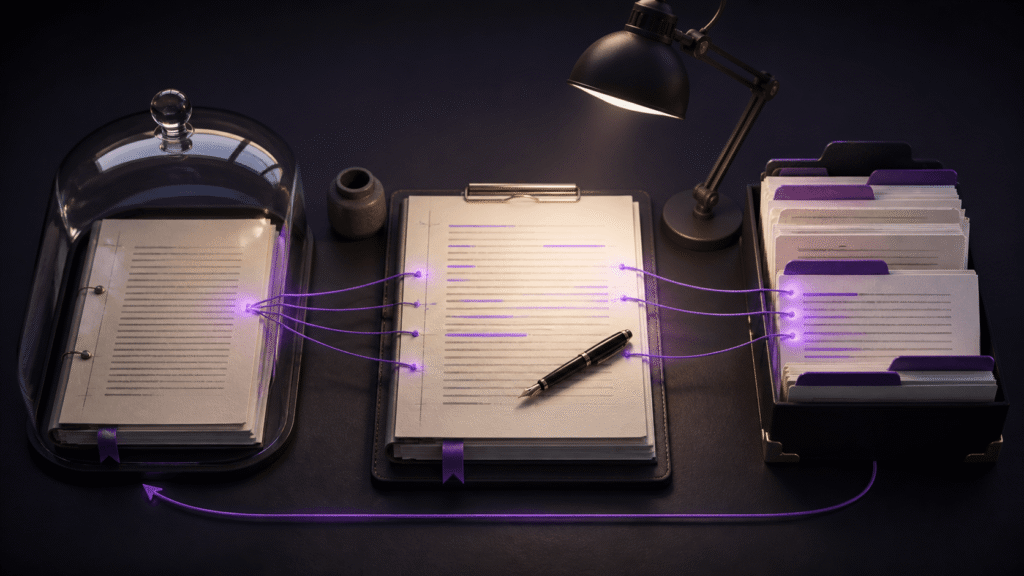
Opening more tabs does not by itself make revision safer. If the original draft and working revision can exchange places, a split view may actually make the wrong file easier to edit. The reliable method is to assign roles to positions: original on the left, editable revision in the center, and reference material on the right. File names and a restart note reinforce that spatial rule. This guide shows how to build and test the layout with one chapter before using it across a full novel.
Assign three roles before opening more tabs
Reserve the left pane for the original draft, the center for the current revision, and the right for a character sheet, timeline, or research note. Treat the original as a reference. If you discover a needed change while reading it, move the change into the center file rather than typing into the left pane. Position becomes an early warning even when you skim past a similar tab name.
Do not add a pane for every document. Keep the two manuscripts visible and switch reference tabs inside the right pane. On a small MacBook display, two columns plus a temporary reference tab may be clearer than three narrow columns. Choose the split by the number of facts you must compare at one time, not by the maximum supported pane count.
Put version, chapter, and date in every manuscript name
A spatial rule disappears when the editor is closed, so the file name must carry the same identity. A pattern such as chapter-03_original_20260830 and chapter-03_revision_20260831 remains meaningful later. Avoid names such as final, latest, and final-2. Separate manuscript, reference, and export folders so that a generated file is not mistaken for the editable source.
Duplicate the original before revision and open only the duplicate in the center. Define that center file as the working source of truth. At the end of the stage, change a status word in the name from revising to revised. This is not a replacement for a version-control system, but it is a practical defense against daily overwrites.
Test tab movement with one disposable chapter
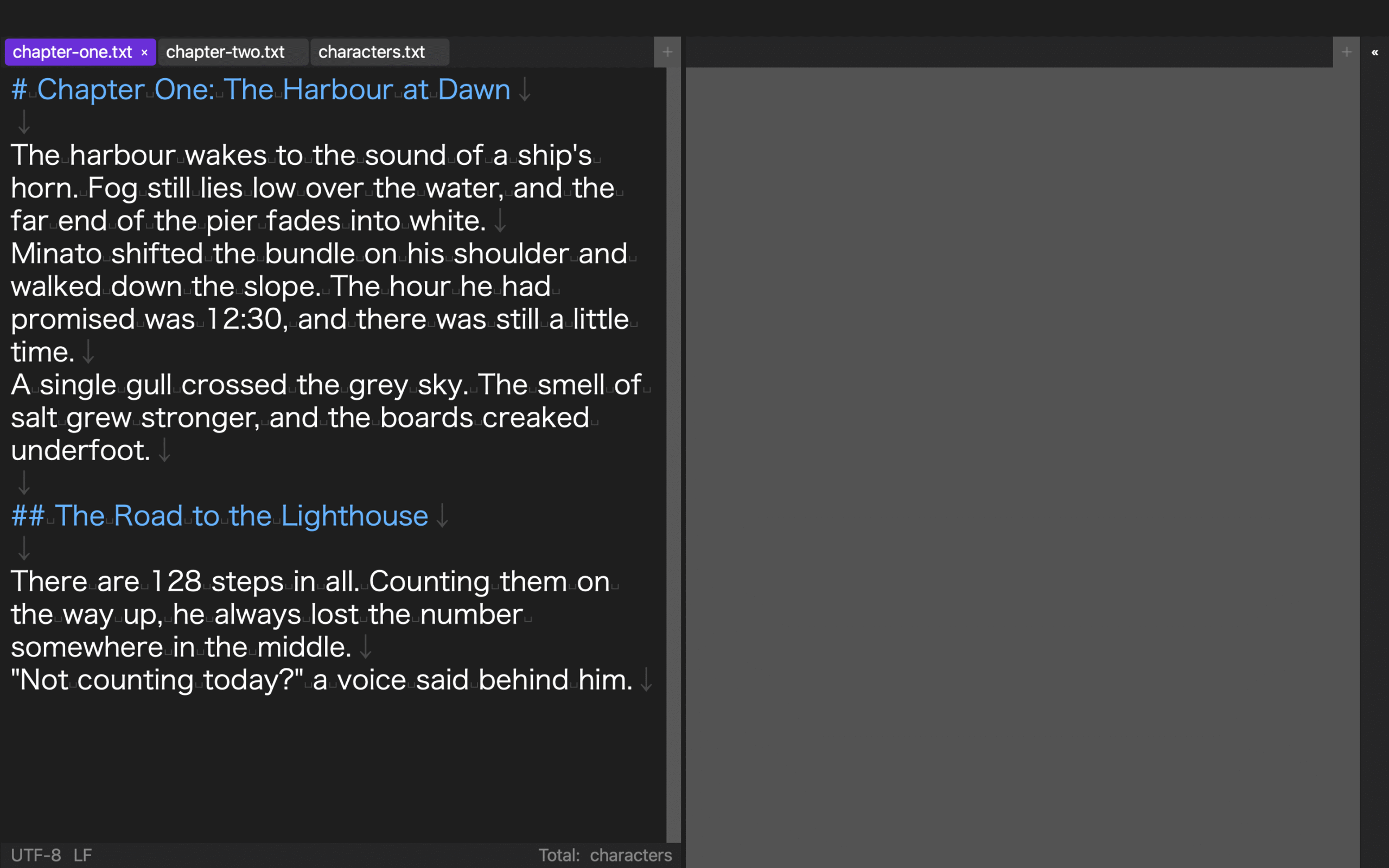
Before opening a 300,000-character manuscript, practice with copies of one chapter. Place the three files, add a sentence only to the center revision, and consult a name in the right-side character sheet. Then deliberately move the original into the center and see whether the name and content let you restore the roles in under five minutes. If not, improve the naming or layout rule.
Check whether you can identify the editable file without opening a separate dialog, restore a closed tab to the correct pane, and switch references without destroying useful manuscript width. You can also type one intentional character into the original and test whether you notice before saving. For stronger protection, keep another untouched copy of the original outside the working folder.
Save layouts by stage, not by number
Name layouts after the work they support: draft comparison, revision, continuous reading, and reference cleanup. Layout 1 tells you nothing after a month. A comparison layout may show two manuscripts; a revision layout may show the active text and references; a reading layout may use one wide pane. Changing stage then becomes a deliberate screen change.
Rune Studio supports one to three columns and one to three rows, movement of tabs between panes, and up to four saved layouts. Nine possible panes do not mean nine useful panes. Begin with three roles, or two on a compact display, and add a region only when it removes a real navigation step.
Include restart recovery in the workflow
A layout is incomplete if you cannot identify the source file the next morning. Before closing, record the center file name, last edit time, and the opening words of the next paragraph to revise. On restart, compare that note with the center tab before entering any text. This makes recovery independent of memory.
Once a week, quit the editor and reopen the project from the folder. Confirm that you can reconstruct the three roles even if automatic restoration is unavailable. A saved pane arrangement is not manuscript version history. Backups and important revision snapshots remain separate responsibilities.
Align revisions with anchors, not only line numbers
Insertions and deletions cause an original and revision to drift apart. Use a chapter heading, scene break, or distinctive sentence as an anchor, and bring both panes to the same content. If an editor offers linked movement, confirm the anchor first. Matching vertical positions is not the same as proving that two passages correspond.
Classify comparison notes as deletion, addition, or meaning change. A split view helps you see both texts; it does not automatically calculate or merge differences. For high-risk revisions, keep snapshots or use a dedicated comparison method alongside the editor.
Use a five-minute acceptance drill
Your layout passes when you can open one chapter, place the three roles, make a change in the correct file, consult a reference, close the app, and return to the same revision in about five minutes. Record any step that depends on guessing. Fix that ambiguity with a file name, a position rule, or the closing note before scaling the method.
The result should still work after a tab is moved or the app is restarted. That resilience matters more than a perfect screenshot of the workspace. It turns tabs and splits from a visual convenience into an operational system.
Conclusion: reinforce the active draft three ways
A safe Mac text-editor setup makes the active revision recognizable by position, file name, and recovery note. Keep the original on the left, the editable revision in the center, and references on the right. Name every manuscript with its chapter and version, then write a short handoff note before closing.
Start with one disposable chapter and run the full edit, tab-move, quit, and restart cycle. Expand the layout only after you can return to the correct file without hesitation. The goal is not to display the most documents; it is to make the next safe action obvious.