Finding a problem in preview is only half of proofreading. You also need a dependable way back to the exact source sentence. Use two routes: try the documented preview-to-source selection, then fall back to a chapter identifier or distinctive phrase when the arrival cannot be confirmed.
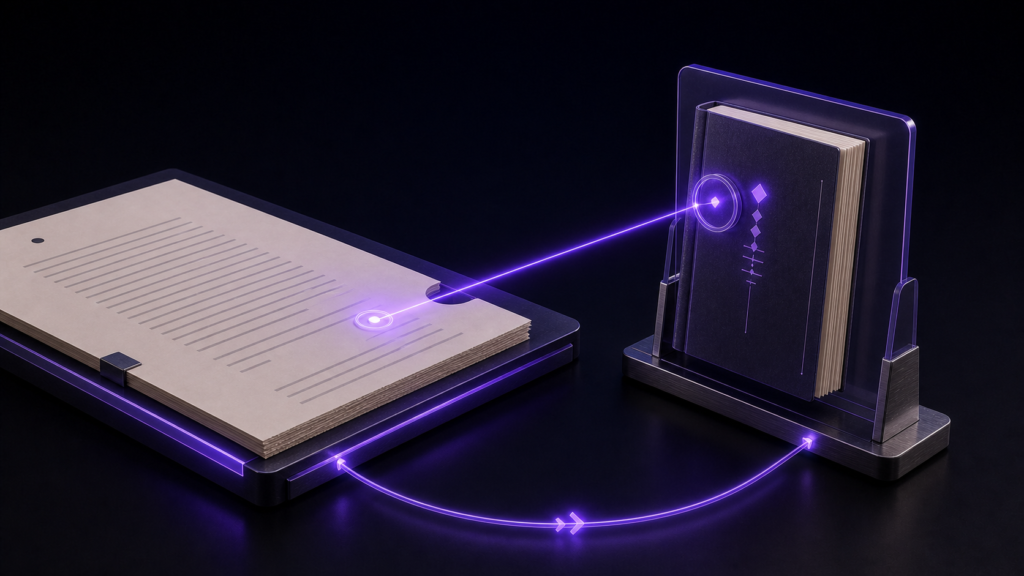
Rune Studio’s product documentation describes selecting text in preview to move the cursor to the corresponding source position. In the current hands-on check, the source tab and preview were linked and the target heading and phrase appeared in preview. The final click-to-cursor arrival was not reproduced, so this article does not present that arrival as an observed success.
Label the preview issue with context
For each problem, record a chapter and a phrase unique enough to search. “Chapter Two, before the table” is better than “the broken table.” Add five to ten words surrounding the visual issue. Repeated headings and repeated dialogue can otherwise lead to the wrong source occurrence.
These identifiers are editing notes, not text that must remain in the published manuscript. Their purpose is to connect a rendered symptom with an authoritative source location.
Place source and preview in separate panes
Open the manuscript in Rune Studio and create the preview while that text tab is active. The application uses one preview tab and links it to the active text in the source pane. The preview can move to another pane while retaining that relationship, and it updates shortly after the source changes.
The checked sample displayed a Start heading, body text, an Arrival heading, and a distinctive target phrase in the linked preview. This establishes that the source and rendered target can be presented together. It does not establish the unobserved click result.
Verify arrival, not merely movement
Select only the problematic sentence in preview. Look for focus in the source pane, then read the chapter heading and surrounding text at the cursor. Edit only when both match the issue note. A moving cursor is not enough if the same sentence occurs elsewhere.
After one correction, save the source and return to the same preview heading and phrase. Confirm that the intended rendering changed before moving to the next issue.
Use workspace search when the jump is unavailable
If selection does not move the cursor, or if the result cannot be verified, search the recorded chapter ID or phrase. Restrict the search to the relevant chapter file or folder when the wording appears more than once. Open the result and compare its surrounding text with the preview note.
This fallback is not the same as a preview click. It is a safe way to recover the source location without claiming that an unobserved interaction succeeded.
Repair one rendering class at a time
Do not change a table, image, and ruby annotation in the same pass. Correct one source location, let preview update, and inspect the same target again. When preview seems stale, check whether the linked source pane switched to another tab; changing the active source tab also changes what the preview follows.
The verified boundary is clear: the linked source and preview displayed the target content, while the final preview-selection arrival remained unconfirmed in this run. Use the documented interaction only with a chapter-and-context check, and keep search ready as the reliable alternative. Rune Studio’s current preview features are listed on the product page.
Choose a selection that can identify one occurrence
A word such as “body” or “result” may appear many times, while an entire rendered paragraph may include transformed markup that is awkward to match. Begin with one sentence containing a distinctive noun. After any movement, verify the enclosing heading and neighboring sentence.
For images, tables, or other preview elements with little selectable text, use the nearest heading or descriptive phrase as the entry point. Search can then narrow the source to a file and line even when the rendered object itself offers no dependable selection.
Keep a short issue list with source context and preview symptom. Remove an entry only after returning to the same rendered location. That makes progress visible without relying on an interaction that has not been independently observed here.