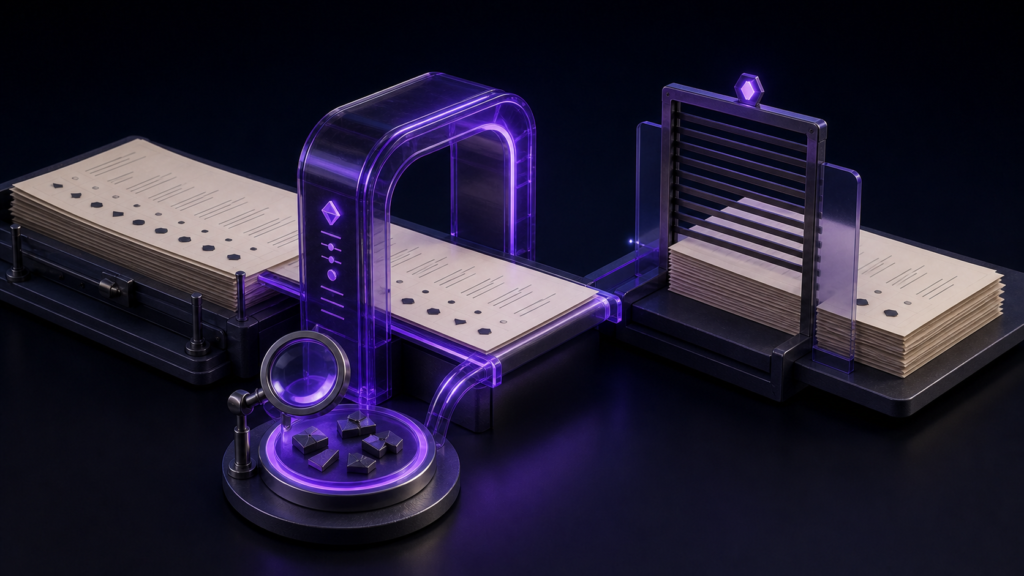
The safest way to convert a Shift_JIS document to UTF-8 is to treat reading and rewriting as two separate jobs. Keep the original bytes untouched, confirm that the text has been decoded correctly, save a named UTF-8 copy, and then reopen that copy. Rune Studio can keep the encoding choice visible while you work, but the important protection comes from the sequence: never let a garbled view become the only surviving file.
Decoding is not conversion
An encoding tells an editor how stored bytes map to characters. Choosing the wrong encoding can produce mojibake even when the source bytes are still intact. Until you overwrite the file, you may still be able to reopen those same bytes with the correct interpretation.
Conversion begins only after the text has been decoded correctly. The editor then writes that character sequence using UTF-8. If you skip the decoding check, the new UTF-8 file can faithfully preserve the wrong characters. A successful save message does not prove that the text was right.
Give the original and the working copy different jobs
Duplicate the source in Finder before opening it for conversion. Give the untouched file an obvious suffix such as _original and use _utf8_work for the editable copy. Do not save the original during this session. This simple naming decision removes the most dangerous ambiguity: which file can still take you back to the starting bytes.
In a controlled check, a Shift_JIS source was saved as a separate UTF-8 copy. Reopening the copy produced matching text, while the source remained unchanged. That establishes the separate-copy route. It does not establish what every warning dialog will look like on every document, so use the visible warning in your installed version as an additional checkpoint, not as the only proof.
Use known characters as anchors
Do not judge a twelve-hundred-character memo from its first sentence. Mark several places whose correct form is already known: a person’s name, punctuation, a platform-dependent symbol, an emoji, and a sentence near the end. A mixed legacy file may look convincing at the top and fail only where a less common character appears.
Rune Studio shows the current tab’s encoding. After opening the working copy, compare the anchor characters with the original source or another trusted reference. If a character is already replaced by a question mark or replacement glyph in the source, changing to UTF-8 cannot reconstruct the lost character. Stop and recover it from an earlier copy or ask the author what was intended.
Save as UTF-8, close, and reopen
Once the Shift_JIS text reads correctly, choose Save As rather than ordinary Save. Select UTF-8 for the destination and use a new filename. Then close that tab and open the new file from disk. Reopening matters because it checks the bytes that were actually written rather than the still-correct text held in memory.
Compare the anchors again and inspect the final paragraph. Also note the line-ending style. A change from CRLF to LF may be invisible in prose while still affecting a collaborator’s diff or an importing system. Decide separately whether the conversion should preserve or change line endings.
What counts as a finished conversion
You are finished when the reopened copy reports UTF-8, the known characters and the end of the document match, the chosen line-ending policy is satisfied, and the Shift_JIS original still exists unchanged. Only then should you decide whether the UTF-8 copy becomes the new authoritative file.
Rune Studio is a practical fit when incoming manuscripts use several Japanese encodings and you want the encoding choice beside the editing view. A one-off forensic recovery of damaged bytes calls for a dedicated conversion tool and backups instead. Check the current scope on the Rune Studio product page, then test the entire round trip on one copy before converting a folder of documents.