Two-Pane Text Editors: Keep a Manuscript and Reference Side by Side
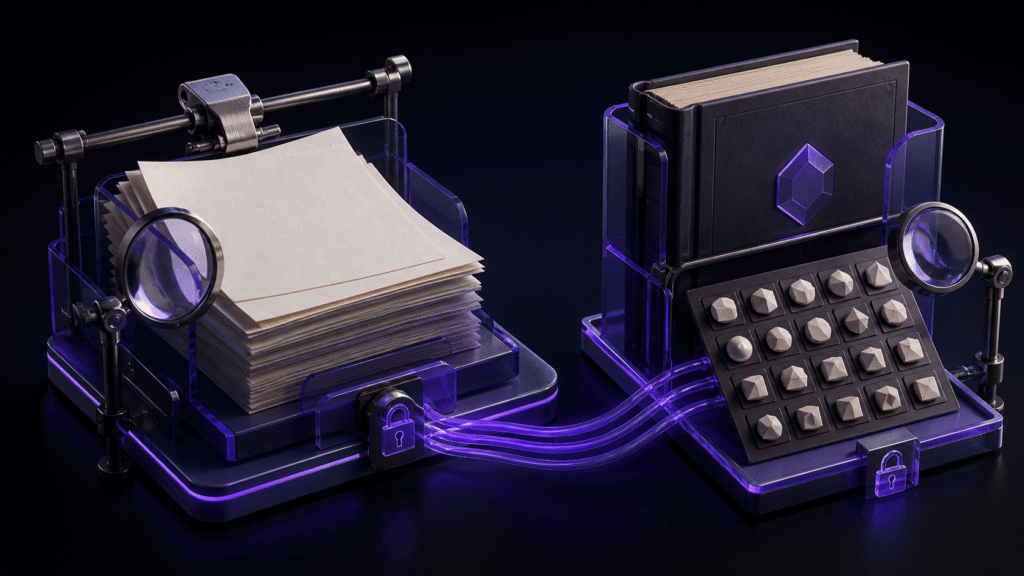
A two-pane text editor is useful when each side has a stable job. Keep the manuscript on one side and the source you are consulting on the other. That arrangement reduces the repeated search for the right tab and the last paragraph you were reading. Splitting the window without assigning roles merely gives the confusion two places to live.
Arrange the screen like a small desk
Suppose you are drafting a travel article. The manuscript sits on the left. A verified note containing opening hours, directions, and the official spelling of a venue sits on the right. You read one fact, write one sentence, and return to the note without uncovering it from beneath the draft.
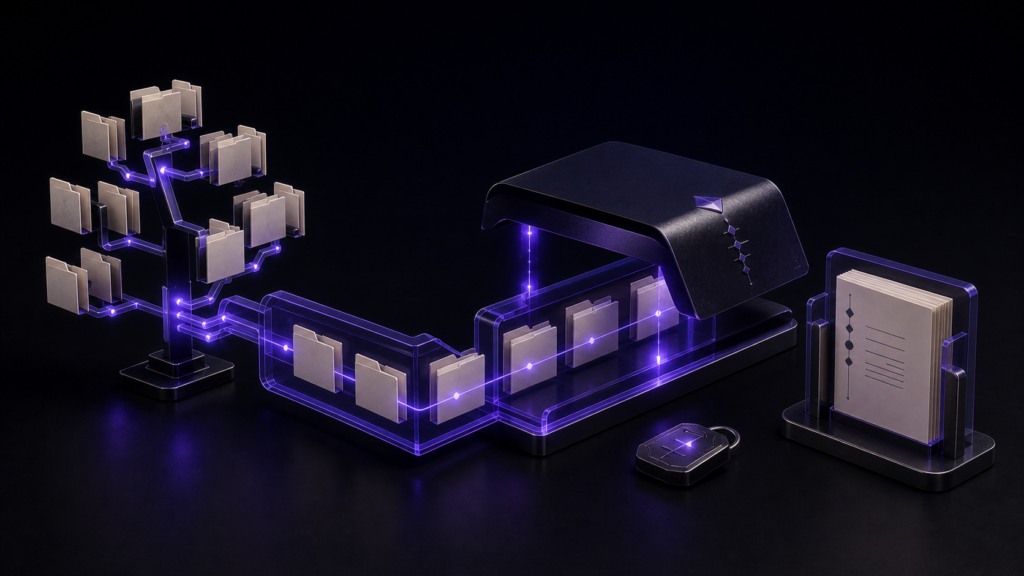
Resist the urge to fill both panes with tabs. Keep one active draft on the writing side. On the reference side, open only the source needed for the current section. Other material can remain in the file tree until it earns a place on the desk.
This is a workflow rule rather than a product feature. It works in any editor that lets you see two documents at once.
Equal width is not a requirement
A short fact sheet can occupy a narrow reference pane. A long interview transcript may deserve more than half the screen for a few minutes. Move the divider according to the work instead of preserving a symmetrical layout.
Font sizes can differ as well. The draft may need comfortable line length and a larger face for sustained reading. A compact outline can show more entries at once. If the smaller text makes a date or name easier to misread, increase it; information density is not worth a factual error.
The Rune Studio setup
Rune Studio supports multiple panes and moving tabs between them. In the small test folder used for this article, a two-column layout, left-and-right tab placement, and separate font-size values for the panes were read back successfully.
Open the manuscript on the writing side and the current source on the reference side. Adjust the divider and each pane’s font size to suit those roles. Rune Studio does not evaluate the source, copy facts into the manuscript, or verify a quotation. You remain responsible for checking names, numbers, permissions, and attribution.
Try one ten-minute writing interval
The quickest way to judge the layout is a bounded exercise:
- Put one draft on the left and one reference file on the right.
- Use the reference to write a single paragraph.
- Mark the source item after it has been incorporated.
- After ten minutes, count how often you had to search for either document.
If the layout works with one source but becomes confusing with four, the next improvement is reference organization, not another pane. Choose a “current source” and return the rest to folders or search results.
Work that benefits from two panes
The arrangement suits drafting from an outline, checking character notes while revising dialogue, comparing an old paragraph with a new one, and writing from interview notes. In each case, attention alternates between creating and consulting.
It may be a poor fit on a small screen where neither pane has a readable line length. A single pane with deliberate tab switching can be calmer. Exact change tracking also calls for a diff tool, while a spreadsheet may be better for comparing many structured facts.
Two panes do not create more reliable information. They give two necessary documents stable, visible places. Start with one manuscript and one source, then keep the arrangement only if it reduces the number of times you lose your place.
The Rune Studio product page lists the current layout features and download options.
About the writer
Naoya is an independent developer who tests practical writing arrangements and describes their limits as well as their useful cases.