
A horizontal eBook can look finished while still containing two expensive defects: the chapters may be in the wrong reading order, and an image may no longer match the sentence that introduces it. The safest workflow treats chapter order and image references as source data. Build a small reference sheet before export, then use it again after every rebuild.
Start with a four-chapter handoff sheet
Imagine a four-chapter practical guide. Chapters two and three contain instructional images. Make one row for each chapter with the source filename, displayed chapter title, first sentence, image filename, and the sentence that refers to that image. The first sentence makes the destination verifiable even when two chapter titles are similar.
Name files so lexical sorting cannot place chapter ten before chapter two. More importantly, do not assume filenames alone determine the final order. Record the intended sequence explicitly and compare it with the order shown by the production tool. If a chapter is missing or duplicated, return to this sheet and the source folder before making an EPUB.
Separate reading order from visual formatting
Set the book to horizontal, left-to-right reading, but verify reading order independently. A book can display horizontal lines correctly while its package still opens chapter three before chapter two. Open the generated book from the cover, move through the table of contents, and visit all four chapters. At each destination, compare the first sentence with the handoff sheet.
If navigation is correct but page progression feels wrong, return to the page-direction setting. If navigation itself points to the wrong file, return to the chapter-to-navigation mapping. Changing paragraph text is not a repair for either problem.
Test every image as a pair
An image is not accepted merely because pixels appear. Read the reference sentence, inspect the following image, and confirm that the alternative description identifies the same subject. In the practical guide, the tool explanation in chapter two must lead to the tool image, and the result explanation in chapter three must lead to the result image. Resize the reading window and make sure the image remains contained without forcing horizontal scrolling.
When an image disappears, check the original asset, its filename, and whether it was included in the build. When the wrong image appears, inspect the mapping in the handoff sheet. Do not patch the generated EPUB as the primary fix, because the next rebuild will reproduce the bad input.
Build once, then change one sentence
Keep the first accepted EPUB instead of overwriting it. Correct one word in chapter three and create a second EPUB from the same settings. Write the expected difference before comparing: one word in chapter three, with no change to chapter count, navigation labels, image order, cover, or metadata.
Open both versions at the same representative locations. Check the corrected sentence and its photograph, then visit a chapter that was not edited. This control chapter detects a rebuild that silently changed order or dropped assets. If the correction appears but the chapter order changes, the rebuild is not accepted.
Know where to return after a failure
Use the symptom to choose the source of repair. A typo belongs in the manuscript. A missing chapter belongs in the source list or chapter order. A table-of-contents destination belongs in navigation mapping. A missing photograph belongs in the asset list or image reference. A wrong title belongs in metadata. Keeping those return points distinct prevents a local repair from disturbing a correct part of the book.
This workflow differs from a general explanation of eBook production. Its acceptance target is narrow: four source chapters must remain in the declared sequence, and every image must remain attached to the meaning of its reference sentence after a rebuild.
Place Rune Studio inside the workflow carefully
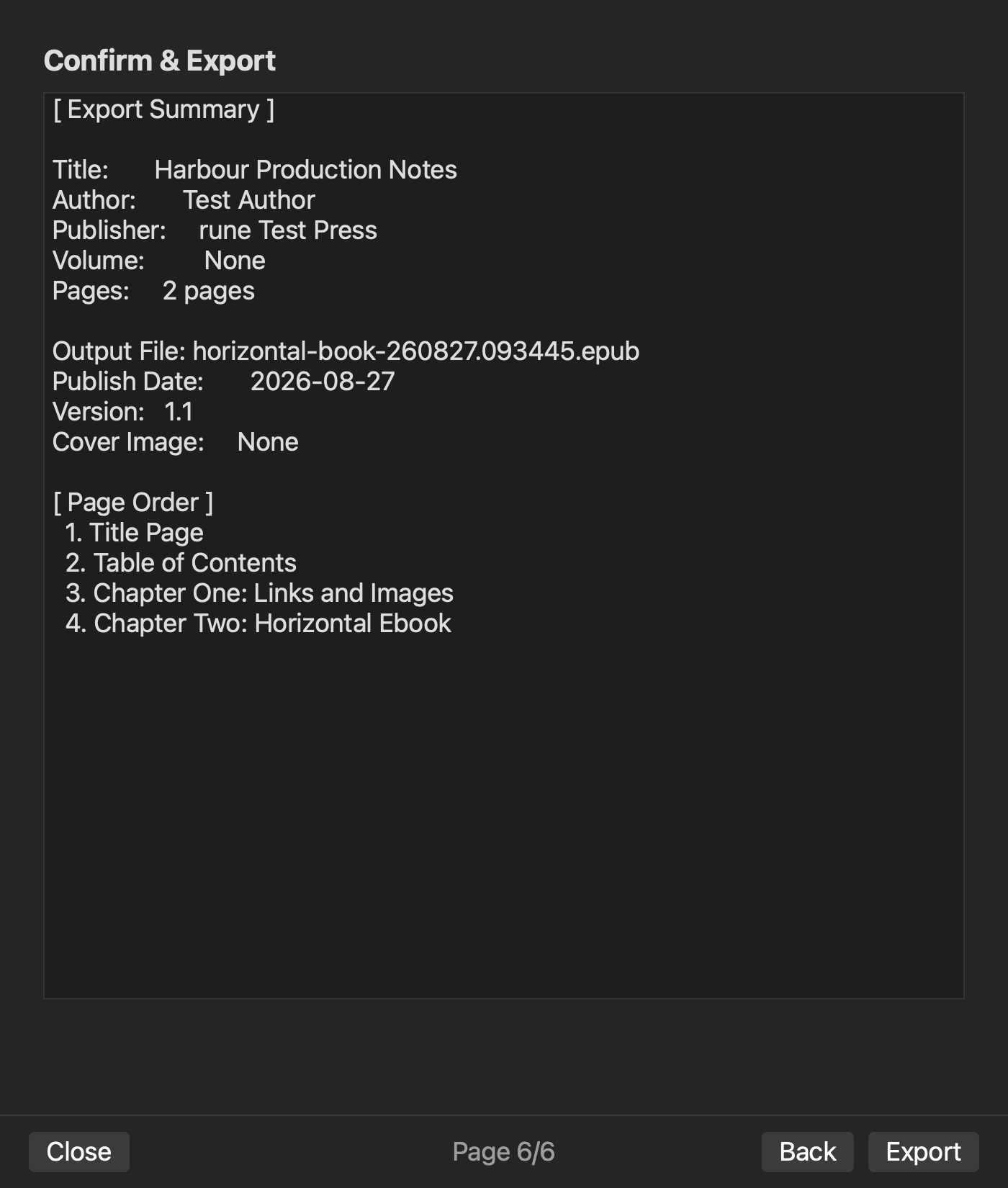
Current Rune Studio documentation describes EPUB 3 output, horizontal writing, chapter reordering, navigation, cover handling, metadata, images, and active-manuscript preview. Those documented capabilities fit the checkpoints above. They do not prove that the four-chapter sample has been run successfully, and they do not justify a promise that every asset will always render identically in every reader.
Use a duplicate of your own manuscript for the test. Record the application version and reading environment when a visual difference appears. A difference limited to one reader may need a second environment before you change the source.
Finish with a reusable acceptance record
Your final record should name the accepted source list, the accepted EPUB, the four chapter destinations, the two image-reference pairs, the cover, and the metadata values. Store it beside the source rather than inside a temporary export folder. When the next correction arrives, begin from that record and declare the expected difference again.
The practical first step is simple: write the four chapter filenames and first sentences in order, then add each image and its reference sentence. That small sheet gives every later failure a precise return point. Review the current product scope on the Rune Studio product page.