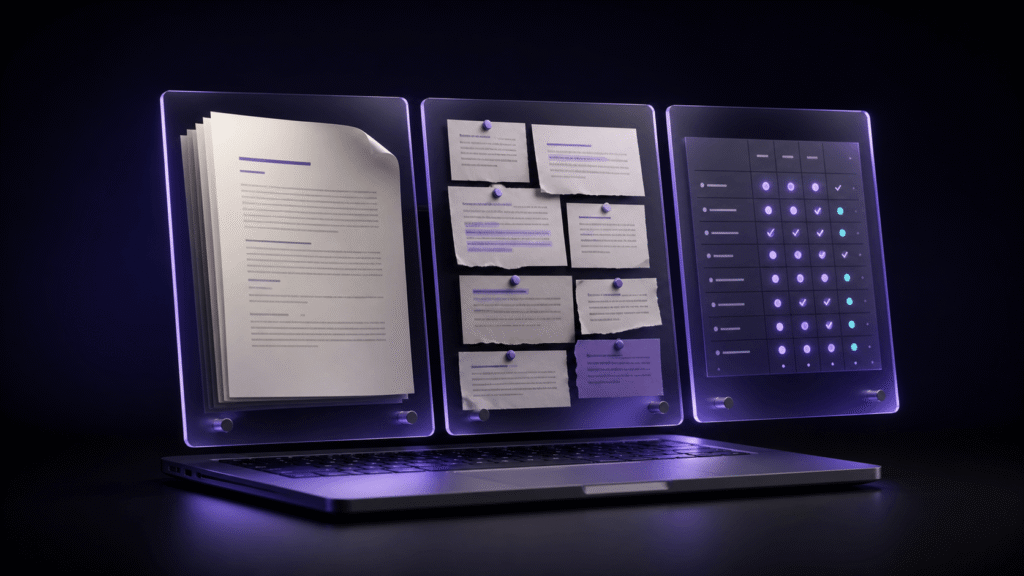
A useful three-pane layout for thesis editing assigns one job to each pane. Keep the previous draft on the left, the revision you are actively editing in the center, and source notes on the right. Opening three documents side by side is not enough. You also need stable landmarks—section headings and citation IDs—so that a change in paragraph length does not make you compare unrelated passages.
Give each pane one job
Consider an 8,000-word chapter. Put the submitted or earlier draft in the left pane and treat it as a reference copy. Put the working revision in the center. On the right, open a text note that lists quotations, page references, and unresolved comments. Make changes only in the center pane during the comparison.
File names should describe those roles. Names such as chapter-03-draft, chapter-03-revision, and chapter-03-notes are easier to recover than three files called “final.” The pane position provides a quick visual cue, while the file name still identifies the document after the workspace is closed.
Match sections before you compare sentences
Drafts rarely stay the same length. A sentence added near the beginning shifts every later paragraph, so matching by scroll percentage is unreliable. Start with landmarks that survive revision. Section headings such as “2.1 Participants” and “2.2 Method” work well when they remain in the same order.
Source notes need their own landmarks. Give each quotation an ID such as Q-014, followed by the source, page, and a short explanation of why the passage matters. When a sentence in the center pane changes, check the corresponding ID on the right before accepting the wording. If the source is a PDF, keep the PDF outside the editing flow and use a text note to record the relevant location; this workflow is not a method for editing the PDF itself.
Record decisions, not colored impressions
Use three outcomes for each meaningful difference: accept, hold, or revert. Accept a change when it improves the argument without changing the supported claim. Hold it when the wording may exceed the source. Revert it when the new passage conflicts with the quotation or note. Add the citation ID to the decision instead of relying only on highlighting.
At the end of a session, record the current section heading, the last citation ID checked, and the next unresolved note. Those three items create a return point that remains useful even if the windows reopen at a different scroll position.
Use linked scrolling only where landmarks agree
Linked scrolling can reduce repeated navigation when the old and new drafts contain the same landmarks in the same sequence. It is less reliable after a section has been removed or moved. In that part of the chapter, unlink the panes and navigate by heading and citation ID instead. A synchronized screen is not evidence that two passages correspond.
The source-note pane does not need to move continuously with both manuscripts. Often it is better to keep one quotation fixed while you compare several sentences. The goal is not identical behavior in all three panes; the goal is a clear path from old wording, through evidence, to the current revision.
Where Rune Studio can reduce the setup work
Current documentation for the Mac version of Rune Studio describes one-, two-, and three-column layouts, as well as one-, two-, and three-row layouts. Panes can be divided further, and tabs can move between panes. The application also supports linked scrolling based on Markdown headings, page breaks, scene separators, or a custom string. Pane participation and landmark settings can be stored as part of a workspace layout.
These documented capabilities make Rune Studio a candidate for this workflow, but they do not prove that a particular thesis chapter has been reviewed correctly. The editor does not decide whether a quotation is legally permissible, apply every citation style automatically, or edit a source PDF. Those tasks remain separate.
A practical first session
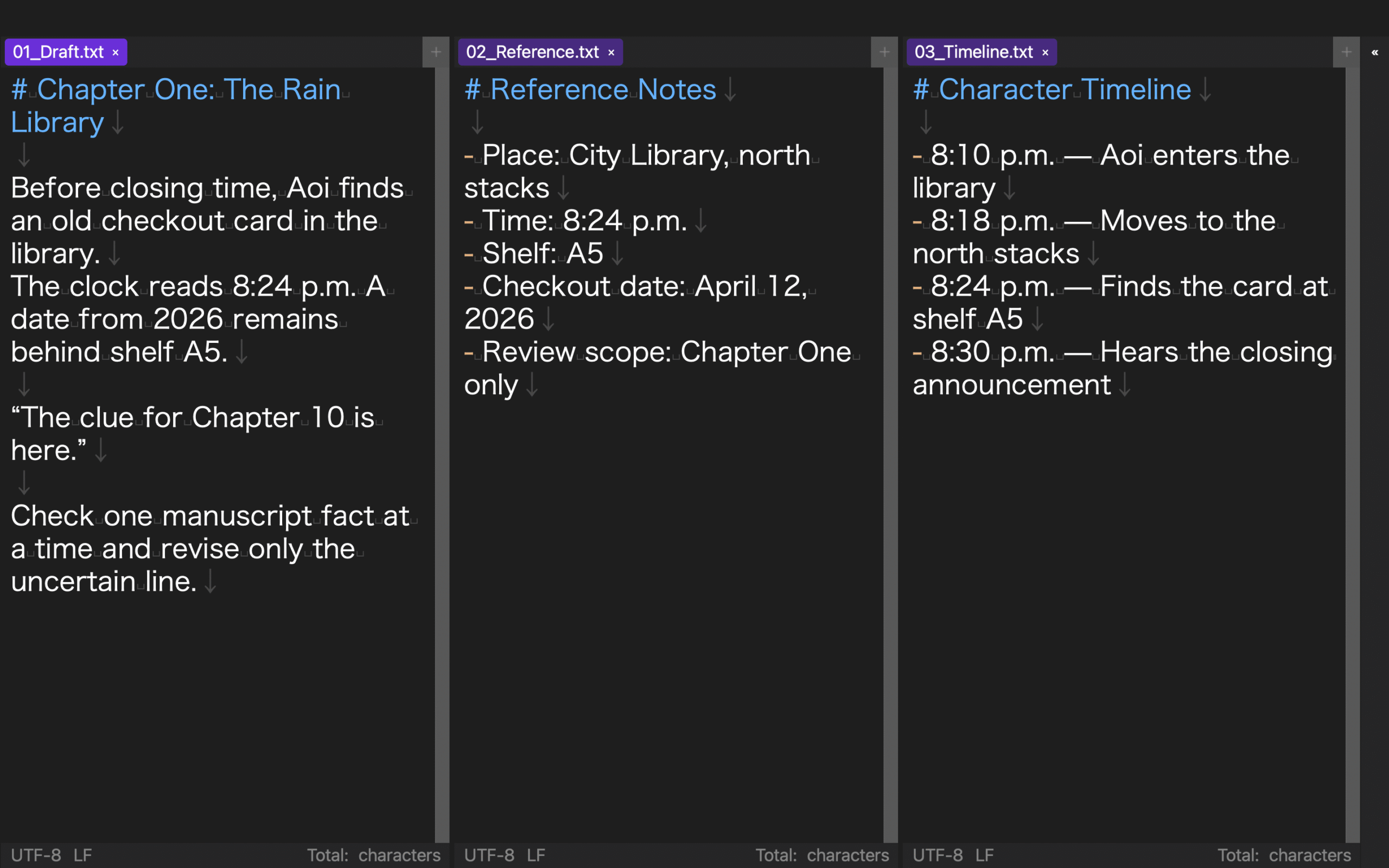
Begin with one chapter, not an entire thesis. Duplicate the chapter, give both copies the same section headings, and create a source note with IDs Q-001 through Q-010. Place the old draft on the left, the editable copy in the center, and the note on the right. Compare one section and leave a written return point before closing the workspace.
That small trial answers the real question behind a thesis text editor with three panes: can you keep the baseline, the revision, and the evidence distinct while moving between them? If you want to test the documented pane and landmark features, check the current Mac scope on the Rune Studio product page.