
Before opening a file that looks large, record byte size and character count as different values. Rune Studio’s documented reduced-display boundary is based on loaded text containing 300,000 characters or more, not on the KB or MB shown by Finder. After loading, compare the pre-open count with the notice and display state. If they disagree, stop before editing and return to the character-count evidence.
Similar byte sizes can hide very different character counts
Imagine two UTF-8 text files. One contains about 330,000 mostly ASCII characters. The other contains about 110,000 mostly Japanese characters. Both may occupy roughly 330 KB because many Japanese characters require multiple bytes in UTF-8. Real files also contain line endings and punctuation, so the figures are illustrative rather than exact predictions.
The two manuscripts sit on opposite sides of a 300,000-character rule despite having similar byte sizes. The ASCII-heavy file is above the boundary; the Japanese-heavy file is below it. A Finder size cannot tell you which case you have.
Images, video, archives, and other binary assets do not help with this diagnosis. The documented trigger concerns loaded text content. Treat “large file” as an observation about storage size until a character count establishes something more specific.
Keep a narrow pre-open note
This article does not repeat a general five-check safety preflight. Its diagnostic card has only three fields: byte size, character count, and the prediction “at least 300,000” or “below 300,000.” If a read-only counting method provides an exact value, record it with the file identifier.
If the exact count is unavailable, write “unknown.” Do not convert bytes into a supposedly exact character count. The ratio depends on the text, encoding, line endings, and characters used. Leave the reduced-display prediction unresolved and use the post-load observations as additional evidence.
This small card gives the opening a testable question. It does not decide whether the manuscript is canonical, backed up, correctly encoded, or safe for broad editing; those belong to a separate preflight workflow.
Inspect notice, display, and text separately after loading
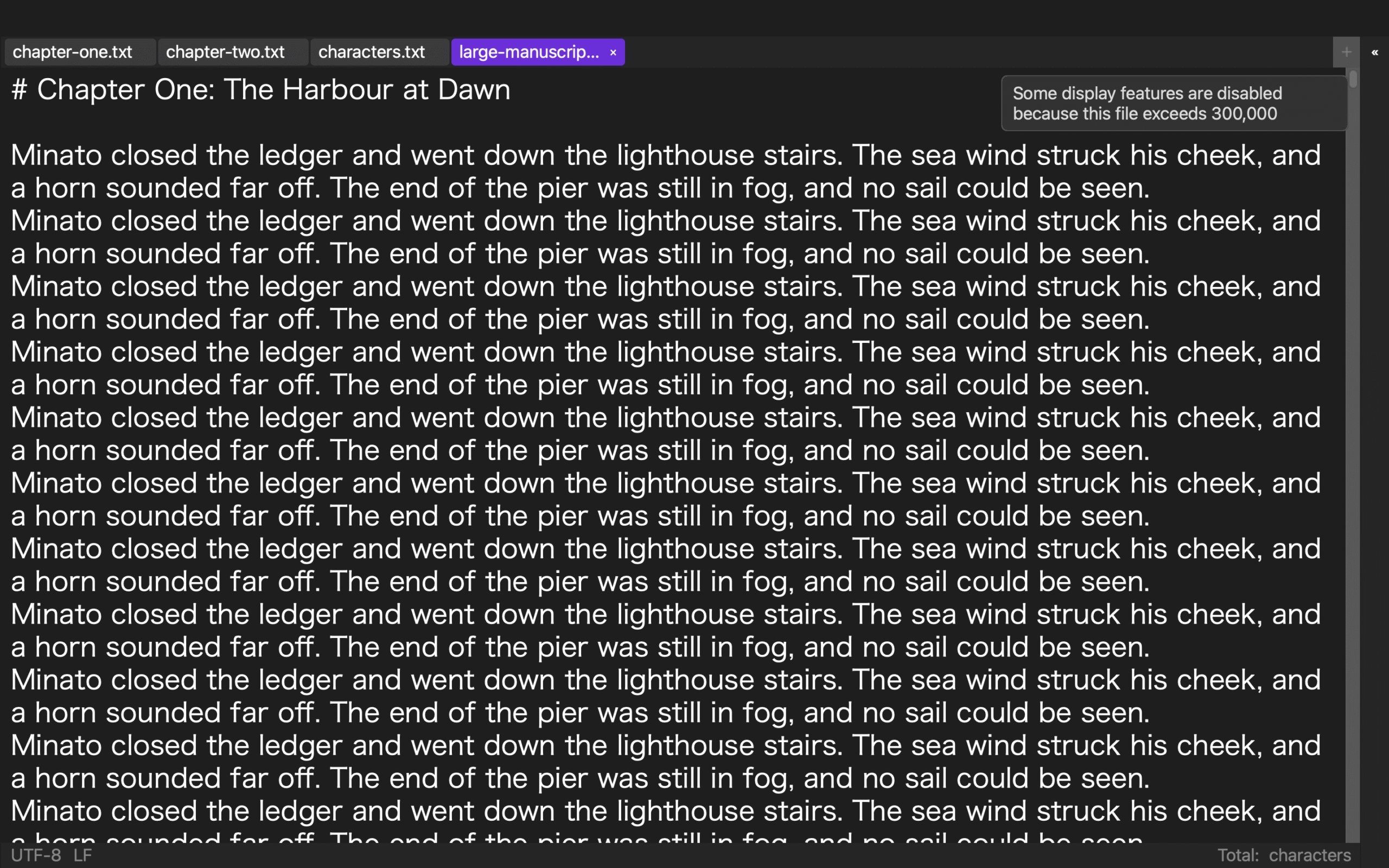
Immediately after the file loads, check whether a notice identifies reduced display. Then inspect two representative display aids, such as line numbers and notation coloring. You do not need to recreate the complete disabled-feature inventory for this diagnosis.
Finally, check the text independently. Search for short, known anchors near the beginning, middle, and end. A simpler display does not itself prove missing text, and visible text at the beginning does not prove the entire manuscript is intact. The three anchors are an initial diagnostic, not a complete integrity guarantee.
Keep the three observations separate in your note:
- notice present or absent;
- representative display change present or absent;
- known text anchors found or not found.
Do not turn any one of them into a claim that editing or saving succeeded.
Diagnose four combinations instead of guessing
Compare the recorded count with the observed state.
- At least 300,000 characters, with a reduced-display notice and visible display change: consistent with the documented boundary; decide separately what task should follow.
- Below 300,000 characters, with no notice or reduction: consistent with being outside the boundary.
- At least 300,000 characters, but no notice or representative change: return to the file identity, counting method, and app version before concluding that the feature failed.
- Below 300,000 characters, but the display appears reduced: recheck the actual count and ordinary display settings before calling it automatic large-file behavior.
The exact boundary wording matters. “300,000 characters or more” includes a file containing exactly 300,000 characters. It is not the same as “more than 300,000.” When two tools report different counts, record both methods rather than selecting the result that matches your expectation.
This matrix is a diagnostic aid. It does not establish constant responsiveness, prove a successful edit, or determine the cause of every loading problem.
Decide whether this opening should save anything
If the purpose of opening was only to diagnose reduced display, make no content change and close without saving new manuscript text. There is no need to insert a meaningless character simply to turn diagnosis into an editing test.
If a separate test will evaluate one edit and save, start a new record with a defined target and destination. Do not silently extend the diagnostic opening into a broad revision session. If text changed accidentally or the save destination is unclear, do not overwrite the manuscript; record the unexpected change and return it to the editing workflow.
This boundary keeps two different conclusions apart: “the display state is consistent with the documented character threshold” and “a particular edit was saved correctly.” Only the first belongs to this article.
What Rune Studio documentation establishes
Current public documentation for the Mac version says that when file content reaches 300,000 characters or more, Rune Studio automatically stops expensive display processing in both the full editor and standalone editor. Examples include line numbers, highlights, and continuous character-count calculation. Text editing, search, and saving remain within the documented product scope.
This is a documented capability statement, not a report that the two approximately 330 KB examples were run successfully on a particular Mac. It does not promise that every large file is fast. The separate general pre-open checklist for large files owns the broader pre-open checks for copy, encoding, backup location, and stop conditions. The separate post-threshold editing workflow owns the post-threshold search–edit–save workflow. The role here is narrower: distinguish bytes from characters and interpret the state immediately after load.
Finish with a two-value diagnosis
Before opening, write byte size and character count in separate columns. If the character count is unknown, leave the prediction unresolved. After loading, record the notice, two representative display aids, and three known text anchors. Compare those observations with the count.
If the evidence agrees, end the diagnosis and choose whether to close unchanged or hand the file to a separate editing test. If it disagrees, return to file identity and counting evidence before making changes. The essential lesson is simple: a large byte size is not the same condition as 300,000 characters, and reduced display should be diagnosed from the documented trigger rather than guessed from Finder.