
To compare a manuscript with references on one MacBook screen, assign three stable roles: writing, evidence, and consistency. Put the active chapter, a source or previous version, and a character sheet or glossary in those roles. Link scrolling only between two documents that share corresponding markers. When the workspace can save this three-pane configuration, reopening it can reduce repeated rearrangement.
Simply creating three panes adds narrow columns and uncertainty about where to type. Decide the purpose and editing policy first, and treat the writing pane as the primary destination for changes.
This article is not about a basic two-pane reference arrangement or layout-saving features in isolation. It focuses on simultaneous comparison among three different information roles.
Give each pane one question
Define the question each pane answers:
- Writing: Which passage am I changing now?
- Evidence: What source or earlier wording supports this decision?
- Consistency: Does it agree with characters, terms, and chronology?
Keep the active chapter in the writing pane. Use the evidence pane for interview notes, source text, or a previous draft. Keep durable cross-chapter references in the consistency pane.
All three files may technically be editable, but treat the evidence and consistency panes as read-only during the drafting task. When they need correction, leave a marker and update them in a separate reference-maintenance pass.
Choose columns or rows from text shape
Three columns work well for short entries, parallel text, or narrow reference tables. Long prose paragraphs wrap heavily in narrow columns, so three rows or a nested split with a large primary pane may be easier.
Do not decide solely from the MacBook model. Observe the line length each role requires. Give the writing pane the largest area and reduce the consistency pane to the smallest size that still shows complete labels.
Dividers do not need equal positions. A useful starting point is half the screen for writing and the remaining half divided between evidence and consistency.
Place tabs according to role
After opening the chapter and references, assign each document to its role in an environment that supports three panes. Keep tabs ordered by expected frequency.
If several chapters remain open in the writing pane, place the active one first. Put scene-specific material in evidence and volume-wide references in consistency.
Similar filenames can hide an old copy. Confirm the Finder location when necessary instead of trusting a short tab label.
Link scrolling between only two panes
Linking all three panes can move the character sheet whenever the draft scrolls, destroying the reference position. Use linked scrolling only between documents that have comparable structure.
For example, link a current draft and previous version by chapter headings or separators. Exclude the character sheet and navigate it through search or tabs.
When the manuscript and research notes have very different lengths, a simple percentage match will drift. Use headings, page-break markers, separator lines, or a custom marker that appears in both. When no reliable markers exist, do not force synchronization.
Check alignment near the beginning, middle, and end. Turning the link off is safer than trusting a persistent mismatch.
Validate the arrangement after one task
After revising one scene, record three observations:
- Did you accidentally type outside the writing pane?
- Did the number of searches, scrolls, or tab switches decrease?
- Did you actually consult the consistency reference?
A pane that was never used does not belong in that task’s layout. Return to two panes or one rather than preserving three for appearance.
When you repeatedly reopen a file, promote it to a fixed reference pane next time. Tune the arrangement by retrieval count, not visual symmetry.
Three-pane controls in rune Studio
The current Mac version of rune Studio documents five base patterns: no split, two columns, three columns, two rows, and three rows. Rows or columns can be nested. Its documentation also describes linked scrolling with headings, page breaks, separator lines, or a custom marker, with participation selected per pane.
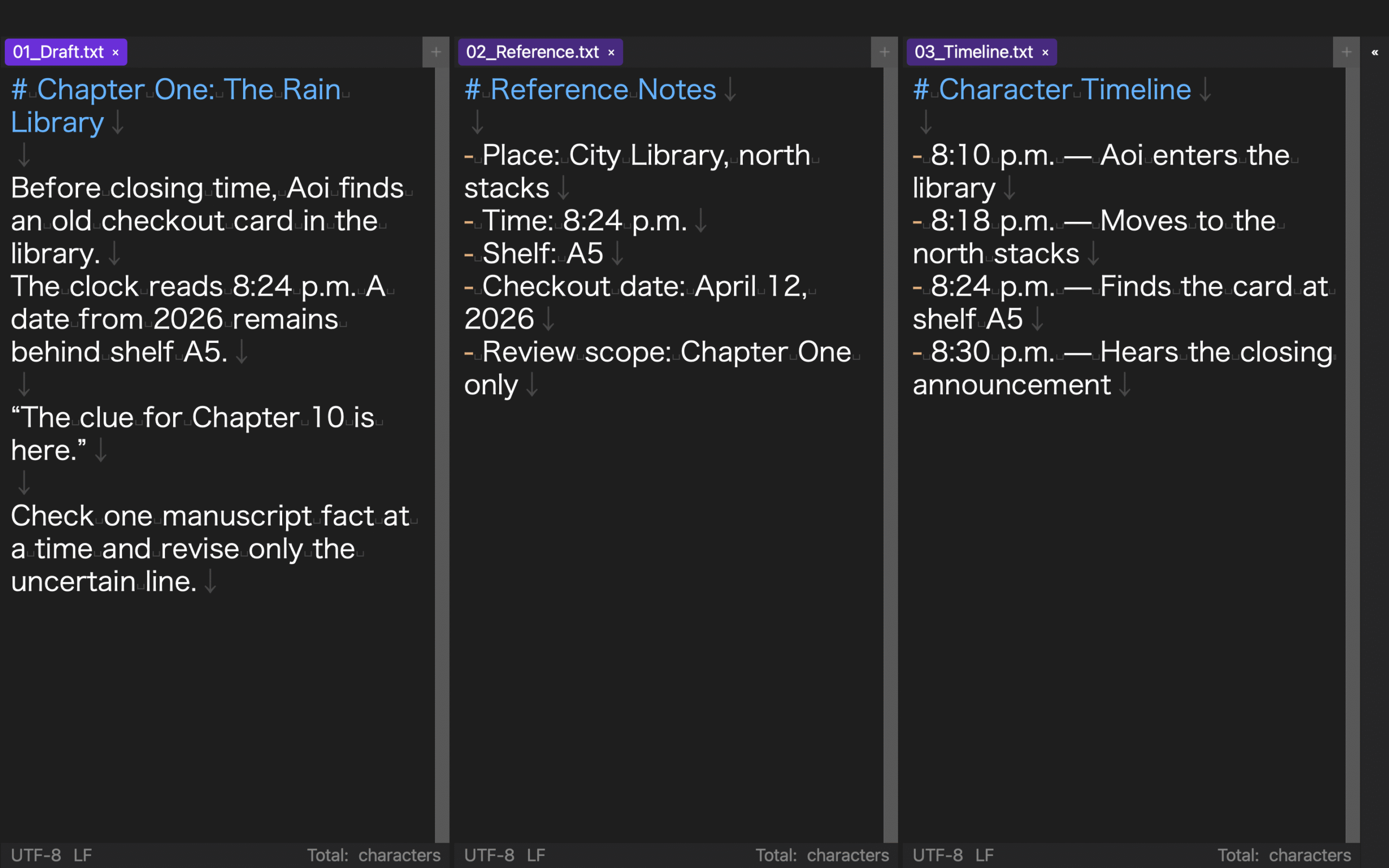
In a development CLI test, three documents named for writing, evidence, and consistency were opened as tabs. A three-column layout called “Three-pane comparison” was created with divider values 0.52, 0.48, and 0.50. Heading-based linking was enabled for the first two members only with true,true,false. After closing and reopening the workspace, the three tabs, column pattern, divider values, enabled state, marker, and two-member selection retained the same saved values.
This test verified configuration persistence and reload. It did not drag tabs into individual panes through the GUI, measure actual synchronized scroll positions at the beginning, middle, and end, save a nested split, or establish an ideal proportion for a particular MacBook display.
Give three panes three distinct jobs
For a useful three-pane MacBook comparison, assign writing, evidence, and consistency roles. Keep the manuscript largest and choose columns, rows, or nested splits according to the text shape.
Link only the two documents with corresponding structure and leave stable reference material independent. After one scene, remove unused panes and preserve the files you repeatedly retrieve. That creates a comparison layout that reduces rearrangement instead of adding another screen to manage.
Review the arrangement again when the task changes.