
In a huge text file, do not begin with Replace All. Count every occurrence of the old form in one manuscript, separate intentional examples, and replace a small range first. Afterward, search in both directions: the old form should remain only where expected, while the new form should increase by the exact number of approved changes.
This article covers one 450,000-character manuscript. Cross-file batch replacement belongs to a different workflow. It also excludes binary files, a complete guide to regular expressions, and speed comparisons.
Separate ten changes from two intentional exceptions
Build an explanatory copy with twelve occurrences of the old spelling catalogue. Ten belong to current prose and should become catalog. Two appear inside quotations from an older newspaper and must remain unchanged. Twelve search results do not automatically mean twelve replacement targets.
On the first search, read a full sentence around every match. Record each result as CHANGE or KEEP in a work note. You do not need to insert those labels into the manuscript. A chapter ID, the beginning of the line, and a few surrounding words are enough to return to the result.
If the count is higher than expected, look for derived words, quotations, or reference sections. If it is lower, check capitalization, full-width forms, and visually similar characters. Do not start replacement while the count remains unexplained; afterward, you will not be able to distinguish a missed target from an incorrect expectation.
Reduce the replacement scope to one chapter
Replacing across 450,000 characters creates a 450,000-character verification problem. Group the ten approved matches by chapter and start with one chapter containing two or three targets. Keep the original as an untouched fallback and give the working copy a name that identifies the date and purpose.
After changing catalogue to catalog in the first chapter, search that chapter for the old form. Write the expected result before running the check: zero approved old forms, plus one result if that chapter contains a KEEP quotation. Search for the new form too, separating forms that already existed from those added by this operation.
Move to the next chapter only when the first chapter matches its expectation. If an excluded quotation changes, stop, undo the operation, and narrow the range. Repairing a failed chapter immediately gives you a clear return point; searching an entire damaged manuscript at the end does not.
Verify old and new forms after every approved change
After all ten replacements, the expected manuscript contains two old forms. The number of new forms has increased by ten. Search for the old form and verify that both results are the quoted passages marked KEEP. Then search for the new form and check the ten changed contexts, making sure the operation did not alter a partial word, file name, or example.
Save the manuscript under a new name, close it, and reopen it. Repeat the counts. Matching results after reopening prove that the changes are not merely unsaved editor state. File size and modification time are useful identifiers, but they do not replace reading the matching contexts.
A common mistake is treating zero old forms as success. In this example, zero means the two historical quotations were damaged. The correct result is not “nothing remains”; it is “ten approved occurrences changed and two intended exceptions remained.”
Rune Studio’s documented in-file boundary
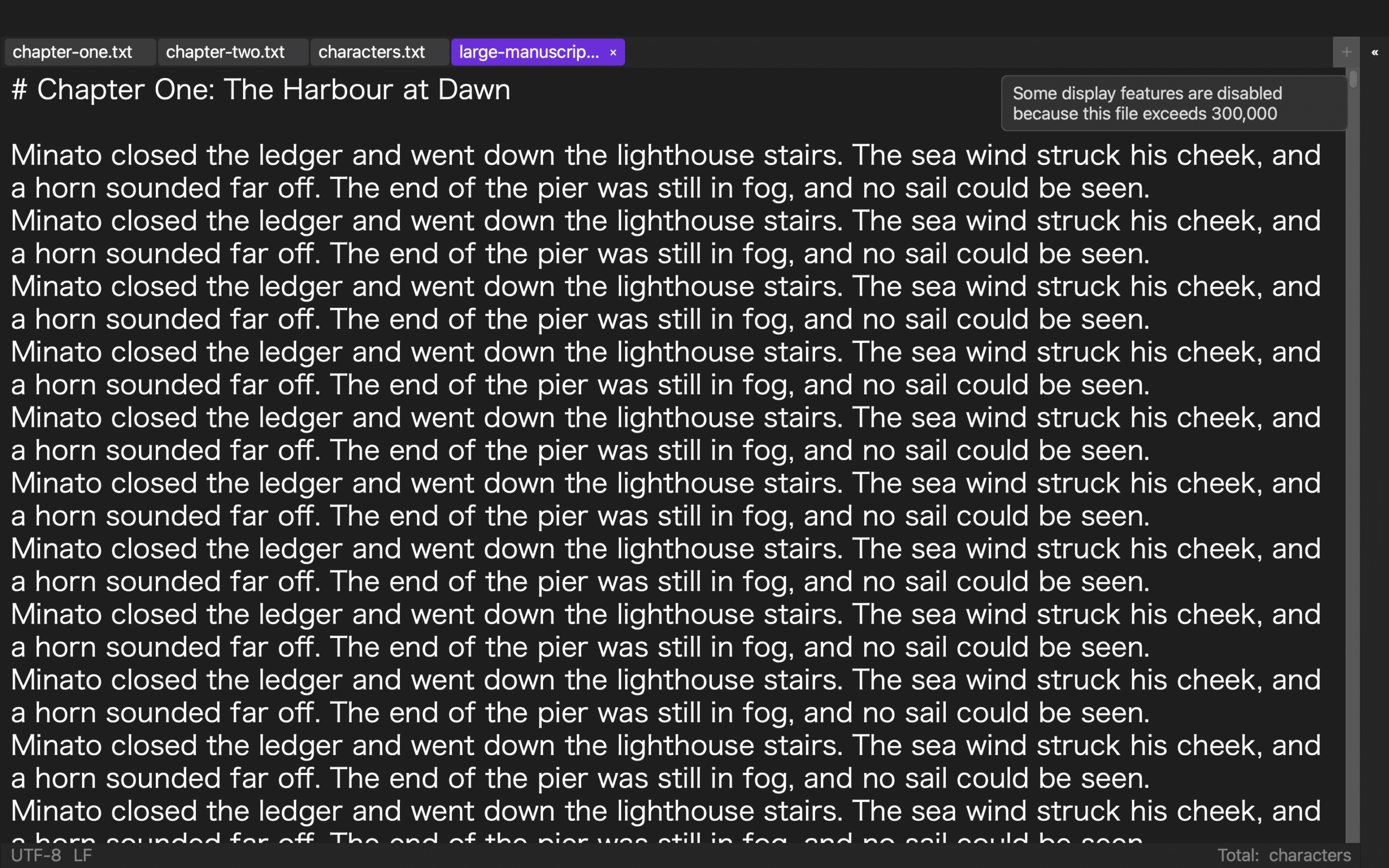
Current Rune Studio documentation for Mac says that Cmd+F opens in-file search and a repeated search action proceeds to replacement controls. For files at 300,000 characters or more, some heavy display features are suspended, while in-file search and replace, saving, and automatic saving remain in the documented feature set.
Workspace-wide search and replacement is a separate capability. It can narrow the target to selected files or folders and provides review before replacement. That is outside this article’s center. Here, all twelve matches belong to one huge manuscript, and the main work is classifying context and preserving exceptions.
These are documented capabilities, not a completed replacement of twelve cases in the 450,000-character sample. Run the ten-change and two-keep plan on an identifiable copy before adopting it. The article does not guarantee regular-expression coverage, processing time, or the safety of an unrestricted Replace All operation.
Keep the role separate from cross-file replacement
A cross-file workflow answers how to change a term across chapter files while excluding a notes folder. This workflow never crosses a file boundary. It answers how to read context, preserve quotations, and advance chapter by chapter within one very large document.
The method suits writers who keep a novel in one file and intentionally preserve historical or quoted spellings. A codebase, hundreds of separate documents, or a complex regular-expression migration calls for a different tool and test plan.
Build a cause table instead of replacing when counts disagree
If search returns only eleven results, do not immediately declare one occurrence missing. Check whether a form uses different width, capitalization, spelling, a line break, or a visually similar character inside a quotation. Every time the search condition changes, preserve the previous condition and count.
If the count is thirteen or more, check chapter titles, work notes, annotations, and reference material. When an extra occurrence is intentionally outside scope, add its surrounding words and exclusion reason as another KEEP row. If the expected count was wrong, revise the ten-change plan before replacement so that another reviewer can identify the same target set.
If the new form does not increase by ten, check whether you forgot to record new-form occurrences that existed before the operation. That is why the comparison build needs both old- and new-form counts. Advance only when the before-and-after difference matches the approved number of changes.
When the count changes after saving, confirm that you reopened the same working copy, closed any unsaved tab, and used the intended Save As destination. Identify the current filename and modification time before running another replacement.
Classify a match as a standalone term, part of a longer term, or a quotation. A name or technical term that merely contains the old string may require a different decision. The classification keeps intentional exceptions from becoming informal guesses.
This workflow assumes a copy managed by one editor. If another process changes the manuscript during replacement, stop and recount from the new authoritative version. Real-time collaboration conflicts are outside this article.
Conclusion: success leaves two old forms intact
Search the 450,000-character copy for twelve old forms, classify ten as changes and two as exceptions, and begin with two or three matches in one chapter. Search both forms after each chapter. Finally, save separately, reopen, and confirm that the two old forms are the intended quotations and that the new form increased by ten in approved contexts.
The current Mac scope of in-file search and the large-file mode is available on the Rune Studio product page. The first action is not Replace All. It is reading all twelve contexts and marking the two cases that must survive.