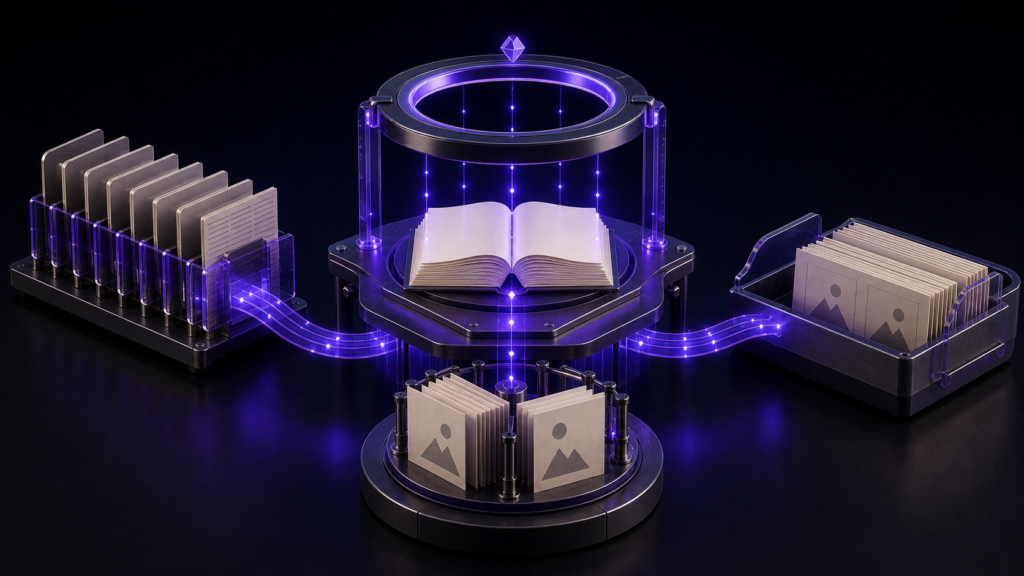
Making an EPUB file takes six broad stages: decide what the finished book should be, gather the manuscript and assets, arrange the reading order and table of contents, enter the publication metadata, generate the EPUB, and check the result in a reading environment.
The important point is that you are not simply changing a text file’s extension to .epub. A complete ebook also needs instructions for reading order, navigation, title and author information, and any images that belong in the publication.
This article first explains the whole process without requiring a particular app. It then shows how Rune Studio, a long-form writing app for Mac, organizes the same work. General EPUB requirements and behavior verified in Rune Studio are kept separate throughout.
An EPUB file needs more than a manuscript
EPUB is more than a container for prose. The W3C EPUB 3.3 specification describes a single-file publication that packages structured content and related resources. An EPUB publication brings together the content documents, a list of included resources, the default reading order, publication metadata, and a navigation document used for the table of contents.
That means a finished manuscript still leaves several decisions to make:
- What reading direction and paragraph layout does the book require?
- Where does each chapter begin and end?
- In what order should the chapters appear?
- Which entries belong in the table of contents?
- Which image should be used as the cover?
- What title, author, language, and publication date should be recorded?
The clearest way to understand how to make an EPUB file is to think of it as assembling the information for a complete book, one stage at a time.
Six stages from manuscript to finished EPUB
1. Decide what the finished book should be
Start by deciding what kind of book you are making, not by looking for an Export button.
Choose the reading direction and paragraph layout appropriate to the book’s language and target reading environments, whether the book stands alone or belongs to a series, and how paragraphs should be presented. If these decisions remain vague, a later change in layout can force you to adjust the manuscript and images again.
At minimum, note the intended visual direction, book title, author name, manuscript language, and whether the book will have a cover.
2. Gather the manuscript and assets
Next, collect the body text, cover image, and any images used inside the book in one place.
Do not check only the wording. Make sure chapter boundaries are clear, discarded drafts have not slipped into the book, duplicate images are removed, and every referenced asset is available.
Different production tools accept different manuscript formats and markup. Markdown is therefore not a requirement for making an EPUB. The purpose of this stage is to prepare the manuscript in a form your chosen production tool can read.
3. Design the reading order and table of contents
Once the files are ready, decide the order in which readers will encounter them. Work out where front matter, the title page, the body, and back matter belong, then arrange the chapters correctly.
Treat the reading order and the table of contents as related but separate decisions. Not every page included in the publication has to appear in the table of contents. Decide whether readers need links to short sections or only to major chapters, so they can reach useful destinations without wading through an overcrowded list.
4. Enter publication metadata and set the cover
An EPUB carries publication metadata such as its title, author, and language. Depending on the purpose of the book, you may also need a publisher name, publication date, and edition information.
If the book has a cover, adding the image file is not enough. The image must also be identified as the cover within the EPUB settings. Do not rely on the file name alone; use the cover setting provided by the production tool.
5. Generate the EPUB
Pass the prepared content and settings to the production tool and generate the EPUB file.
During export, the tool assembles content documents, styles, images, navigation, metadata, the resource list, and the reading order inside the EPUB container. These files can be created by hand, but a tool with EPUB 3 export can reduce the amount of internal markup you need to write yourself.
6. Inspect the result and correct the source
The job is not finished when the EPUB file appears. Run it through a conformance checker and open it in an actual reading app.
Check that table-of-contents links open the correct chapters, chapters appear in the intended order, the cover and other images display, the reading direction and paragraph layout match your plan, and no characters are missing.
When something is wrong, return to the source manuscript or production settings whenever possible, then generate the file again. Editing only the exported EPUB leaves the original source unchanged, so the same problem can return on the next export.
Revisions create more work than the first export
Generating one EPUB may not look especially complicated. A long manuscript becomes harder because checking usually leads to several rounds of correction.
Add a chapter and you need to revisit both reading order and navigation. Rename the book and you may need to change the title page as well as the publication metadata. Replace the cover and you must check both the image file and the cover designation. Adjust the book’s layout and you need another export followed by another reading-app check.
When manuscript editing, preview, metadata, chapter order, and export are split among different tools, this back-and-forth makes it easier to lose track of what has been updated. The most useful time to save is not the few seconds spent generating a file; it is the repeated checking and transcription between revisions.
How Rune Studio organizes the six-stage process
Rune Studio is a macOS text editor designed for long-form Japanese writing and EPUB 3 export. The sections below distinguish behavior verified in the current Mac version from the general requirements of EPUB.
Keep multiple manuscripts in one workspace
Rune Studio can store multiple manuscripts and reference files in a workspace. For the English screenshots, we created a separate test workspace and saved two UTF-8, LF line-ending manuscripts named Chapter One.txt and Chapter Two.txt. We opened both in tabs and confirmed that Rune Studio-supported Markdown heading markup could be placed at the beginning of the first chapter.
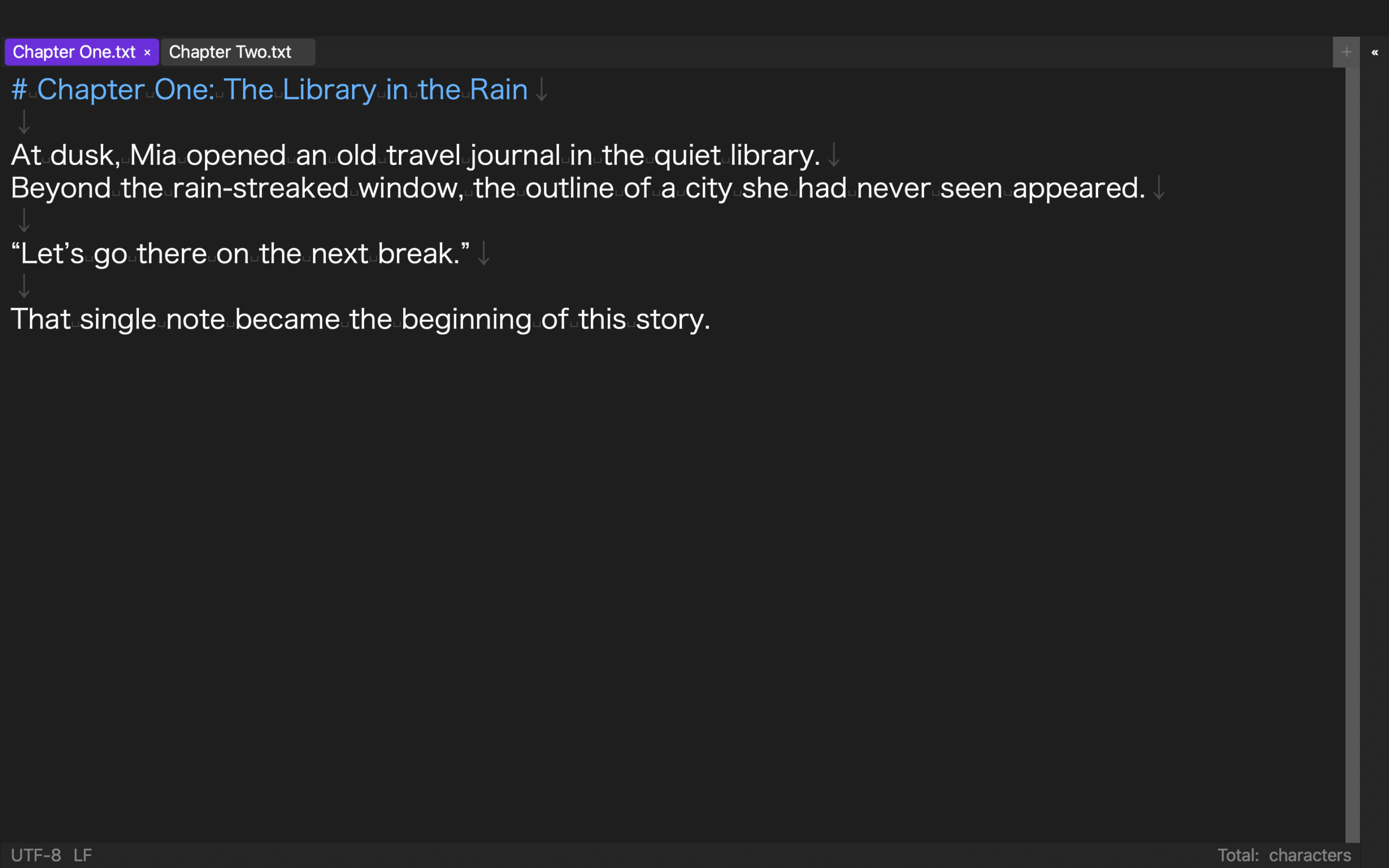
English manuscripts use a horizontal layout in Rune Studio. The workspace view above shows the two English chapters in that supported layout.
These workspace features relate to preparing the manuscript. A separate check after EPUB generation is still necessary because the editing screen is not the same as a retailer’s reading environment.
Divide EPUB settings across six pages
Rune Studio’s EPUB wizard is implemented as a six-page process:
- Series information: work title, author, publisher, file name, language, and paragraph settings
- Volume selection: standalone book or volume number, plus previous export information
- File selection: manuscript files to include
- File order: page order and chapters included in the table of contents
- Metadata: edition, publication date, and cover image
- Review and export: page order, navigation targets, cover, and output file name
The English screenshots below use a demonstration book titled Beyond the Rain, with Naoya Sasaki as the author, Naoya Press as the publisher, and English as the manuscript language. They document the six wizard pages in the English interface. The completed export verification described afterward used the same English manuscripts and publication metadata.
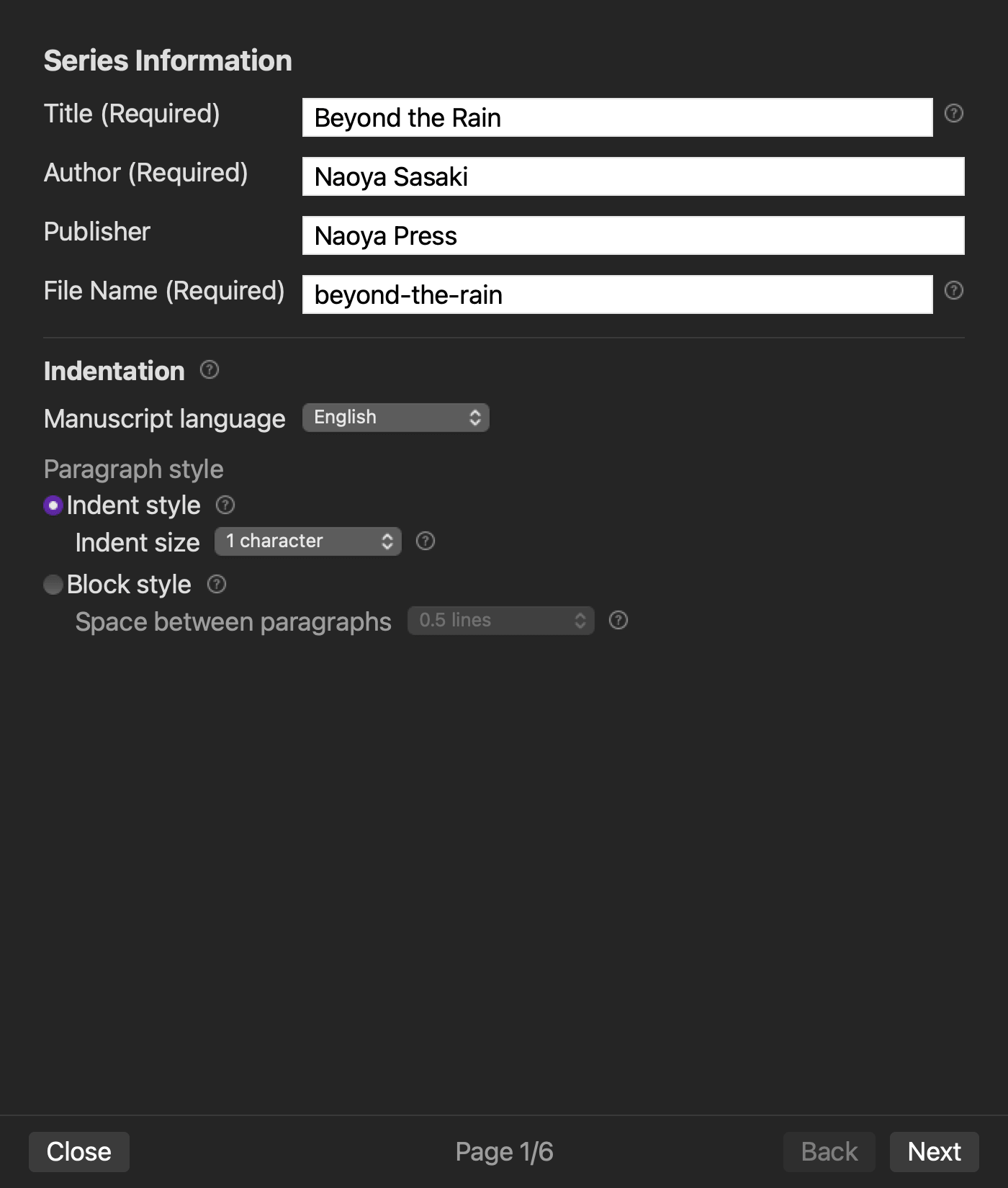
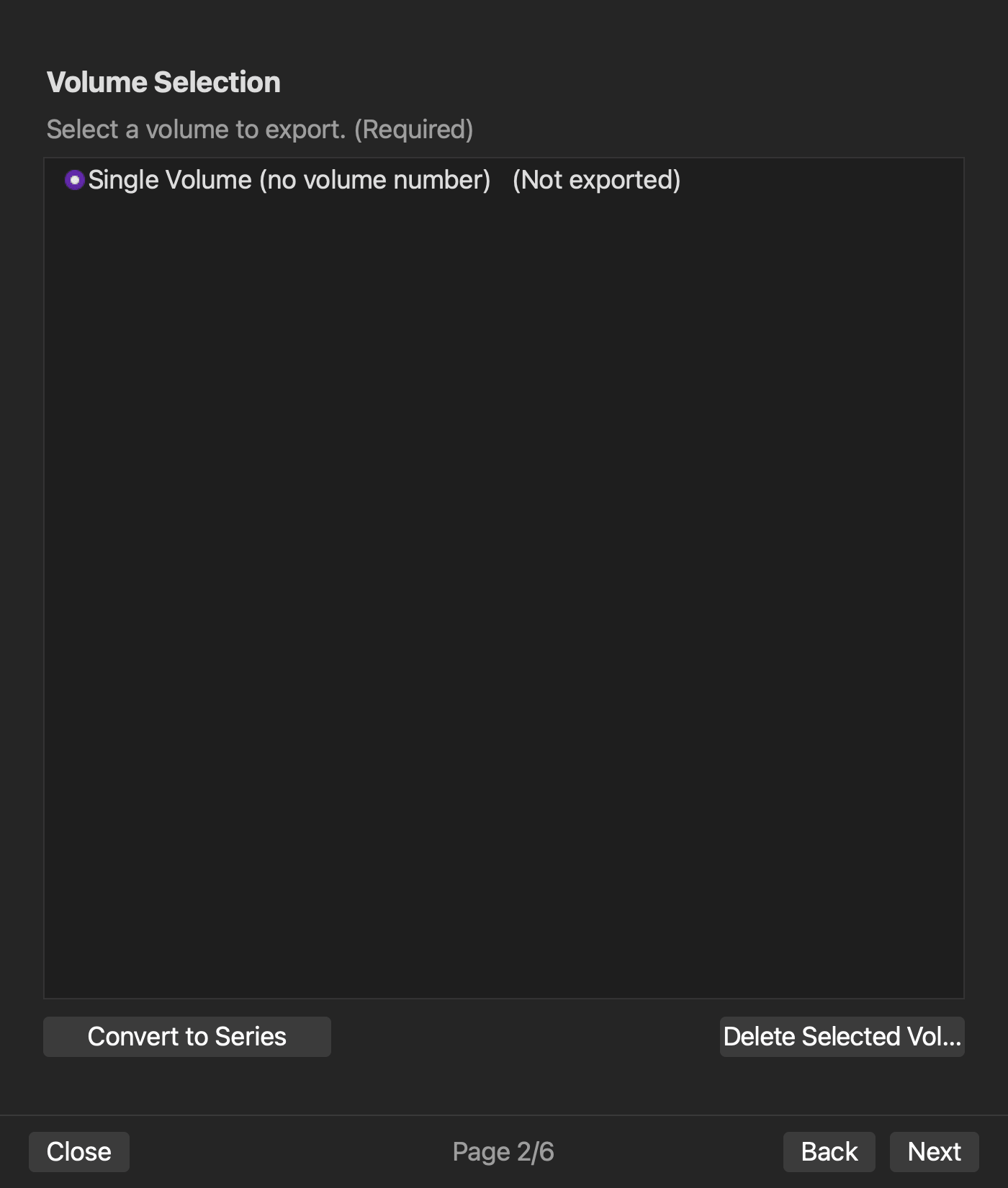
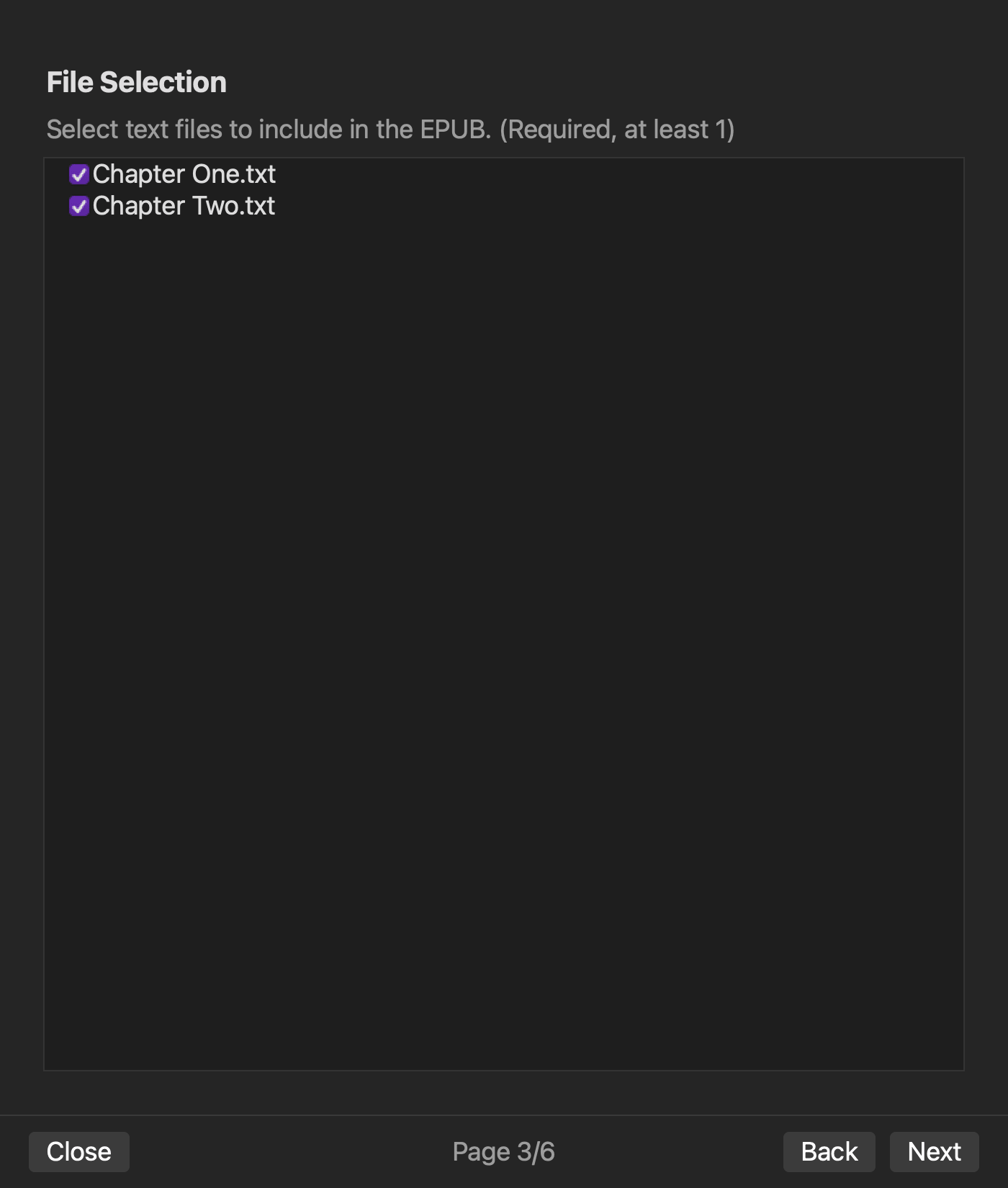
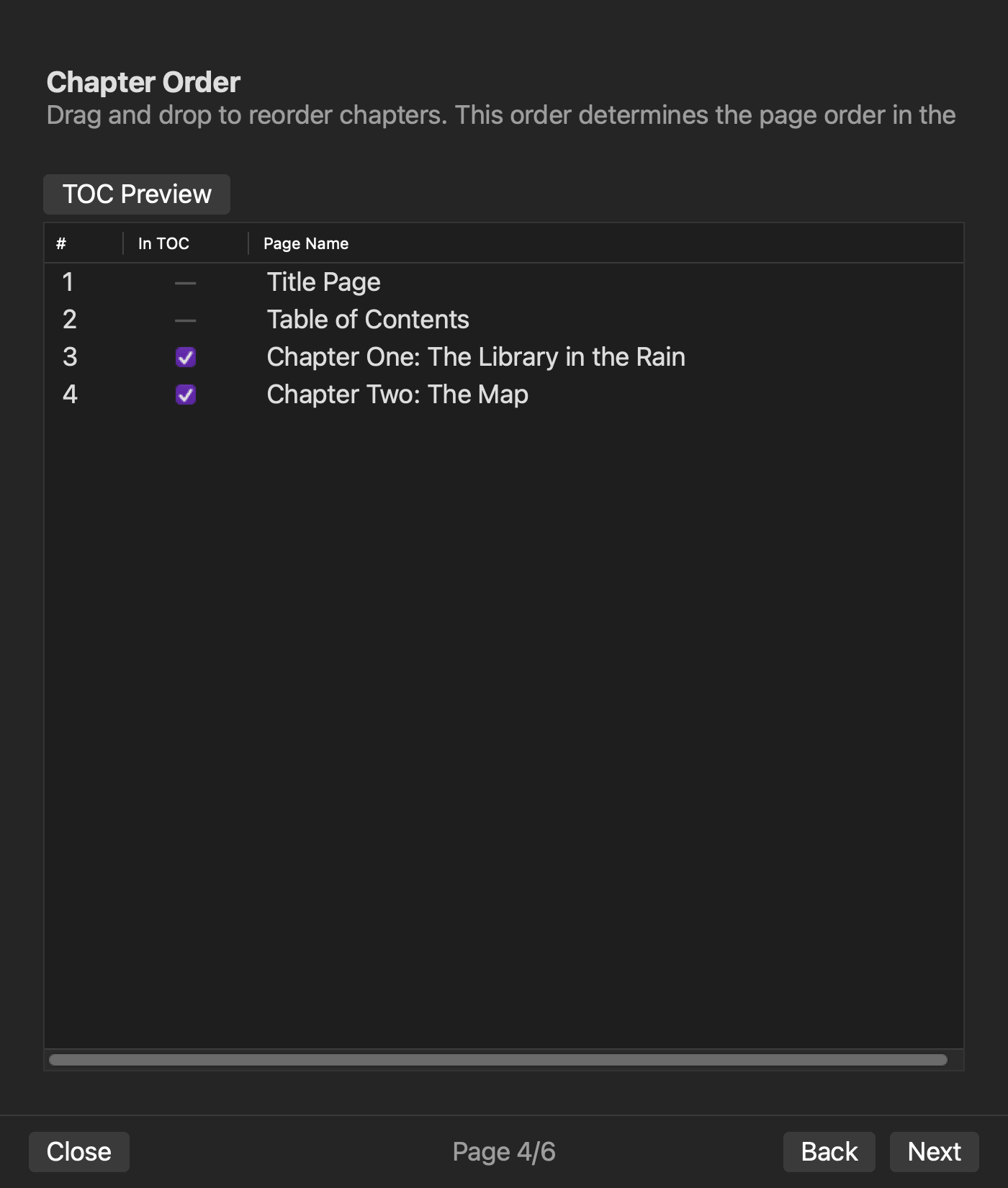
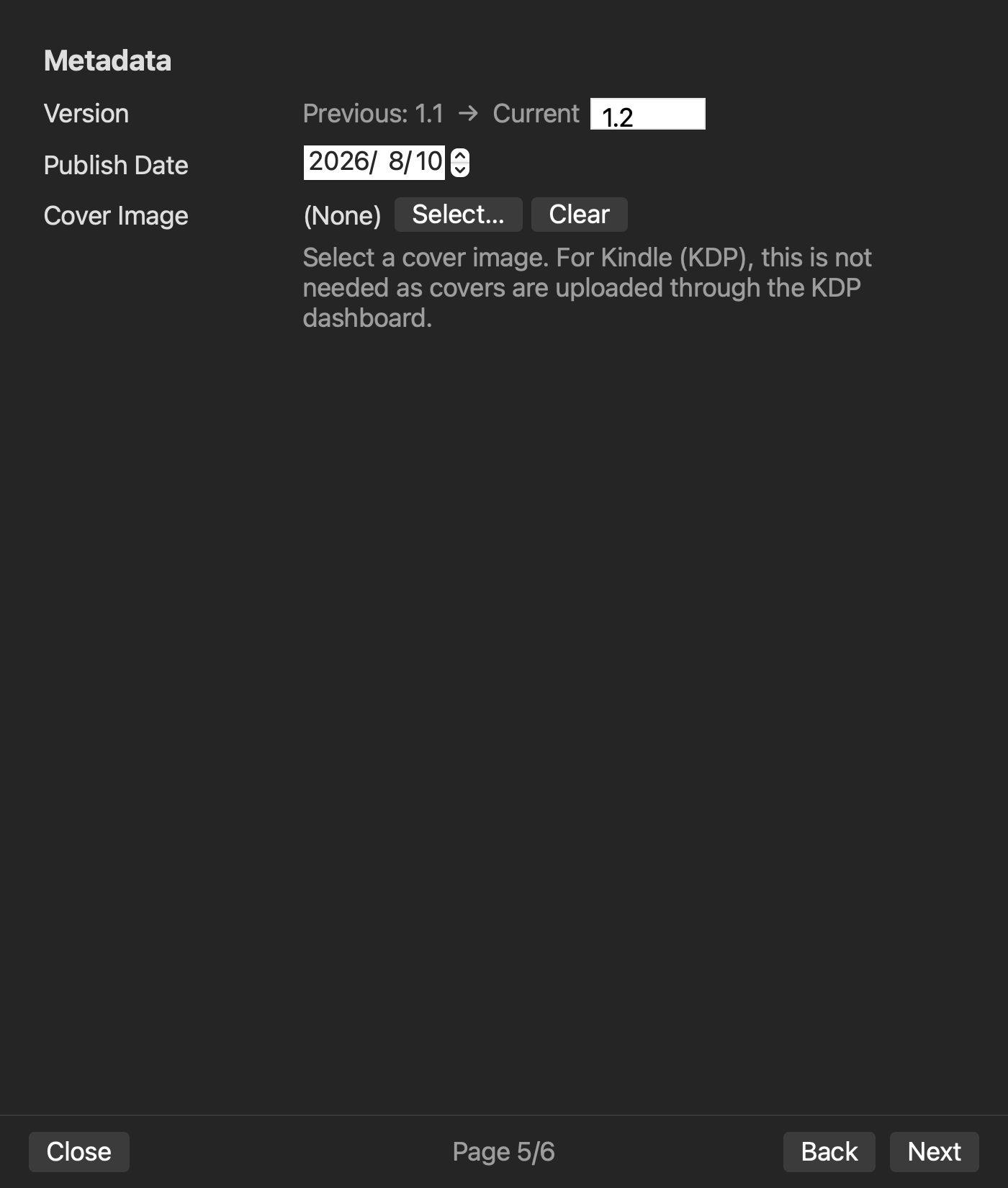
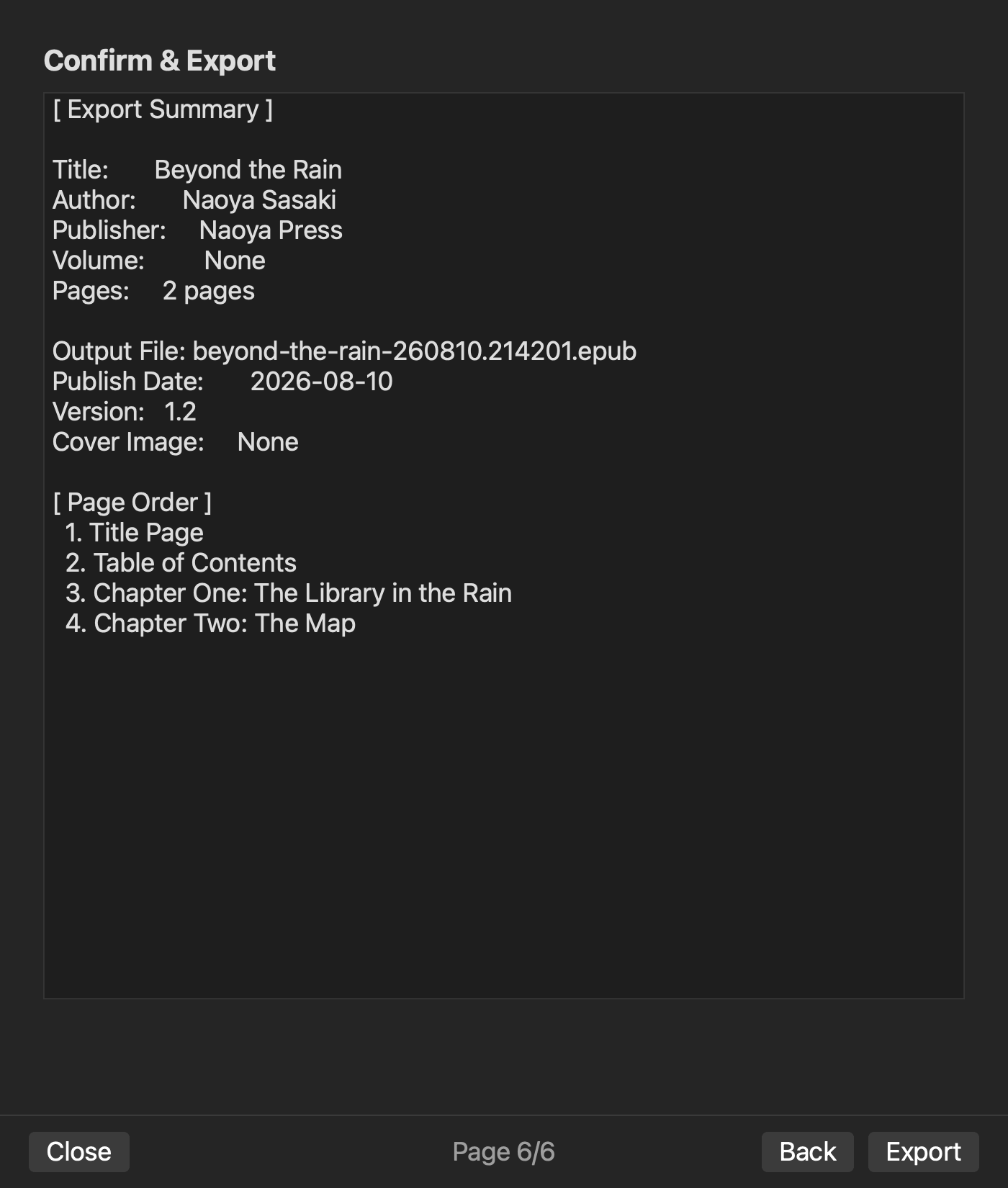
The six general production stages described earlier do not correspond one-to-one with these six wizard pages. The wizard does, however, separate the manuscript, order, navigation, metadata, and cover decisions that are easy to scatter across a project.
Generate an EPUB from two manuscripts
For the English-language export verification, we used a text-focused book without a cover image and entered the following conditions:
- Work title:
Beyond the Rain - Author:
Naoya Sasaki - Publisher:
Naoya Press - Manuscript language: English
- Writing layout: horizontal
- Included manuscripts: Chapter One and Chapter Two
Before export, the plan recognized two manuscript files and two body chapters. It arranged the title page, table of contents, Chapter One, and Chapter Two in that order. Export then produced a 5,159-byte EPUB in the workspace’s EPUB folder.
Rune Studio’s inspection process reported that the file contained reading-order information, a navigation document, and an NCX. Missing images, unprocessed markup, and empty pages were all reported as zero. The inspection result was valid: true.
Generate the internal structure of an EPUB 3 publication
Comparing the exported file with the export implementation showed that Rune Studio assembled the EPUB 3 container structure, XHTML body files, a navigation document, and a package document containing metadata, resources, and reading order. The output location was the EPUB folder inside the workspace.
It is important to keep two statements separate: EPUB 3 is an industry standard, while Rune Studio generates a publication using that structure. EPUB 3 is not a format unique to Rune Studio.
The verified test covered a short manuscript with no cover or body images and Rune Studio’s internal inspection. It did not include an external EPUBCheck run, retailer acceptance, or a guarantee of identical display across reading apps. For a book intended for sale, repeat the checks with the real cover and manuscript, then use an external checker and the target reading environments.
Who Rune Studio suits—and who may prefer another method
Rune Studio is a candidate for people who write novels or other long-form work on a Mac and want to manage manuscript editing, chapter order, navigation, publication metadata, and EPUB 3 export in one workspace. It is particularly relevant when moving between separate manuscript and EPUB-production files makes revision tracking difficult.
Another method may suit you better if your writing environment and EPUB workflow are already established, if you want to edit the EPUB’s internal files directly, or if your main requirement is fixed-layout publishing or another advanced production process.
This article covers the current Mac version only. It does not include the iPad functionality that is still in development.
“How to make an EPUB file” includes checking the result
The six-stage answer is:
- Decide the finished form, including reading direction and paragraph layout.
- Gather the manuscript, cover, and other images.
- Design the reading order and table of contents.
- Enter the title, author, language, and other publication information.
- Generate the EPUB with a production tool.
- Check it in a validation tool and reading app, then correct the source.
Your first goal does not have to be a final, sale-ready book. A short test manuscript is enough to run through all six stages and learn which decisions belong at each point.
The same principle applies when using Rune Studio. In our test, we generated a horizontal English EPUB from two manuscripts and inspected its internal reading order and navigation. A sale-ready decision would still require an external checker and the intended reading apps. Treating those checks as part of the production cycle makes the route from manuscript to complete book much easier to follow.
If you want to keep a long manuscript and its EPUB settings in one Mac workspace, see the supported features and system requirements on the Rune Studio product page.