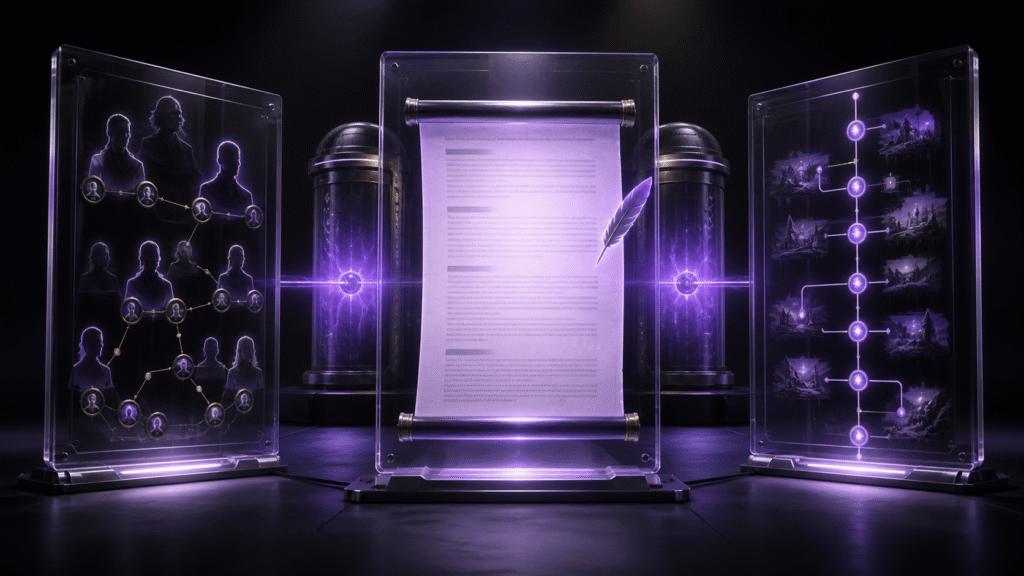
A three-pane Mac text editor is useful here for one specific job: edit one manuscript in the center while treating the character sheet on the left and the timeline on the right as evidence. This is not a draft-versus-revision comparison. It is a way to prevent a manuscript correction from being typed into a reference file and to make the same working position recoverable after a restart.
Opening three files is only the setup. The test is complete only when you can close the workspace, follow a short closeout record, and return to the same chapter, the same reference versions, and the same scene without guessing.
Give the panes three different responsibilities
Use one controlled set of files. For example, place chapter-C04-v07 in the center, characters-v03 on the left, and timeline-v05 on the right. The center file is the only editable chapter copy. The other two files answer different questions: what is true about the characters, and what happened before this scene.
Do not treat all three panes as equal manuscripts. If you notice a typo in the character sheet, record it for a separate maintenance task. Fixing it during the chapter session mixes two sources of truth and makes it harder to explain what this session changed.
A draft-versus-revision comparison belongs to STUDIO-012. Linking screenplay documents by scene identity belongs to STUDIO-329. This article stays with one active chapter and two reference roles.
Record roles before relying on file names
Files from one novel often have similar names and similar opening text. Add a visible role record before the session:
Center is EDIT, left is CHARACTER, and right is TIMELINE. Preserve the versioned names as well: chapter-C04-v07, characters-v03, and timeline-v05. A pane position alone is not enough if an older version can be opened under a familiar title.
Use a stable scene ID such as SC14 to align the material. Open SC14 in the chapter, check the relevant character constraints, and verify the immediately preceding event in the timeline. A line number can move after revision; a scene ID can continue to identify the same narrative point.
This does not mean Rune Studio synchronizes the content of those references. The writer remains responsible for confirming the scene ID and the version of every source.
Reject a layout that damages the writing pane
Three columns are not automatically better than two. Test the layout at the window size you normally use, not only with a maximized screen. Enter and reread a paragraph in the center. If the narrow measure causes you to lose your line or hides too little context, the layout fails as a drafting layout even if all panes are technically visible.
The two references do not need equal widths. You can widen the character sheet briefly and then restore it. What should not move is responsibility. The center remains editable; the side panes remain references.
Reject a saved layout if the active input is ambiguous, if typing begins while a reference has focus, or if the center is too narrow for the actual chapter work.
Use a closeout card as the next session’s entrance
Before closing, leave one concise record such as:
Edit=chapter-C04-v07; character=characters-v03; timeline=timeline-v05; scene=SC14; next=check the motivation before entering the harbor.
On the next session, use that card instead of memory. Open the three named versions, restore their roles, return to SC14, and confirm that only the center is editable. A five-minute target is useful, but zero wrong-file edits matters more than speed.
If recovery takes longer, identify the missing item. Was the saved layout name vague? Was a version omitted? Did the closeout card fail to name the next scene check? That diagnosis improves this particular recovery route without turning the article into a general project-organization guide.
The five-minute result is not yet verified product evidence. A dedicated Rune Studio workspace has opened three tabs and placed them in an h3 layout. Recovery within five minutes and zero wrong-file edits still require a separate run with the controlled chapter and references.
What Rune Studio can and cannot supply
Rune Studio has documented support for one to three columns, one to three rows, moving tabs between panes, and saving up to four layouts. Those capabilities make it a candidate for building this three-role desk.
They do not verify that a character sheet is authoritative, synchronize a timeline with a chapter, or guarantee that the correct versions reopen. The application supplies the placement tools. Version checks, scene identity, and the closeout record remain part of the editorial procedure.
Start with one copied chapter
Before opening an entire novel, use one copied chapter and two copied references. Change one sentence in the center, consult both side panes without editing them, leave the closeout card, and close the workspace. After restart, restore SC14 and confirm that the center contains the only saved edit.
Adopt the layout only if it keeps one editable source, preserves the two reference versions, leaves enough manuscript width, and returns without a wrong-file edit. The value of three panes is not the number of visible documents. It is a stable division of responsibility that survives the break between sessions.