
For a long novel, do not open the text editor and then ask which chapter you were editing. Define one observable change first, verify the project root, and open the manuscript, one reference, and a session note in the same order. A short session can then begin with writing rather than reconstruction.
This is not an initial environment-design guide and not a comparison of pane layouts. It turns one writing session into four repeatable phases: before opening, writing, verification, and closing. The result is a clear entry point for the next day.
Define one change before opening the app
Write the finish condition in one sentence. “Work on Chapter 8” is too broad. “Add 800 words to the station scene where the two characters separate” identifies the file, scene, and expected change.
Also state what will not change. If metadata, chapter order, and cover settings are outside this session, do not mix them into the same unit. Changing several sources of truth makes a later problem harder to trace.
Put the condition in a short session note inside the project root. Five lines are enough: date, target file, starting position, intended change, and excluded work. Store it at a location you can explain in Finder rather than relying only on application history.
Verify the project root in Finder
Locate the project root before starting the editor. Check the work title, volume, and source-of-truth marker so that an old version, export folder, or test copy is not opened accidentally.
Open that root as the workspace. If you use a recent-items list, still verify the displayed path. Writing into yesterday’s diagnostic copy is an ownership error, not a prose problem.
Existing rune Studio evidence created a folder-based workspace and identified a Finder-visible folder. The product feature list also describes a file tree. This evidence does not verify Finder usability, automatic synchronization, or backup, so keep those claims separate.
Open only manuscript, reference, and note
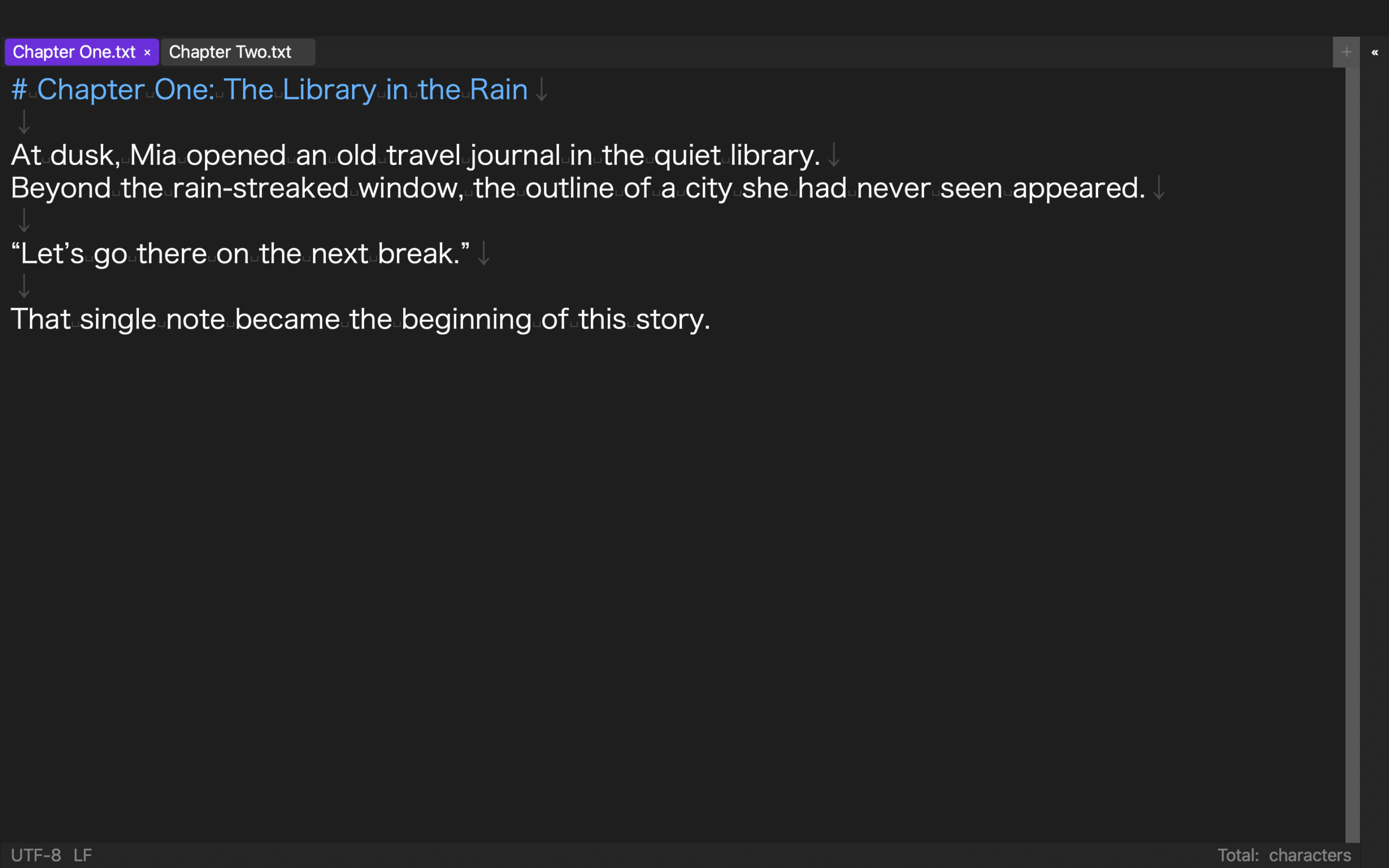
At the beginning of the session, open the target manuscript, the single reference required for the current decision, and the session note. If you are comparing dialogue with a character sheet, put those two sources together. If you are writing a transition, use the current scene and the previous chapter’s ending.
Do not redesign the layout every day. Reuse the previously chosen workspace arrangement and measure the time until writing begins. If finding a reference takes more than three minutes, add its filename and location to the session note so the next entry point improves.
In a dedicated STUDIO-059 CLI verification, three tabs, an h3 layout, ratios of 0.52/0.48/0.50, heading linkage, and linked states true/true/false were written. Raw values matched after close/open, and inspect, tab, and layout commands exited with code 0. That verifies saved configuration values and reload only. It does not verify GUI tab movement, actual scroll restoration, or linkage precision.
Complete one 25-minute change unit
Set a 25-minute timer and edit only material required by the finish condition. If research appears, put a “verification needed” line in the note instead of disappearing into a long search. Mark any placeholder clearly so it cannot be mistaken for finished prose.
When you discover a problem in another chapter, record the filename, a search term, and the decision required. Do not automatically edit that chapter. Keeping one change unit lets you describe exactly what the save should contain.
If the unit does not fit in 25 minutes, reduce the endpoint. Change “complete the scene” to “reach the line where the character announces the departure.” A smaller observable handoff is more useful than extending the session without leaving a restart point.
Save, search again, and close with a handoff
Choose one distinctive phrase that you changed and search for it. Confirm that it appears where intended and, when applicable, that the obsolete phrase no longer remains. Save manually and search the same phrase again. Do not assume automatic saving unless that behavior has been verified in your candidate.
Update the session note with the changed file, last completed beat, unresolved markers, the first action for next time, and the areas deliberately untouched. Mark the original condition complete, partial, or on hold.
Close the manuscript and, for an important session, reopen the workspace once. Follow the note to the target file and search for the saved phrase. Including recovery in the session avoids learning about a missing save only on the next day.
An existing large-file operation searched a manuscript, replaced one occurrence, saved manually, and searched again successfully. It supports that bounded tested sequence, not a universal claim of automatic save behavior.
Measure next-day resume time
On the next day, verify the project root in Finder, open the workspace, and perform the note’s first action. Measure the time from launch to the first manuscript edit.
If it takes more than five minutes, classify the delay as source location, target chapter, reference material, layout, or unresolved decision. Fix only the largest cause before the next session. Changing every part at once hides which improvement reduced resume time.
Open the workspace from the handoff
Before opening a Mac text editor, define one change, verify the source of truth, and limit the session to manuscript, reference, and note. Work one 25-minute unit, save, search again, and leave a first action for the next session.
When you measure recovery as well as writing, the workspace becomes more than a collection of files. It becomes a reliable handoff from yesterday’s stopping point to today’s first character.